Maintenance Mode in RCOM Gateway
Maintenance Mode in RCOM Gateway provides controlled system isolation during upgrades, configuration changes, migrations, or emergency fixes without forcing a complete service blackout.
Unlike traditional maintenance modes that block all access and activity, RCOM Gateway supports Selective Access–Based Maintenance Mode. This allows administrators to restrict user access while optionally keeping core event processing active, enabling final validations and controlled operations during maintenance windows.
What Maintenance Mode Does
When Maintenance Mode is enabled:
- Login access is blocked for all users except explicitly allowed roles and groups
- A system-wide maintenance banner is displayed in the UI
- Gateway behavior can be precisely controlled:
- Either continue processing events
- Or fully suspend all event processing and automation
This approach ensures operational safety without sacrificing observability or controlled access.
Key Capabilities
Selective User Access
You can allow specific users to continue accessing the Gateway while maintenance mode is active. Access is granted only to users who belong to both:
- A selected Maintenance Bypass Role
- A selected Maintenance Bypass Access Group
All other users are prevented from logging in.
Controlled Event Processing
Maintenance Mode allows explicit control over gateway operations:
-
Event Processor Enabled
- Core event ingestion and workflows continue running
- Useful for validating fixes, monitoring live data, or controlled testing
-
Event Processor Disabled
- All real-time processing and automated workflows are stopped
- Gateway operates in a fully paused state
This ensures maintenance actions do not unintentionally trigger workflows or external integrations.
System-Wide Maintenance Messaging
A configurable maintenance message is displayed:
- On the login screen
- In the gateway header for logged-in bypass users
This clearly communicates the system state and prevents user confusion.
Enabling Maintenance Mode
Before enabling Maintenance Mode, ensure:
- Maintenance Mode is enabled for the gateway instance
- Your user account has sufficient permissions to manage client settings
Configuration Steps
- Navigate to:
Settings → Client Settings → Maintenance Mode
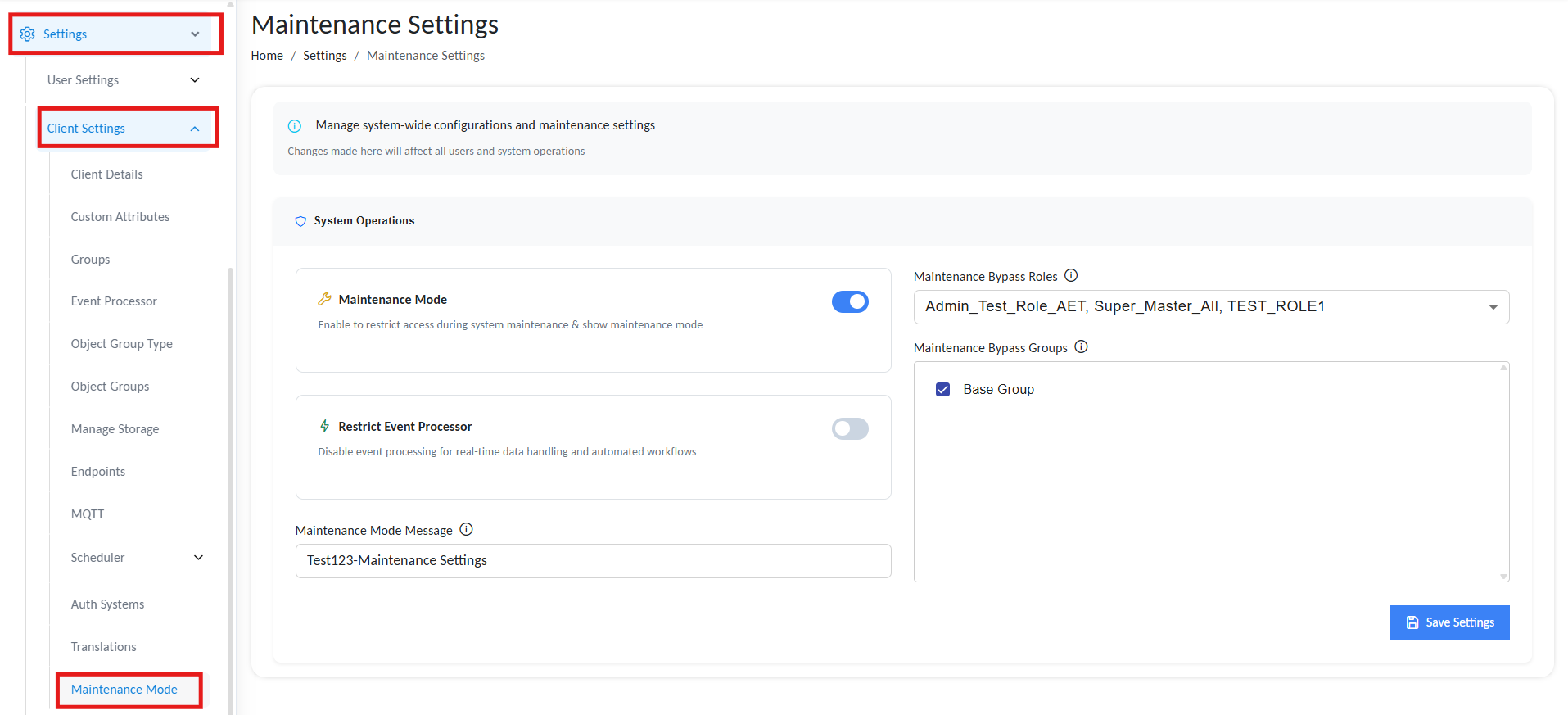
Enable Maintenance Mode
-
Configure the following options:
- Maintenance Mode: Enable this toggle to activate maintenance mode gateway-wide.
- Restrict Event Processor:
- Enabled: Event processing and workflows are stopped
- Disabled: Event processing continues normally
- Maintenance Mode Message: Custom message shown to users during maintenance.
- Maintenance Bypass Roles: Roles allowed to access the gateway during maintenance.
- Maintenance Bypass Groups: Access groups allowed during maintenance.
- Maintenance Mode: Enable this toggle to activate maintenance mode gateway-wide.
A user must belong to both a selected role and group to gain access.
Enabling maintenance mode on one client activates it for all clients in the same RCOM Gateway instance
- Save the configuration.
Behavior After Activation
- Maintenance Mode remains active until it is manually disabled
- Only bypass-authorized users can log in
- All other login attempts are blocked
- Gateway behavior strictly follows the selected event processor setting
There is no automatic timeout or rollback. This is intentional, maintenance mode is an explicit operational state and must be exited deliberately.
When to Use Maintenance Mode
- Platform upgrades or configuration changes
- Workflow or integration refactoring
- Emergency patches or hotfixes
- Data migrations or schema changes
- Controlled validation in production environments