Manage Gateway Licensing
The Licence page shows the licence applied to the Gateway, its current validity, and the actions used to renew or activate it. Use this page when a new Gateway must be licensed, a licence is approaching expiry, an existing licence must be replaced, or licence information is required for support.
Navigate to Administration > Licence.
Licence Overview
The status card at the top of the page shows the current licence state, its expiry date where applicable, and the time remaining. Check this card before and after installing a licence to confirm the Gateway is in the expected state.
The page also provides these actions:
| Action | Use it to |
|---|---|
| Refresh | Refresh the displayed licence information. |
| Copy System ID | Copy the Gateway system identifier required when requesting a licence. |
| Download Request | Download the activation request to send to the licensing provider. |
| Export Audit Log | Download the licence audit record. |
| Install licence | Install a received licence file or pasted licence text. |
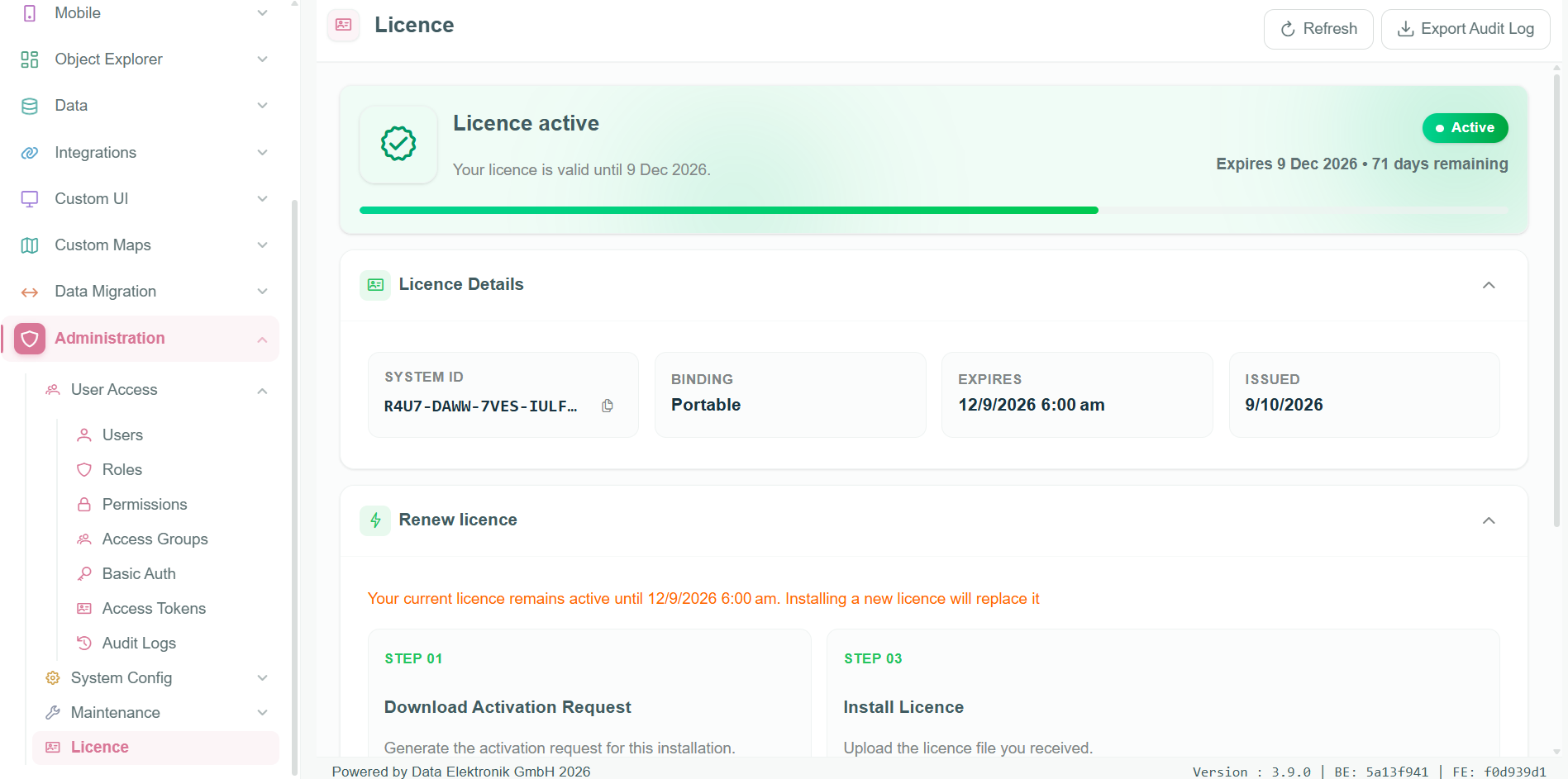
The Licence page showing the active state, expiry information, Licence Details, and Renew licence section.
Licence Details
Expand Licence Details to review the information associated with the currently applied licence. The section shows the System ID, Binding, Expires, and Issued values. Keep the System ID and activation request with the Gateway deployment records; the licensing provider uses the activation request to prepare a licence for that Gateway.
Licence States
The status card explains whether the Gateway has an active licence and whether product features remain available. Use the guidance in the card before performing an update or relying on the Gateway for production work.
| Status | Title | Tag | Meaning | Recommended action |
|---|---|---|---|---|
Licensed | Licence active | Active | The licence is active and valid. | No action is required. |
Warning | Licence expiring soon | Expires soon | The licence will expire in the displayed number of days. | Renew the licence before it expires to avoid interrupted access. |
Grace | Licence expired | Grace period | The licence has expired, but the system remains available for the displayed number of days. | Renew the licence to prevent Gateway features from being suspended. |
Enforced | Licence expired | Features suspended | The licence has expired and Gateway features are suspended. | Renew the licence to restore Gateway functionality. |
Degraded | Licence expired | Continued access | The licence has expired, but the system remains operational under the partner agreement. | Contact the partner or administrator to confirm the licence status. |
BindingUnverified | Licence needs attention | Invalid licence | The uploaded licence file could not be verified for this system. | Upload a valid licence file issued for this system. |
EvaluationGrace | Licence required soon | Temporary access | The system remains fully operational while licensing is being introduced. After the next software update, the system will not operate without a valid licence. | Upload a valid licence before the next software update. |
Unlicensed | Licence required | No active licence | No valid licence has been uploaded for this installation. Product features are unavailable. | Upload a valid licence file to activate the product. |
Renew or Install a Licence
Use Renew licence to request and install a replacement or new licence. When a licence is already active, the page warns that installing a new licence replaces the existing one.
- Under Download Activation Request, select Download Request to generate the activation request for this installation.
- Send the activation request to the licensing provider and receive the licence file in return.
- Under Install Licence, drop the received
.jsonlicence file into the upload area or select browse files to choose it. - Alternatively, select Paste licence text instead and paste the licence text.
- Select Install licence.
- Select Refresh and confirm the expected licence state, expiry date, and remaining time.
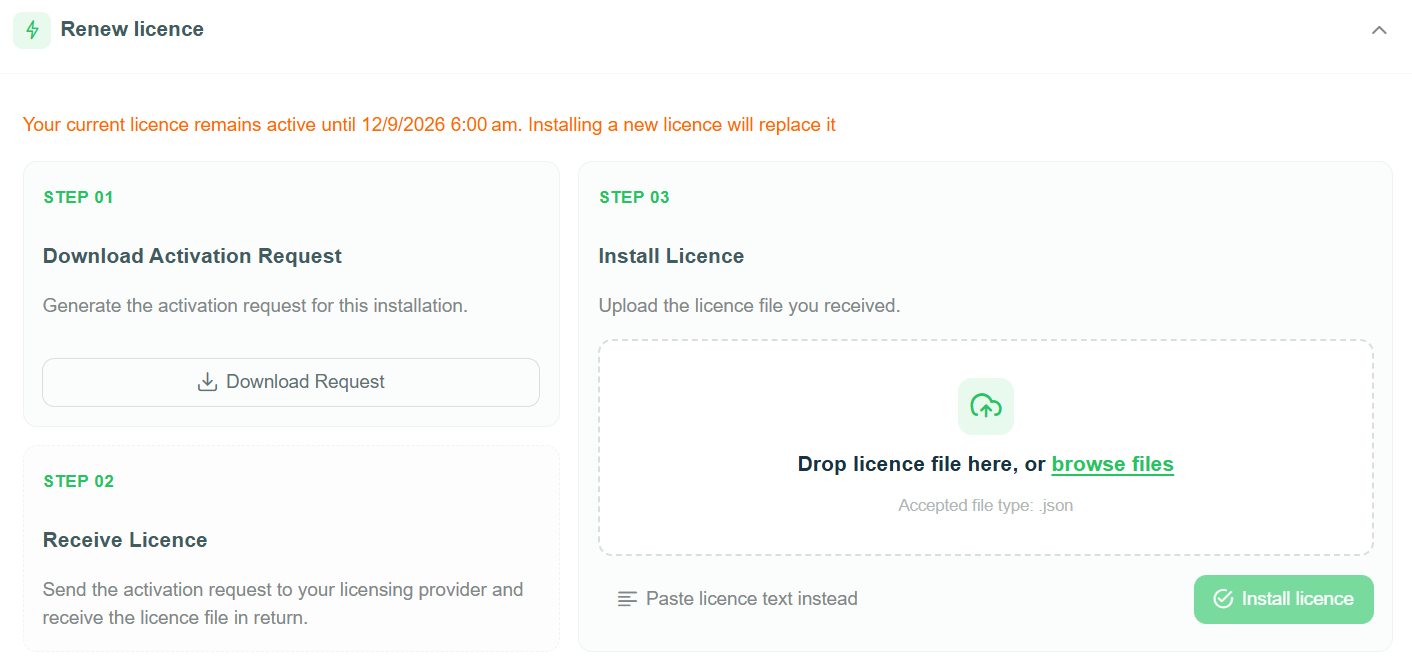
Download the activation request, receive the licence from the licensing provider, and upload or paste the replacement licence.
Installing a licence replaces the licence currently applied to the Gateway. Confirm that the received file is issued for the displayed System ID before installing it.
Operational Notes
- Treat licence files and licence text as deployment material. Keep them with the Gateway records and do not change their contents.
- Use Export Audit Log when licence changes need to be retained for review or support.
- If the licence does not show the expected state after installation, retain the activation request and licence details for product support.