Users
A user represents an authenticated individual typically an operator, engineer, or administrator with access credentials and a permission model.
Each user must have:
- A unique login (email)
- A password
- At least one assigned Role (Which defines what operations they can perform).
- One or more Access Groups (Sections of the gateway the user is allowed to access/perform allowed operations).
Creating a User
To create a new user:
-
Go to Administration > User Access > Users.
-
Select Create User.
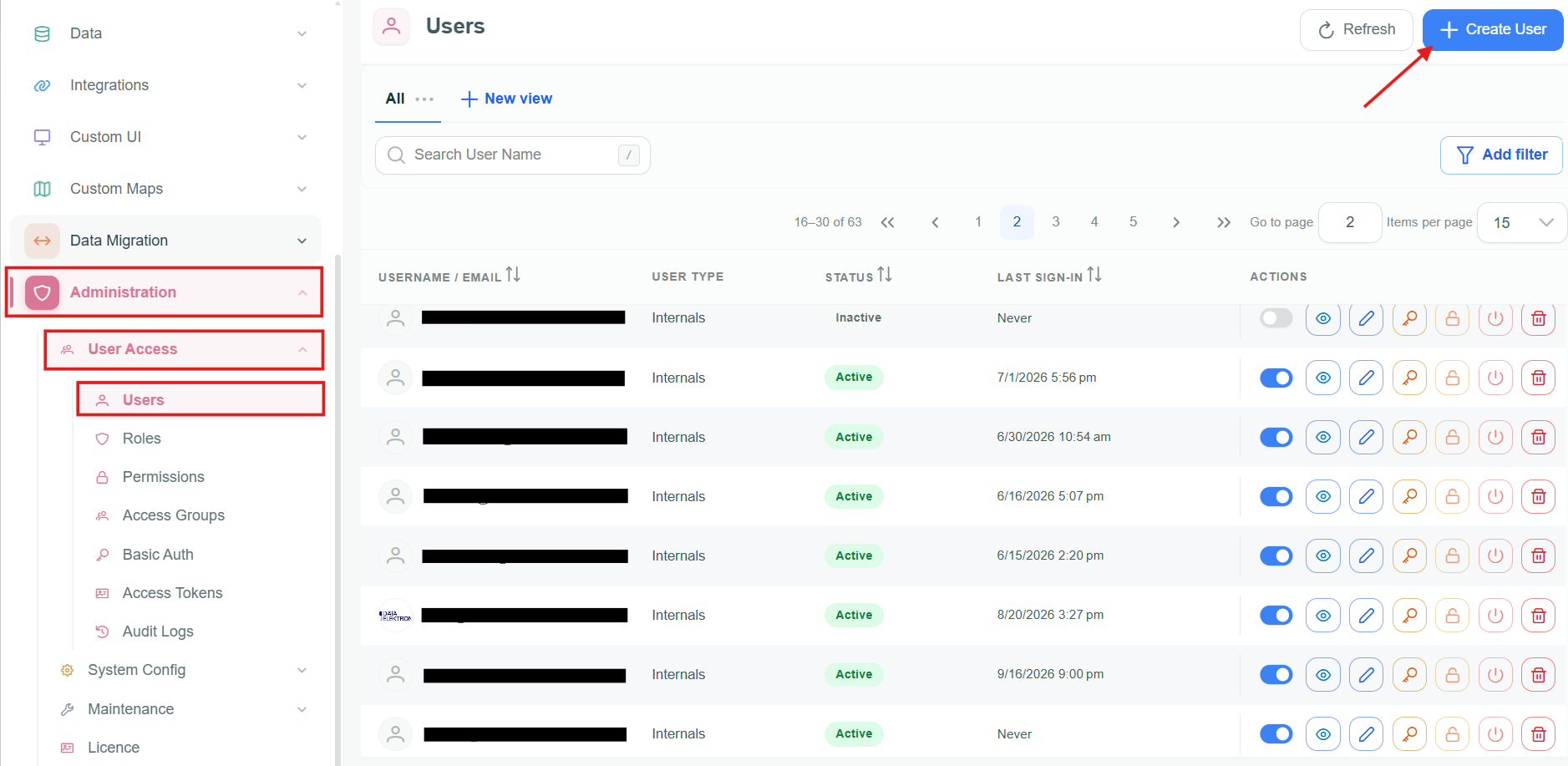
Manage users
- Fill in the following fields:
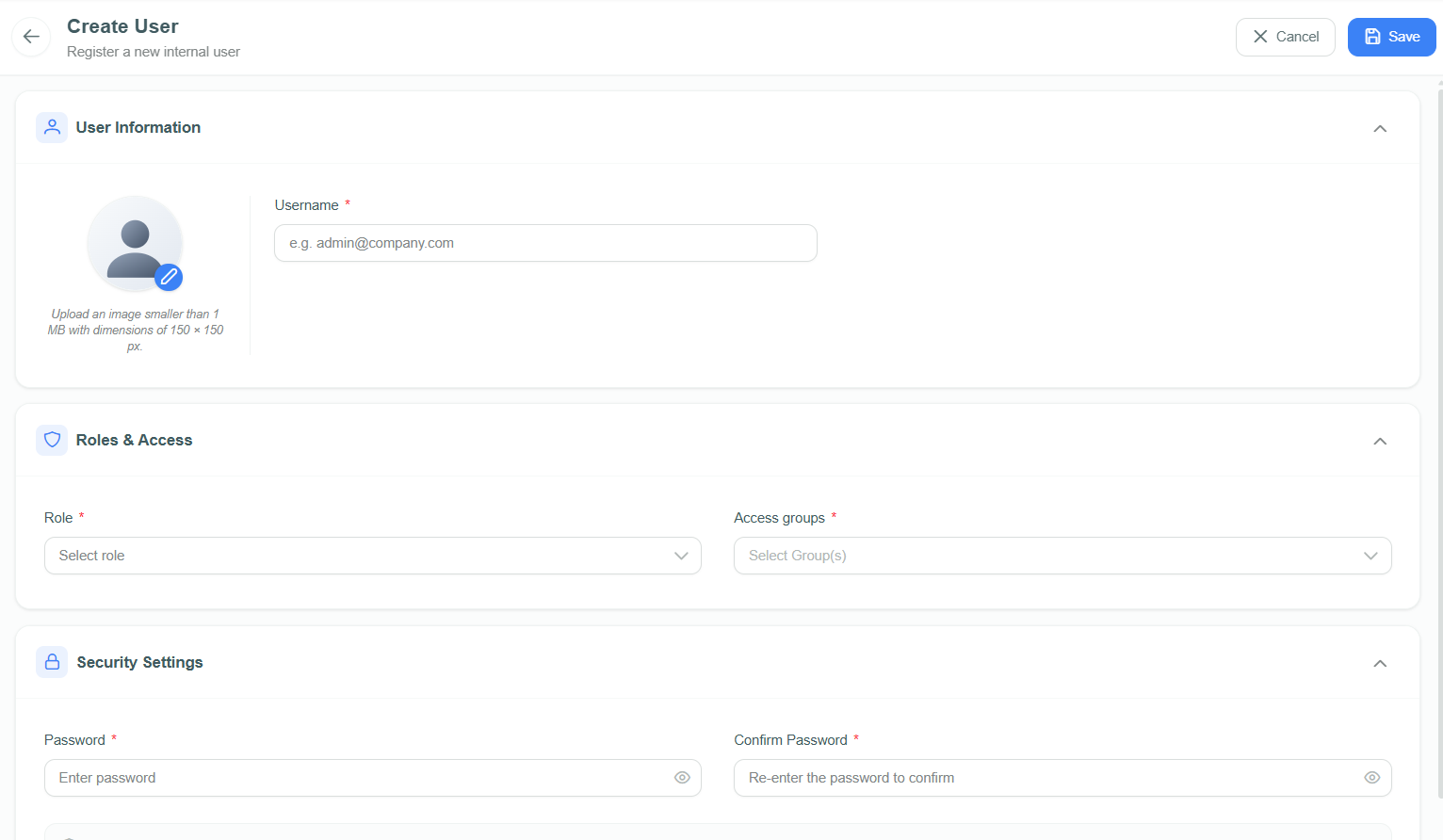
Configure users
| Field | Description |
|---|---|
| Username | The login credential. Must be a unique email. Used for authentication. |
| Password | Choose a password that meets the password requirements and confirm it before saving. |
| Role | Select a predefined Role. |
| Access groups | Select one or more groups defining what the user can view or interact with. |
| Profile image | Optional square image. The UI recommends 150 × 150 px. |
By default, The Password Requirements panel requires a password with 8–16 characters, including an uppercase letter, a lowercase letter, a number, and a special character. This can be changed from client settings.
Email must be valid and unique across the system. Duplicates are not allowed.
- Click on Save to register the users.
Once saved, the user appears in the user list, and their permissions take immediate effect.
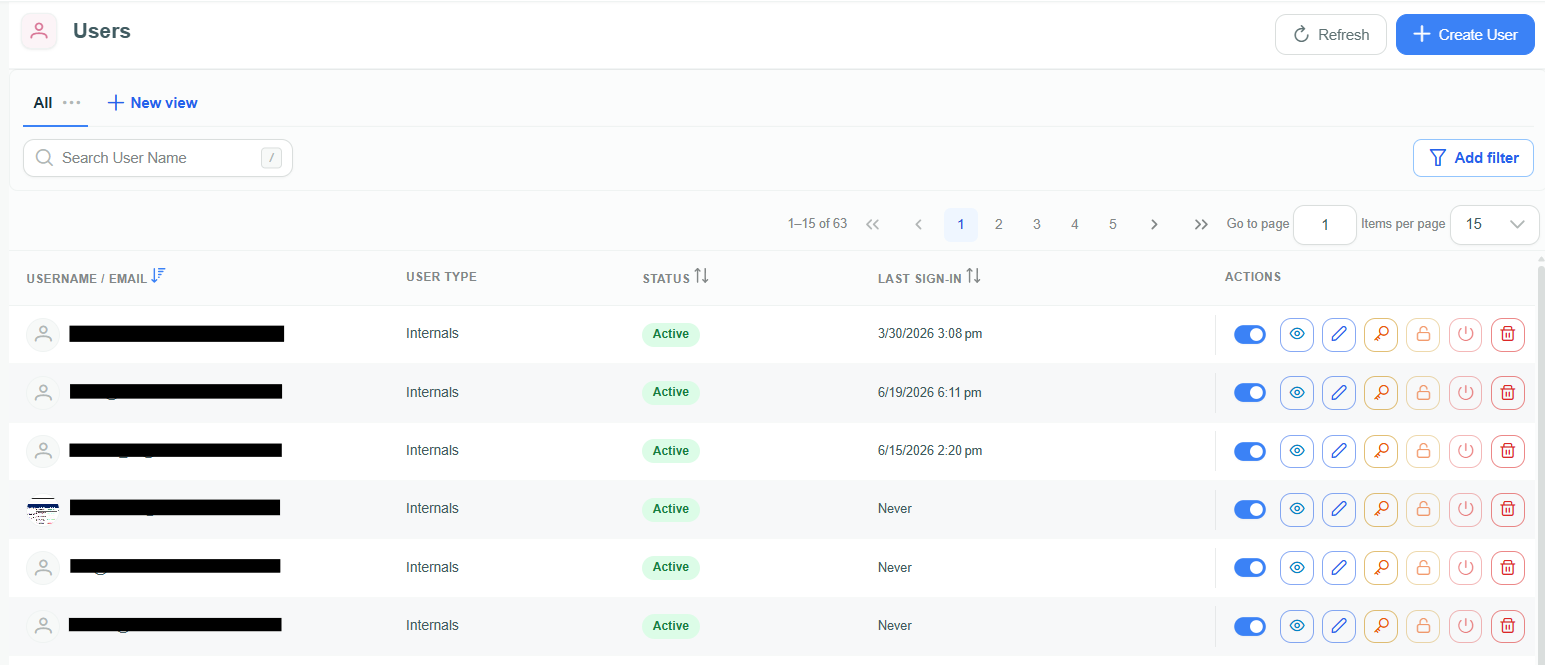
List of active users
User List Details
The user management list displays comprehensive information about each user, allowing administrators to monitor and manage user access effectively.
Each user entry includes:
| Column | Description |
|---|---|
| Username / Email | The unique login email credential used for authentication. |
| User Type | The user classification shown by the Gateway, such as Internals. |
| Status | The current state of the user account. It determines whether actions such as unlock or force logout apply. |
| Last Sign-in | Timestamp of the user's most recent sign-in. |
| Actions | Quick-access menu with administrative options (see below). |
Available Actions
The Actions column provides quick options for user management:
- View user – Open the user's details without editing them.
- Edit user – Modify user details, roles, groups, or profile information.
- Reset password for user – Open the password-reset action for the user.
- Unlock user – Unlock a user account when it is locked.
- Force logout – Immediately terminate the user's active sessions across the system.
- Delete user – Permanently remove the user account and its access assignments.
The Unlock user and Force logout actions are disabled when they do not apply. Hover over a disabled action to see the reason.
Important: Deleting a user cannot be undone. Use Force logout only when you need to end active sessions immediately.