Users
A user represents an authenticated individual typically an operator, engineer, or administrator with access credentials and a permission model.
Each user must have:
- A unique login (email)
- A password
- At least one assigned Role (Which defines what operations they can perform).
- One or more Access Groups (Sections of the gateway the user is allowed to access/perform allowed operations).
Creating a User
To create a new user:
-
Go to Settings > User Settings > Manage Users
-
Click + Create New User
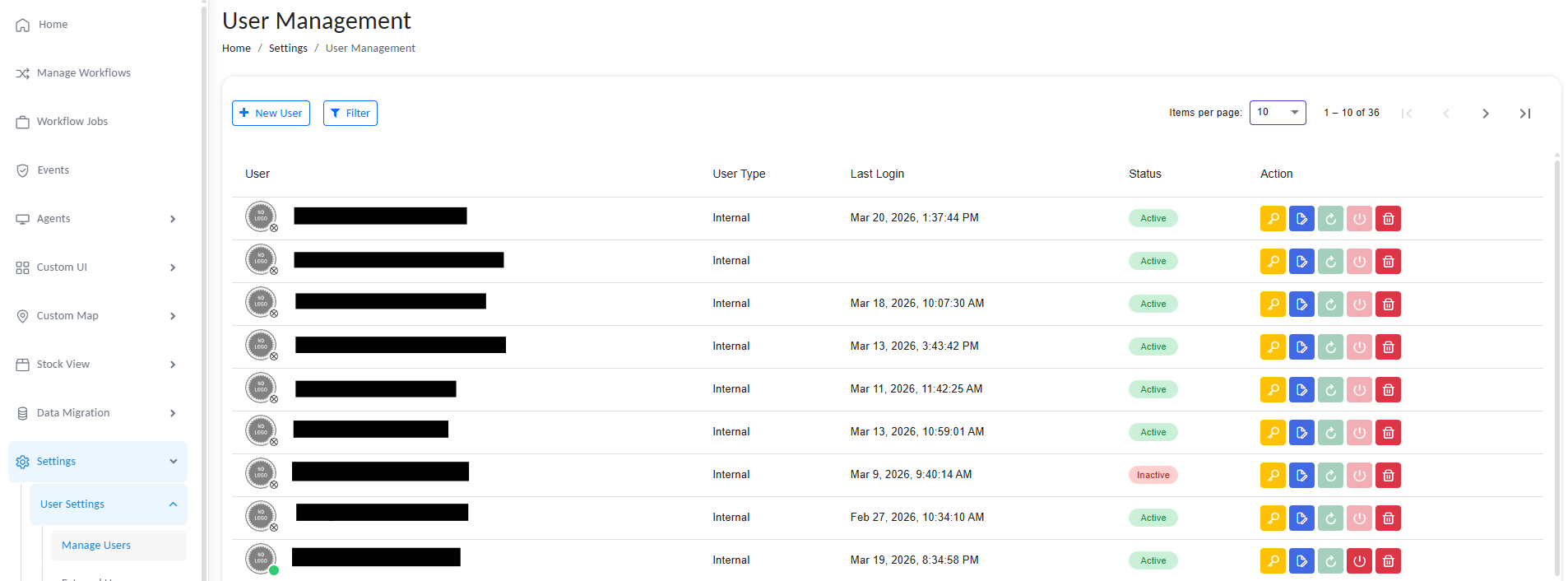
Manage users
- Fill in the following fields:
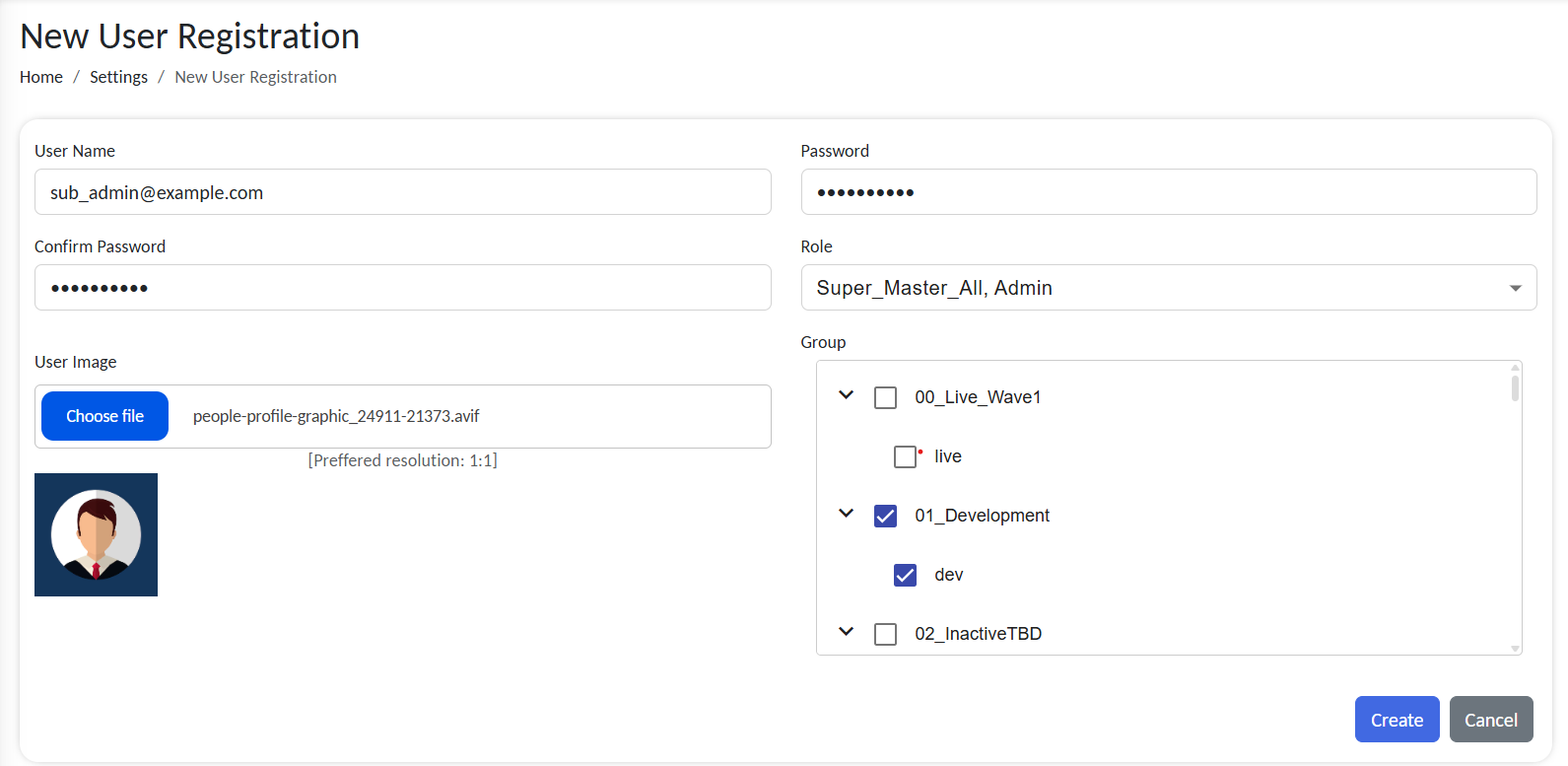
Configure users
| Field | Description |
|---|---|
| User Name | The login credential. Must be a unique email. Used for authentication. |
| Password | Choose a strong password for security. Confirm before saving. |
| Role | Select a predefined Role. |
| Group | Select one or more groups defining what the user can view/interact with. |
| User Image | Optional. Used for personalization and user identification in UI. |
Email must be valid and unique across the system. Duplicates are not allowed.
- Click on Save to register the users.
Once saved, the user appears in the user list, and their permissions take immediate effect.
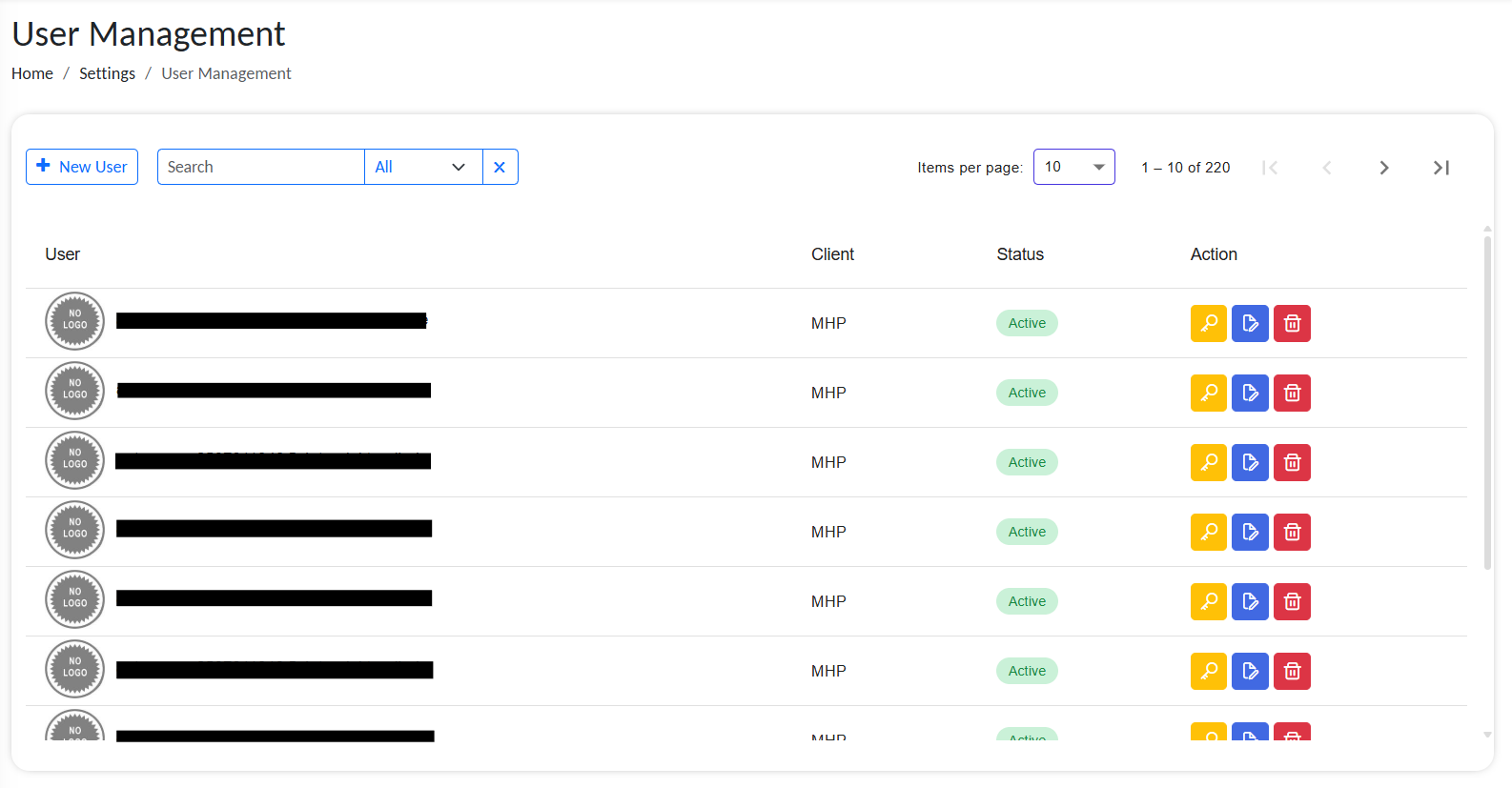
List of active users
User List Details
The user management list displays comprehensive information about each user, allowing administrators to monitor and manage user access effectively.
Each user entry includes:
| Column | Description |
|---|---|
| Profile Picture | User's avatar or profile image. A green dot indicator in the corner shows if the user is currently online. |
| Username | The unique login email credential used for authentication. |
| User Type | The classification of the user (e.g., Admin, Operator, Viewer). Indicates the role category. |
| Last Login Time | Timestamp of the user's most recent login session. Helps administrators track active vs. inactive users. |
| Status | Current state of the user account (Active, Inactive, Locked, etc.). Indicates whether the account is enabled. |
| Actions | Quick-access menu with administrative options (see below). |
Available Actions
The Actions column provides quick options for user management:
- Reset Password – Generate a temporary password and send it to the user's email.
- Edit User – Modify user details, roles, groups, or profile information.
- Force Logout – Immediately terminate the user's active sessions across the system.
- Delete User – Permanently remove the user account and all associated permissions.
Important: Force logout and delete operations cannot be undone. Use caution when performing these actions on active accounts.