Access Groups
Access Groups control where users can apply their permissions or what parts of the system a user can access. They determine what UIs, maps, and data sets are visible or accessible to a user.
Example:
If a user is assigned the “Viewer” role and linked to the Warehouse A Access Group:
- They can view (but not modify) workflows
- Only maps, UIs, and data tagged under Warehouse A will be visible
Access Groups act as logical containers for scoping user access.
Creating Access Groups & Subgroups
To manage Access Groups:
- Go to Settings > Clients > Groups
- Click + Create Group
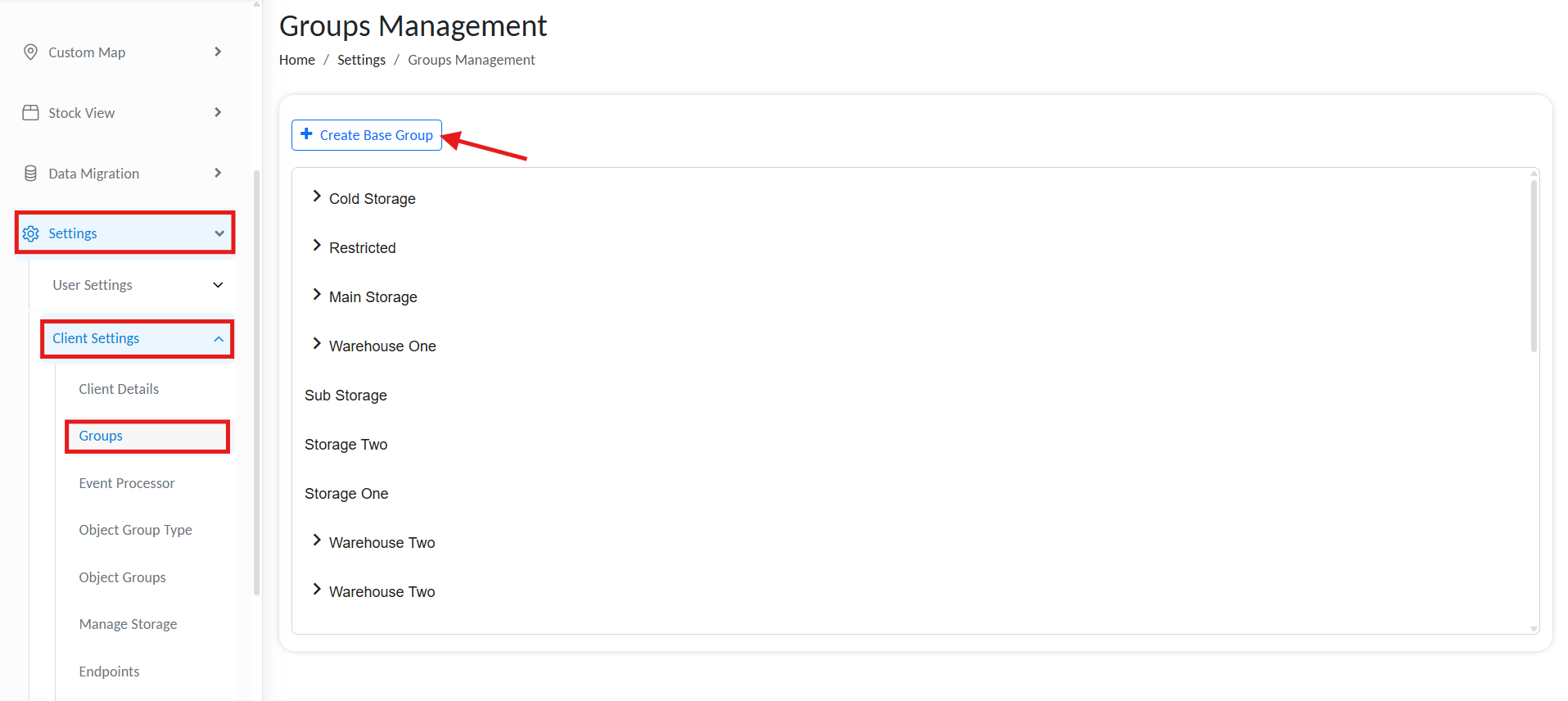
Manage Access Groups
- Specify a Group Name
- Click Create.
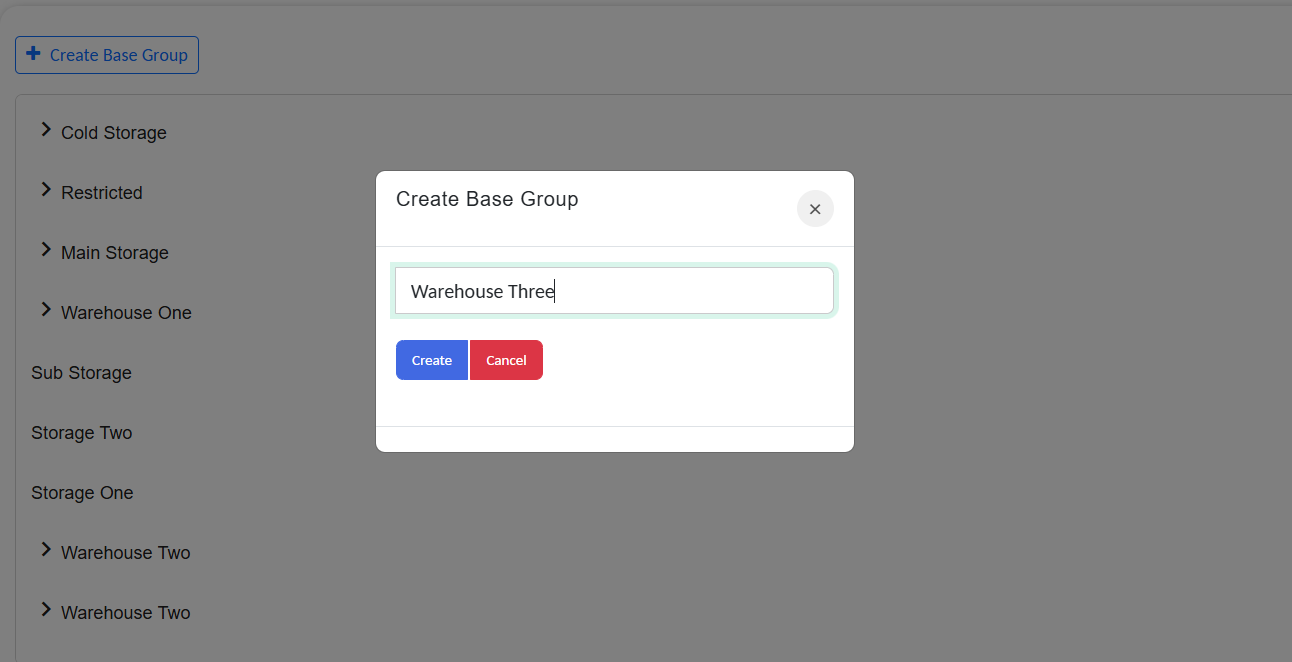
Manage Access Groups
To nest a group under a parent, click the inline + icon. This structure simplifies permission management, as permissions and access granted to the parent group automatically apply to all child groups.
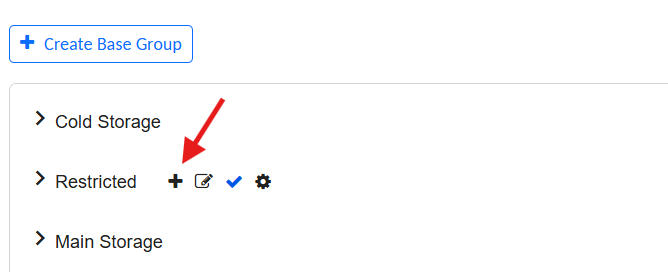
Manage Access Sub Groups
Example:
Logistics
├── Warehouse A
└── Cold Storage
Variable Management in Groups
Access Groups also support shared global variables that can be consumed across tagged modules.
➕ Adding Group-Level Variables
- Go to Settings > Clients > Groups
- Locate the desired group
- Click the gear icon ⚙️ next to the group name
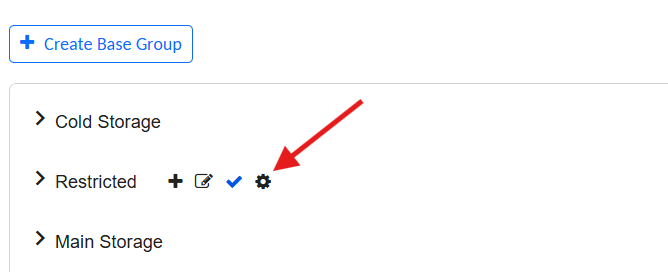
Add global variables for accesss groups
- Click + Add New Variable
- Provide the following:
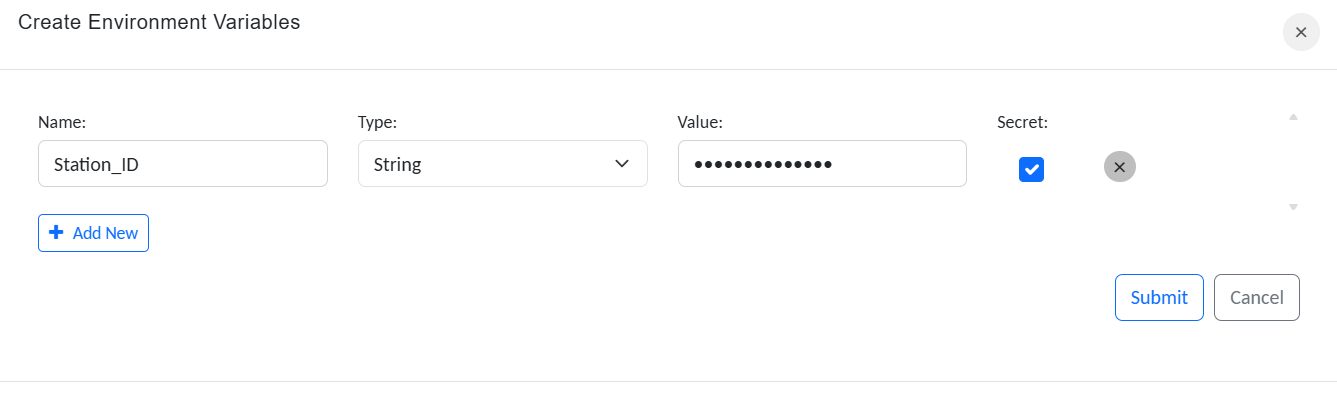
Create variables for accesss groups
| Field | Description |
|---|---|
| Name | Identifier (used in expressions/scripts) |
| Type | Data type (String, Int, Boolean, etc.) |
| Value | Default or current value |
- Click Submit
These variables are automatically scoped. Only Tagged modules (Map or interfaces) within the group can reference them.