Roles and Permissions
A Role defines what a user is allowed to do within the system. Permissions are granted at the module level, such as Workflows, Endpoints, Access Groups, etc. and are action-specific (Create, Read, Update, Delete).
For example, a role might allow users to:
- Read and execute workflows, but do not edit them.
- Manage endpoint configurations, but can't delete any.
- View logs without deleting data
Creating Roles
To define a new role:
- Go to Administration > User Access > Roles.
- Select Create Role.
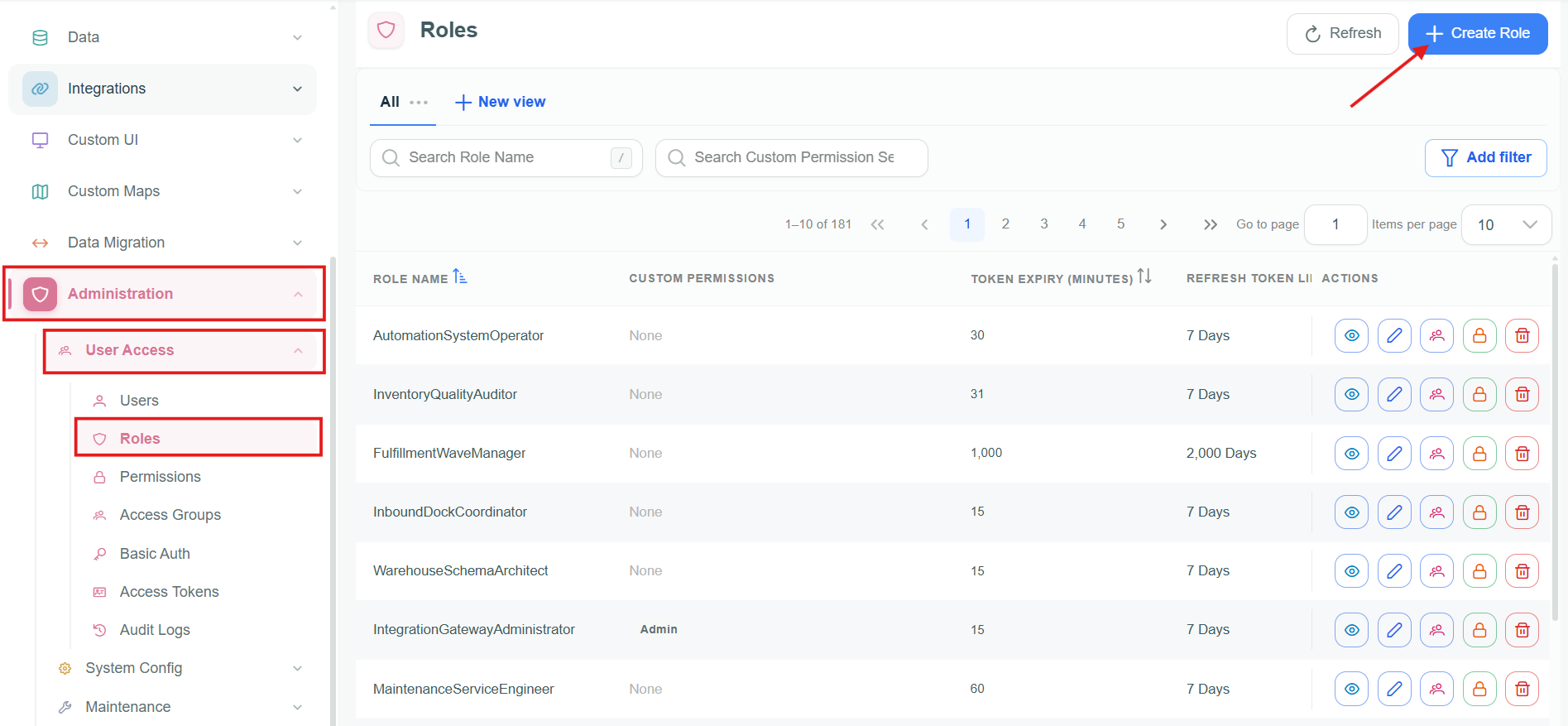
Manage user roles
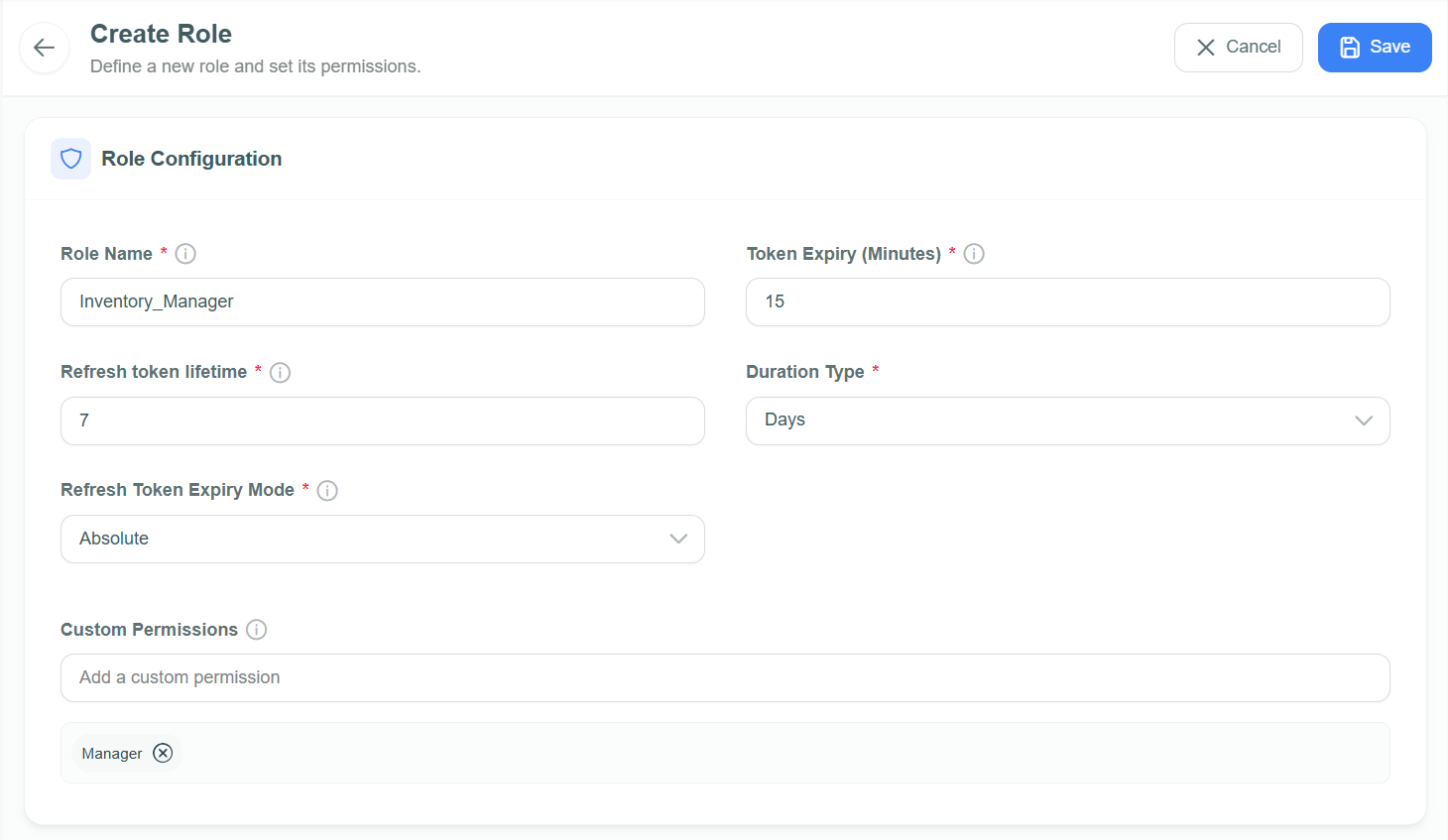
Add new role
- Role Name: A unique system role name (e.g.,
Inventory_Manager,Line_Supervisor) - Under Custom Permissions, use Add a custom permission to enter one permission value at a time, such as
MANAGER. Repeat this for each required value; do not enter a comma-separated list.
Custom Permissions provide an additional layer of access control for custom UI implementations. They allow you to restrict specific actions or UI components so that only users with the required permission can access them.
Custom permissions are assigned to roles in the system and can then be evaluated within custom UI logic. By checking whether the current user has a particular permission, the UI can dynamically control which components or actions are available.
Example
You have a custom UI assigned to two roles:
- Floor Manager
- Inventory Manager
You create a Custom Permission such as MANAGER and assign it only to the Inventory Manager role.
Within the custom UI, permission checks are performed for specific actions such as managing inventory data. Components such as inventory tables or management buttons are displayed only if the logged-in user has the required permission.
As a result, both roles can access the same overall UI, but only users with the Inventory Manager role (who have the MANAGER permission) can view and interact with the inventory-related controls.
You can assign Custom Permissions to specific HTML components. Only roles with the assigned Custom Permission will have access to these components.
-
Token Expiry: Duration in minutes that an access token remains valid. After expiry, the client must obtain a new token, usually via a refresh token. Use shorter expiry times for access tokens.
-
Refresh token lifetime: The period for which a refresh token remains valid.
-
Duration Type: Unit used for the refresh-token lifetime, such as days.
-
Refresh Token Expiry Mode: Select Absolute for a fixed expiry or Sliding to extend expiry while the user remains active.
-
Select Save. The new role appears in the Roles list.
Manage Roles
Use the actions on a role row to review its configuration, the users assigned to it, and its module permissions:
| Action | Purpose |
|---|---|
| View role | Open the role details. |
| Edit role | Change the role configuration, including token settings and custom permissions. |
| View users | Open the Role Management page to review the users assigned to the role. |
| Manage role permissions | Open the permission management for the role. |
| Delete role | Remove the role. |
Session Timeout Configuration Overview
The system uses two tokens:
1. Access Token
Used for accessing the application APIs.
- Short lifetime (e.g. 10 minutes)
- Limits the impact if a token is compromised
- Automatically renewed using the Refresh Token
2. Refresh Token
Used to obtain a new Access Token without requiring the user to log in again.
- Longer lifetime
- Controls how long a user can stay logged in
Expiry Modes
Absolute Expiry
The Refresh Token expires at a fixed point in time, regardless of user activity.
Example Configuration:
- Access Token: 10 minutes
- Refresh Token: 15 days
- Mode: Absolute
Timeline:
Day 0    User logs in
Day 5    User active
Day 10   User active
Day 15   Refresh token expires
Result:
- User can work normally for up to 15 days.
- After Day 15, a new login is required.
- Activity does not extend the session.
Best for:
- High-security environments
- Compliance requirements
- Banking and government systems
Sliding Expiry
The Refresh Token expiry is extended whenever the user remains active.
Example Configuration:
- Access Token: 10 minutes
- Refresh Token: 15 days
- Mode: Sliding
Timeline:
Day 0    Login
Day 10   User active → expiry moves to Day 25
Day 20   User active → expiry moves to Day 35
Day 30   User active → expiry moves to Day 45
Result:
- Active users stay logged in.
- Inactive users are logged out after the configured inactivity period.
Best for:
- SaaS applications
- Enterprise software
- Daily-use business applications
Common Configurations
| Use Case | Access Token | Refresh Token | Mode |
|---|---|---|---|
| Banking | 5-10 min | 30-60 min | Absolute |
| Enterprise Portal | 10-30 min | 1-7 days | Absolute |
| SaaS Platform | 10-30 min | 7-30 days | Sliding |
| Internal Business Application | 10-30 min | 15-30 days | Sliding |
| Shared/Kiosk Environment | 5-15 min | 15-60 min | Absolute |
Example with 15-Minute Refresh Token
Configuration:
- Access Token: 10 minutes
- Refresh Token: 15 minutes
- Mode: Sliding
Active User
10:00 Login
10:10 Token refresh → expiry moves to 10:25
10:20 Token refresh → expiry moves to 10:35
10:30 Token refresh → expiry moves to 10:45
User remains logged in.
Inactive User
10:00 Login
10:10 Access token expires
10:15 Refresh token expires
10:20 User returns
Result:
- User must log in again.
Effectively, this configuration means:
"Log the user out after 15 minutes of inactivity."
Simple Rule
Absolute Mode
"Force re-login after X time, regardless of activity."
Sliding Mode
"Force re-login only after X time of inactivity."
If multiple roles are assigned to a user, the token settings from all roles are evaluated. For token expiry and refresh token lifetime, the shortest configured value is applied. If any assigned role uses Absolute expiry mode, the user will also use Absolute mode.
Example:
Role One:
- Token expiry = 5
- Refresh token lifetime = 50
- Expiry mode = Sliding
Role Two:
- Token expiry = 20
- Refresh token lifetime = 20
- Expiry mode = Absolute
If a user is assigned both Role One and Role Two, the resulting configuration will be:
- Token expiry = 5
- Refresh token lifetime = 20
- Expiry mode = Absolute
Setting up Permission
Permissions define the specific actions a user can perform within each module, such as creating, editing, updating, or deleting workflow jobs, endpoints, and configurations. Each role is configured using a Permission Matrix, which maps these actions across modules.
Example: A role might allow a user to view and run workflows, but not modify or delete them.
To assign permissions:
- Go to Administration > User Access > Permissions.
- Choose the role in Viewing permissions for.
- Select Edit.
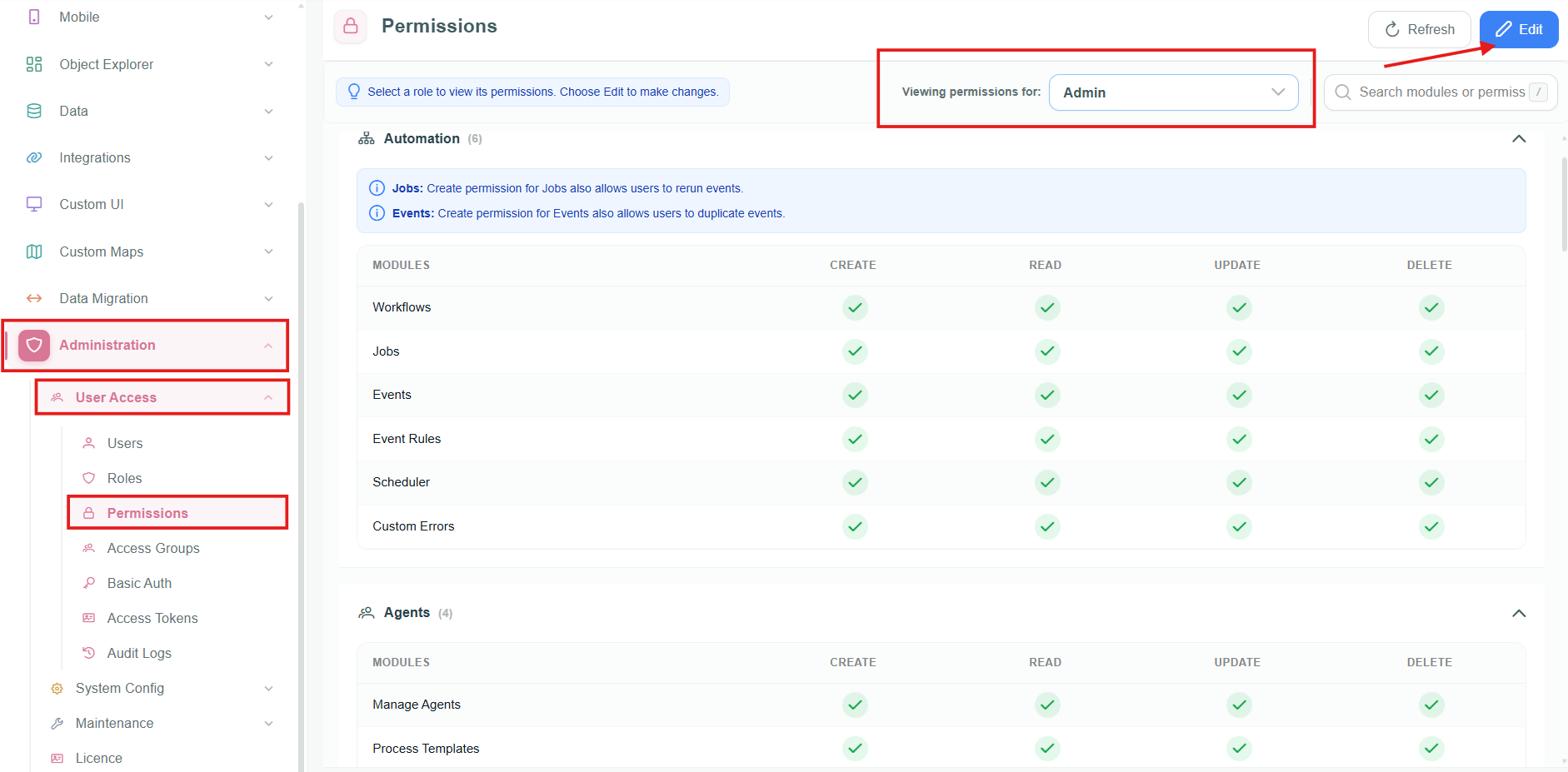
Manage permissions
- Use the Permission Matrix to enable/disable actions per module:
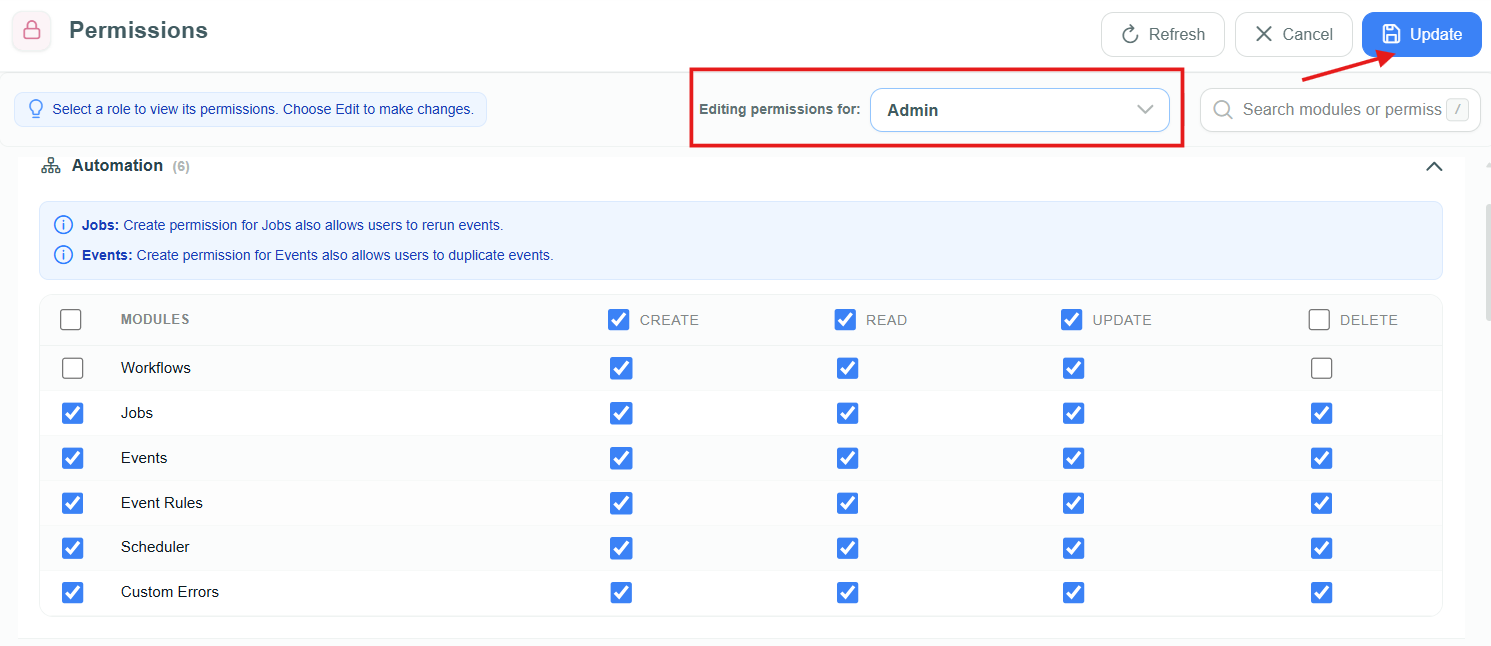
Update permissions
| Action | Definition |
|---|---|
| Create | Create new entities (e.g., endpoints, objects) |
| Read | View module data and configurations |
| Update | Modify existing entities or configurations |
| Delete | Remove entities or data permanently |
- Select Update to apply the changes.