MQTT Client Configuration in RCOM Gateway
MQTT is a lightweight, publish-subscribe messaging protocol designed for low-bandwidth, high-frequency data transfer ideal for IoT and industrial devices. In RCOM Gateway, MQTT serves as a real-time event ingestion channel, connecting barcode/RFID readers, sensors, and visual systems with the automation core.
This guide walks you through configuring MQTT clients in RCOM Gateway to receive and route device data for real-time processing.
Where to Begin
From the RCOM Gateway dashboard, go to:
- Settings > Client Settings > MQTT
Here you can:
- View existing MQTT configurations
- Edit or delete entries
- Create new MQTT clients
To create a new one, click “+ New MQTT”
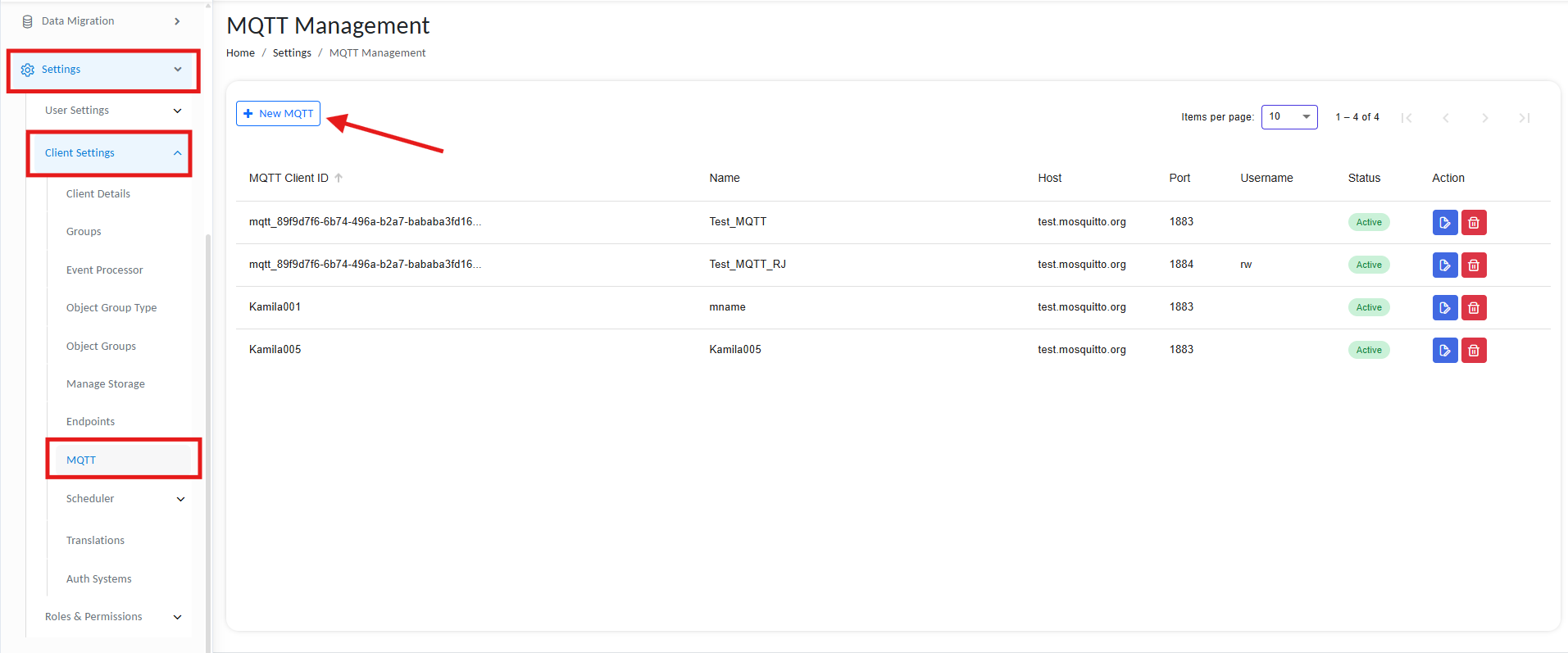
Avaialble MQTT Connections
Step 1: Create an MQTT Client
Each MQTT Client configuration establishes a connection with a remote broker and manages subscriptions for inbound data.
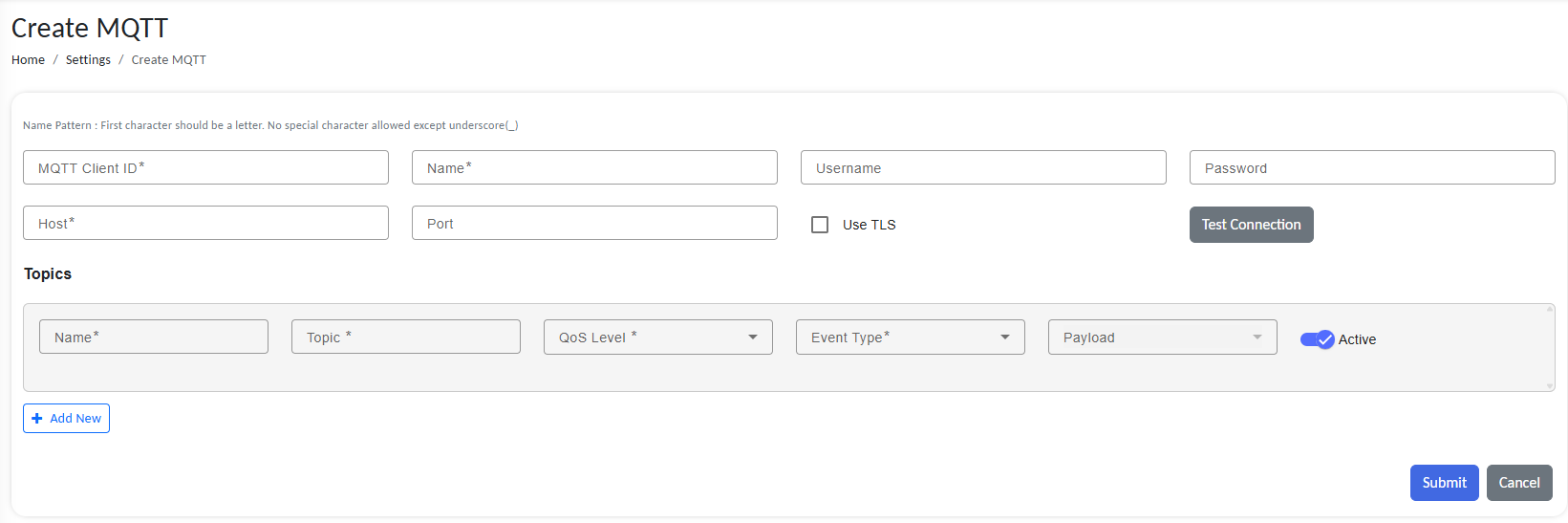
Configure new MQTT
Connection Details
| Field | Description |
|---|---|
| MQTT Client ID | A unique identifier for the client. (e.g., mqtt_reader001) |
| Name | Friendly name to identify the connection within the gateway (e.g., Test_MQTT, Sensor_Bridge). |
| Username / Password | Optional fields used for authenticating with the broker. |
| Host | Broker URL or IP address (e.g., test.mosquitto.org). |
| Port | Broker port number (1883 for unencrypted, 8883 for TLS). |
| Use TLS | Enable this if secure communication over SSL/TLS is required. |
Test Connection
Click to verify broker connectivity with the entered parameters. On a successful test, a popup with “MQTT Connection is valid“ message will be shown.
Step 2: Define MQTT Topics
Use the Topics section to subscribe to incoming MQTT messages and associate them with internal RCOM Gateway events.

Define MQTT topic
Add a new topic:
Click + Add New to open the topic configuration row.
Topic Configuration Fields
| Field | Description |
|---|---|
| Name | Internal label for this topic (e.g., TagEvents) |
| Topic | The full MQTT topic string (e.g., factory/sensors/+/temp) |
| QoS Level | Delivery guarantee level: 🔹 AtmostOne – Fire-and-forget (no acknowledgment)🔹 AtleastOne – Guaranteed delivery but may duplicate🔹 ExactlyOne – Guaranteed once-only delivery with handshake |
| Event Type | Defines how RCOM Gateway processes the message (e.g., UHFTagRead, CustomTrigger, GhostData) |
| Payload | Specifies the expected payload format (usually auto-selected from event type) |
| Active | Toggle to enable or disable this topic |
📌 Wildcard support:
+matches a single level (e.g.,devices/+/data)#matches multiple levels (e.g.,devices/#)
For more info on wildcard support, refer to the official documentation.
Step 3: Save the Configuration
Once all fields are filled:
-
Click Submit to save the MQTT client and topic subscriptions.
-
Your MQTT connection will appear in the management list with an Active status if successful.
How it works
Once submitted and tested, RCOM Gateway begins receiving tagread messages for real-time processing.
- Use any MQTT client to connect to your broker (e.g., tcp://test.mosquitto.org:1883)
- Ensure the connection is active
- Subscribe to the same topic that you just configured
- Set a QoS
- Publish to the topic
- The message will be captured by the associated RCOM Gateway event processor and forwarded to the selected workflow.
Troubleshooting
| Symptom | Possible Cause | Solution |
|---|---|---|
| Status remains Inactive | Incorrect broker address or authentication failure | Verify host, port, and credentials. Use Test Connection. |
| No events processed | Incorrect topic syntax or wrong event type | Ensure the topic matches the published topic. Check event type bindings. |
| Frequent disconnections | Client ID conflict or low keep-alive timeout | Use unique client IDs. Increase keep-alive settings on broker. |
| Payload not recognized | Event type mismatch | Ensure payload structure aligns with the selected Event Type. |
| Connection fails with TLS | Certificate issue | Make sure TLS is supported and proper certificates are configured if needed. |
✅ Final Checklist
Before going live:
✅ Verify broker connectivity using the Test Connection button
✅ Use secure TLS settings in production environments
✅ Confirm topic names and wildcard usage match expected device topics
✅ Test message flow using MQTT tools like MQTT.fx or mosquitto
✅ Ensure Event Type and Payload are aligned with your business logic