External Users In RCOM Gateway
External Users provide secure, limited access to REST API endpoints in RCOM Gateway for third-party systems or users without requiring platform admin console access. This feature suits integrations, automation scripts, or vendor connections that need access to specific endpoints only.
When you create a new endpoint and set the Auth Type to basic, only external users can access it using a username and password.
When configuring an external user, you select which endpoints they can access. The external user then uses their username and password to access those endpoints.
Where to Begin
From the RCOM Gateway dashboard, go to:
-
Settings > User Settings > External User
-
This page displays all currently active external user accounts.
-
To create a new entry, click: ➕ New External User
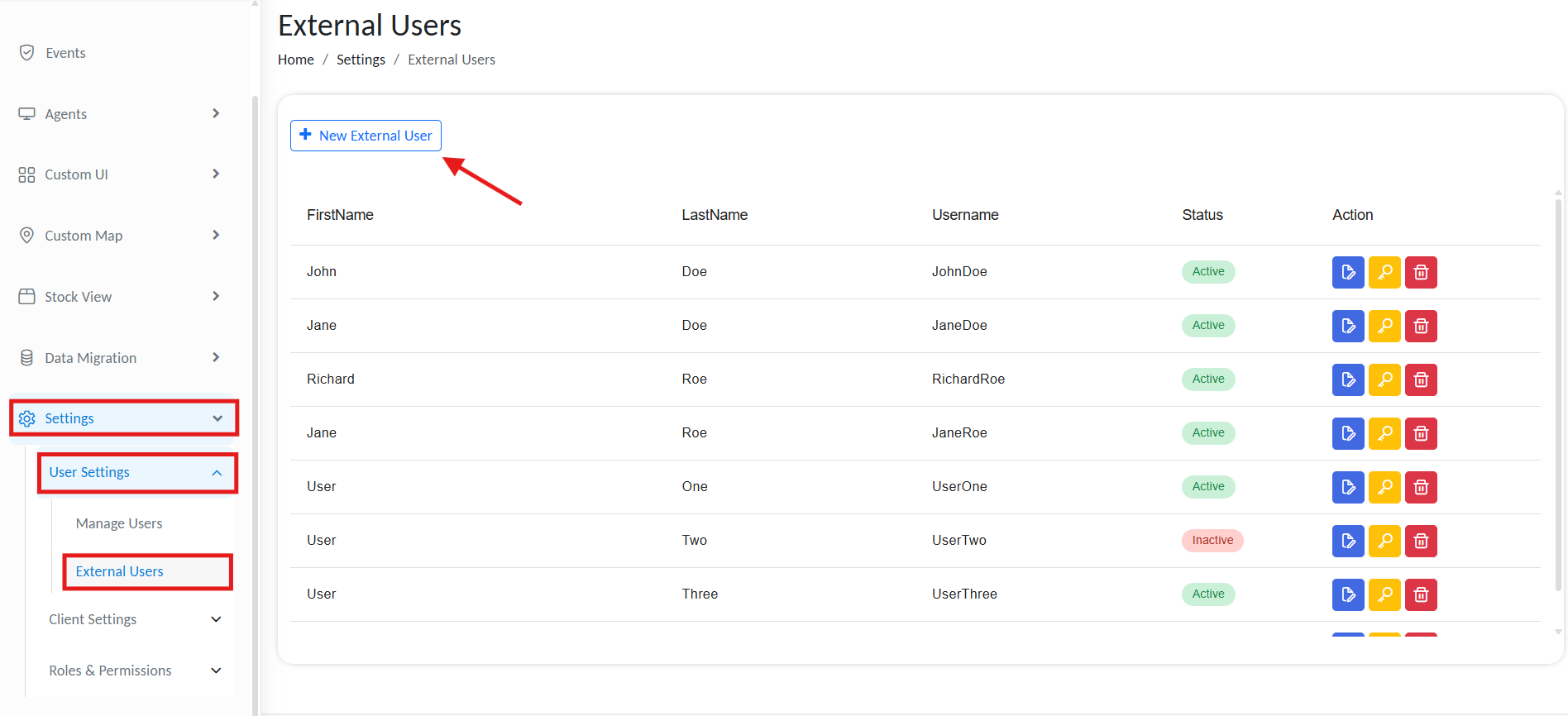
Manage external users
Create an External User
Once you are at the external user configuration page, follow the given steps to configure new user.
1. Enter Basic Information
Fill in the following fields:
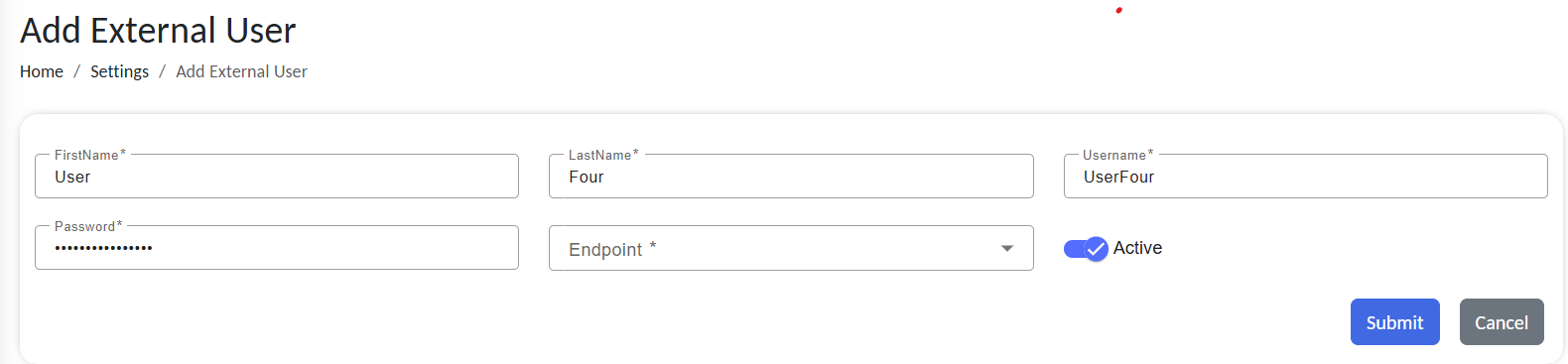
Add basic external users configuration
| Field | Description |
|---|---|
| First Name | The user's given name. Used for identification and audit logs. |
| Last Name | The user's surname. Helps distinguish users with similar usernames. |
| Username | Unique identifier used for login. Only alphanumeric characters and _ are allowed. |
| Password | Secure credential used for Basic Authentication. |
The username and password combination is used in API calls for authentication.
2. Assign Endpoint Access
Define which REST API routes the external user can access. You can assign multiple routes from the list of configured endpoints.
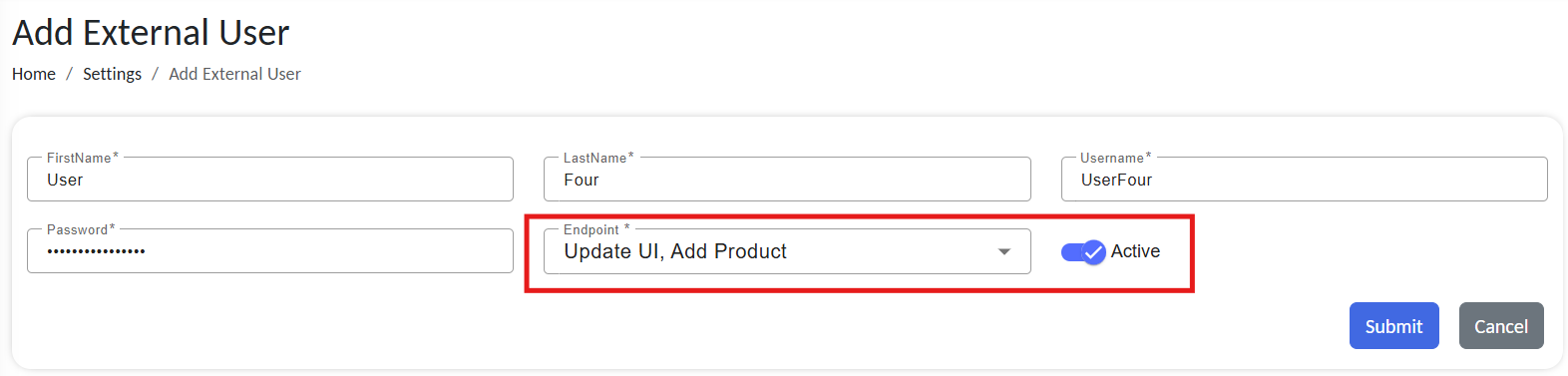
Add API access for external users
| Field | Description |
|---|---|
| Endpoint(s) | Select one or more existing API routes to which this user should have access. |
| Active | Select if you want the external user permissions to be active or not. |
External users will only be able to make API calls to the routes explicitly assigned here. Make sure these endpoints are properly configured in the gateway endpoint settings.
The Auth Type must be set to Base, otherwise the endpoint will not appear in the dropdown.
Also note that any endpoint configured with Base authentication will only be accessible using an external user’s assigned username and password, and cannot be accessed through any other authentication method.
3. Save and Confirm
Click Save to create the external user.
The new user will appear in the External User list along with their assigned endpoints. At any point, you can:
- Edit the user's credentials or endpoint permissions
- Delete the user to revoke access immediately
- Disable the external user temporarily
API Authentication Format
External users authenticate using HTTP Basic Authentication. Use the following format for API requests:
Header:
Authorization: Basic <base64(username:password)>
Example using curl:
curl -X POST https://rcom-gateway.example.com/api/inventory/scan
  -H "Authorization: Basic d2FyZWhvdXNlcl9hcGk6U2VjdXJlUGFzcw==" \
  -H "Content-Type: application/json" \
  -d '{ "itemId": "12345", "location": "Dock A" }'
JavaScript:
fetch('https://example.com/api/endpoint', {
    method: 'GET', // or POST, PUT, etc.
    headers: {
        'Authorization': `Basic d2FyZWhvdXNlcl9hcGk6U2VjdXJlUGFzcw==`,
        'Content-Type': 'application/json' // optional, based on your API
    }
})
Use your username and password with the provided API to generate your base64 encoded authentication key. Ensure that you do not share this key with anyone.
Method: POST
URL: https://159.69.47.169/RCOMENDPOINTAPI/token
Headers:
Content-Type: application/json
Body (choose raw → JSON):
{
  "userName": "<username>",
  "password": "<password>"
}
Managing External Users
To view or modify access:
-
Navigate back to Settings > User Settings > External User
-
Use the edit or delete icons beside any entry
Security Reminder: Always revoke credentials for integrations no longer in use. Do not reuse usernames across systems.
Example Use Case
A logistics vendor must push pallet data into your RCOM Gateway system via API. You can:
- Create an external user
vendor_pallets - Assign access to the route
/api/pallets/receive - Share credentials securely with the vendor's system
The vendor can now push data automatically without full platform access.