Bearer/Access Token Enabled Endpoints in RCOM Gateway
When an endpoint is configured with Bearer/Access Token (token-based authorization), it can only be accessed using a valid token.
RCOM Gateway supports two token types for Bearer/Access Token-protected endpoints:
- Bearer Token (User Token) – issued during user login
- Access Token – system-generated token mapped to specific roles
Access is granted only if the token is associated with a role that is mapped to the endpoint
Bearer/Access Token in RCOM Gateway
Bearer/Access Token is a token-based authorization framework that allows secure access to protected resources without exposing user credentials.
When creating or editing a REST API endpoint, you can:
- Enable
Bearer/Access Token - Assign one or more roles

Bearer/Access Token in endpoint
Only tokens associated with those roles can access the endpoint.
Once Bearer/Access Token is enabled, the endpoint cannot be accessed anonymously.
Token Types
Bearer Token (User Login Token)
A bearer token is generated when a user logs into RCOM Gateway.
Key characteristics:
- Linked to a specific user account
- Inherits all roles assigned to that user
- Valid only while the login session/token remains active
To use a bearer token with an endpoint:
- The user must have a role mapped to the endpoint.
- The token must be included in the request header.
This method is suitable when authenticated Gateway users need API access.
Use Bearer Token in API Requests
Include the token in the request headers when calling any endpoint.
Example API call:
curl -X POST https://rcom-gateway.example.com/RCOMENDPOINTAPI/data/post \
-H "Authorization: Bearer <TOKEN>" \
-H "Content-Type: application/json" \
-d '{"object_id":"12345","status":"updated"}'
Once the token is verified, the request is executed with the same privileges as the role assigned to it.
Access Token (Role-Based Token)
An access token is independent of user login. It is designed for external systems, automation scripts, and service-to-service communication.
Unlike bearer tokens:
- No UI login is required
- No user account is needed
- Access is strictly controlled by assigned roles
- It has a configurable expiration date
Each access token includes:
- Role Association – Grants access to endpoints mapped to the selected role.
- Expiry Date – Automatically invalidates the token after the defined period.
- Unique Token Value – Used as the authentication credential in API requests.
Once created, any system that holds the token can access permitted endpoints until the token expires or deleted.
When to Use Access Tokens
Access tokens are recommended for:
- External system integrations
- Backend service-to-service communication
- Automation scripts
- Temporary testing access
- Controlled workflow triggering without UI login
Access tokens:
- Do not provide UI access
- Cannot modify system settings
- Only allow API access based on assigned role permissions
Creating a New Access Token
Follow these steps to create and configure a new access token.
From the RCOM Gateway dashboard:
- Go to
Settings → User Settings → Access Token.
This page lists all created access tokens with options to delete or regenerate the token ID.
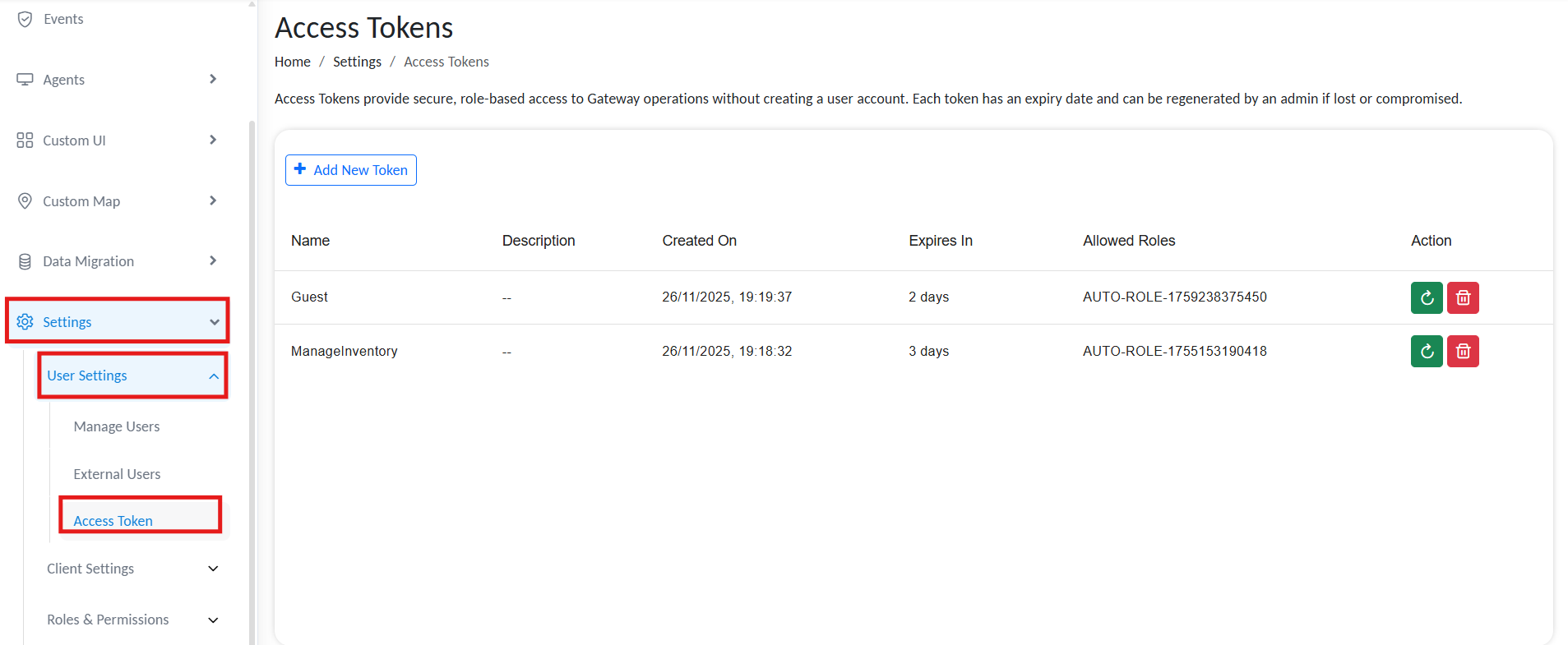
Access Tokens
To create a new access token, click Add AccessToken.
Configure Basic Token Details
Fill in the following fields:
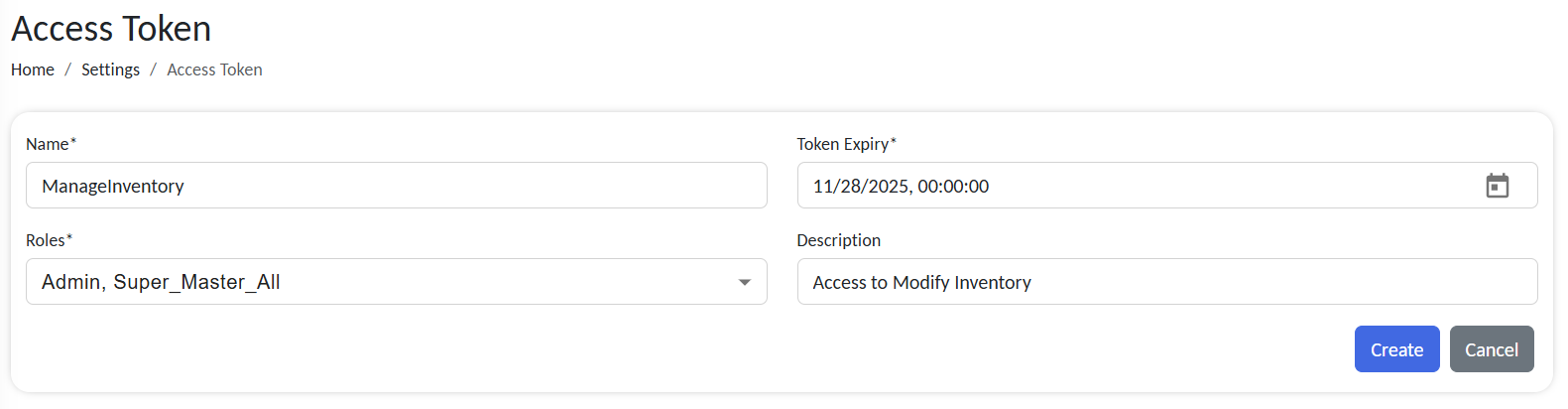
Configure token details
| Field | Description |
|---|---|
| Token Name | A recognizable label for the token (e.g., VendorAPI_Token, ReportAutomation_Token). |
| Role | Select a predefined role. The token can access endpoints mapped to the role. |
| Expiry Date | Set the token’s validity period. After this date, the token automatically expires and becomes invalid. |
| Description | An optional description explaining the functionality of the token. |
Click Create once details are complete.
The system generates a unique access token string as the credential for API access. Copy and store it securely; it will not display again after you leave the page. Access tokens cannot be edited once created. You can only delete or regenerate them within the expiry date.

Copy token
Access tokens only work if the endpoint is mapped to the same role. Ensure the selected role is assigned to the endpoint during configuration.
Bearer/Access Token in endpoint
Map selected endpoints to roles: REST API Endpoint Configuration in RCOM Gateway
Use Access Token in API Requests
The generated token functions similarly to an API key. It should be included in the request headers when calling any endpoint.
Example API call:
curl -X POST https://rcom-gateway.example.com/RCOMENDPOINTAPI/data/post \
-H "Authorization: <ACCESS_TOKEN>" \
-H "Content-Type: application/json" \
-d '{"object_id":"12345","status":"updated"}'
Once the token is verified, the request is executed with the same privileges as the role assigned to it.
Managing Access Tokens
All created tokens appear in the Access Token list view.
Each entry displays:
- Token name
- Description
- Created Date
- Expiry date in days
- Role assigned to the token
- Status (Active/Expired)
Administrators can regenerate tokens at any time before the expiration date.
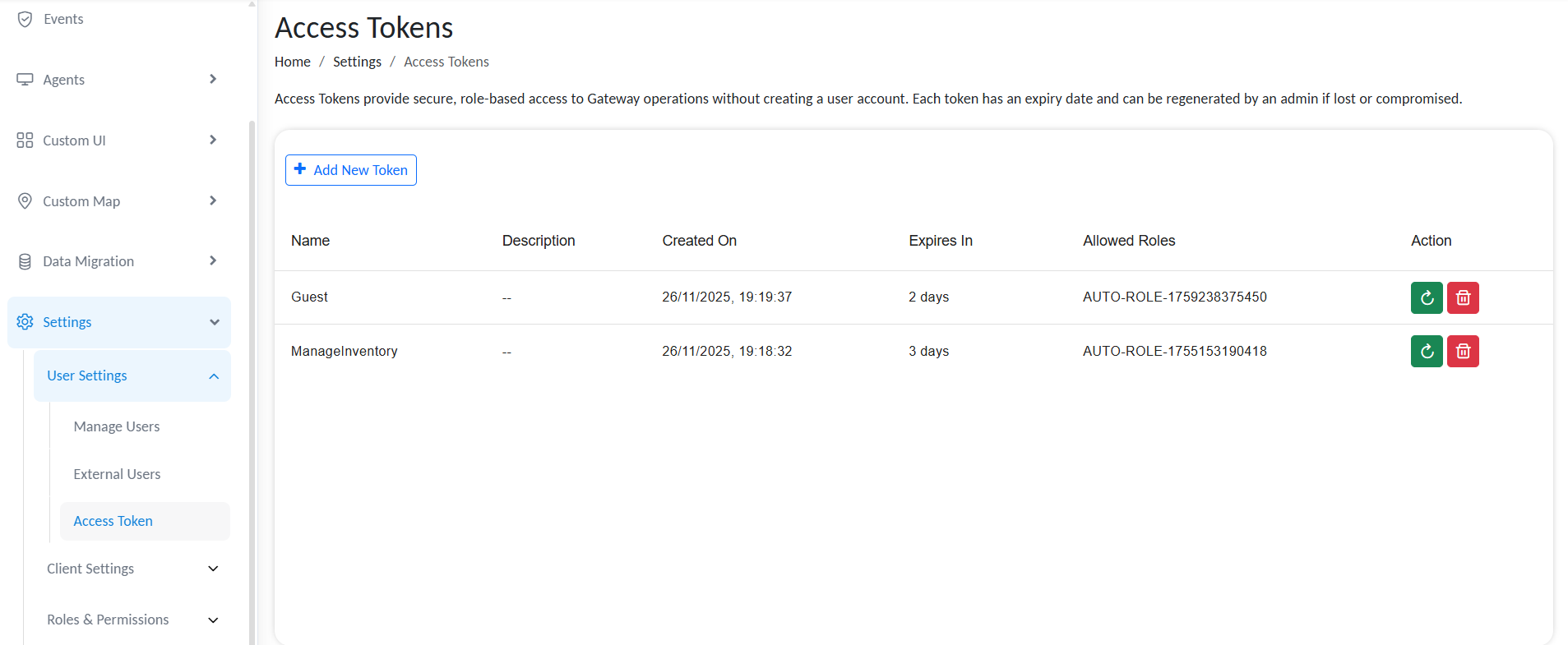
Access token list
Regenerating a Token
If a token is lost or compromised:
- Go to
Settings → User Settings → Access Token. - Locate the affected token entry.
- Click
Regenerate Token.
A new token string will be created, but the expiry date and role remain unchanged.
This instantly invalidates the old token, ensuring security continuity.
Best Practices
- ✅ Always set a clear and reasonable expiry date.
- ✅ Store tokens securely - treat them like passwords.
- ✅ Regularly review and revoke unused or expired tokens.