Object Types in R-COM Gateway
Object Types classify Object Schemas and define the permissions that roles receive for Objects of that type. Select an Object Type when creating an Object Schema.
They provide a practical way to organize Object Schemas by business process or access boundary. For example, a MedicalAssets Object Type can be used by Object Schemas such as Equipment, Rooms, and Devices; the roles configured on the type then receive the appropriate access to Objects in those schemas.
What Are Object Types?
An Object Type is the permission-bearing classification assigned to an Object Schema. It helps you:
- Organize Object Schemas based on business processes or access policies.
- Apply role-based access consistently to the Objects in those schemas.
- Manage related data models, such as inventory, employee records, or asset tracking, through a shared access model.
Use clear Object Type names that describe the access boundary rather than an individual schema. For example, WarehouseInventory can be used by several inventory-related Object Schemas.
Open Object Types
From the R-COM Gateway dashboard, go to Data > Object Types.
The list shows each Object Type's Name, Status, and available Actions, so you can review, edit, or remove an existing type.
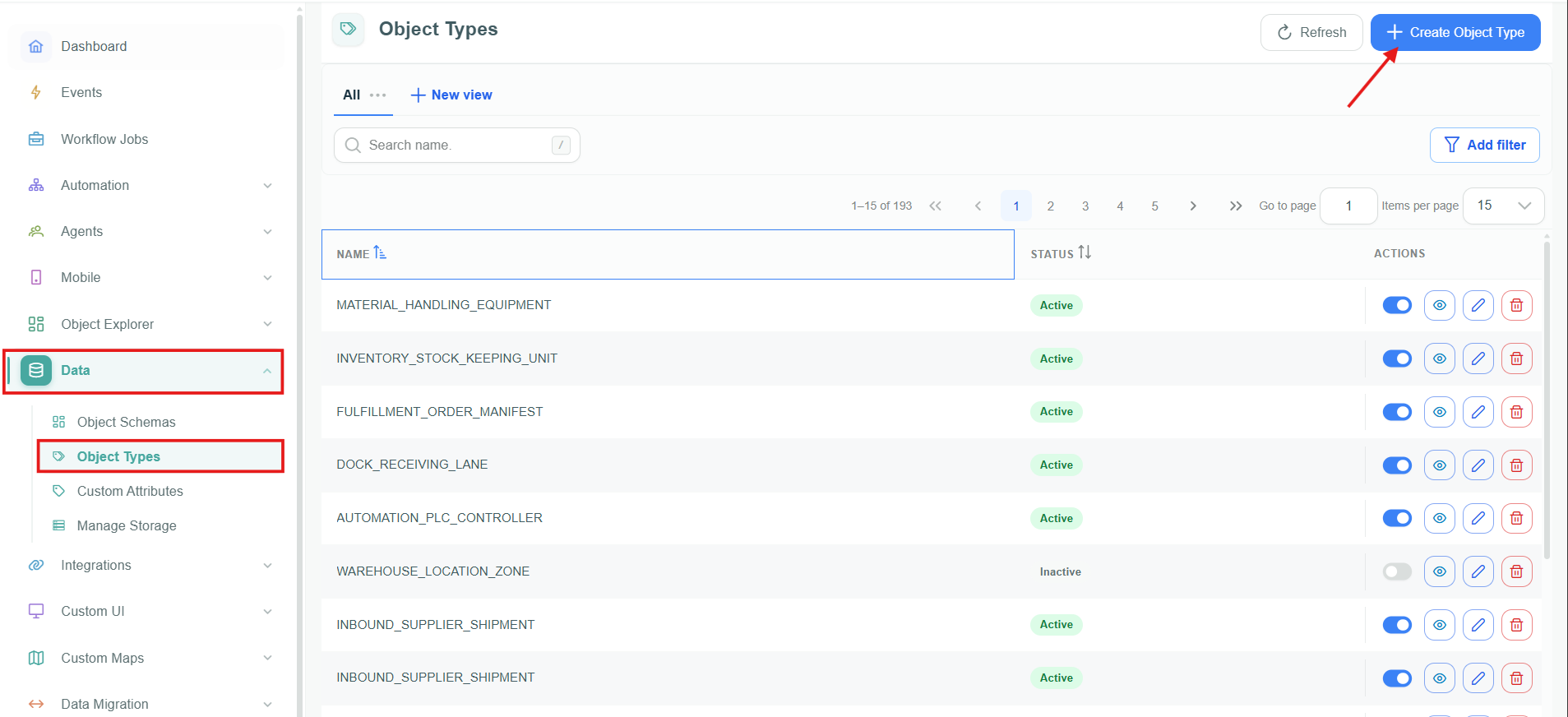
Object Types in Data.
Create an Object Type
- Select Create Object Type.
- In General Information, enter a required Name.
- In Permissions, choose whether to view Roles with permissions or All roles. Use search or Select All to find and select roles.
- Set the permissions for each applicable role:
| Permission | Description |
|---|---|
| Create | Create Objects of this type. |
| Read | View Objects of this type. |
| Update | Update Objects of this type. |
| Delete | Delete Objects of this type. |
| View Soft Deleted / View Deleted Objects | View soft-deleted Objects. |
| Recover Soft Deleted / Restore Deleted Objects | Restore soft-deleted Objects. |
| Hard Delete / Permanently Delete Objects | Permanently delete Objects. |
| View Change Details | View Object change details. |
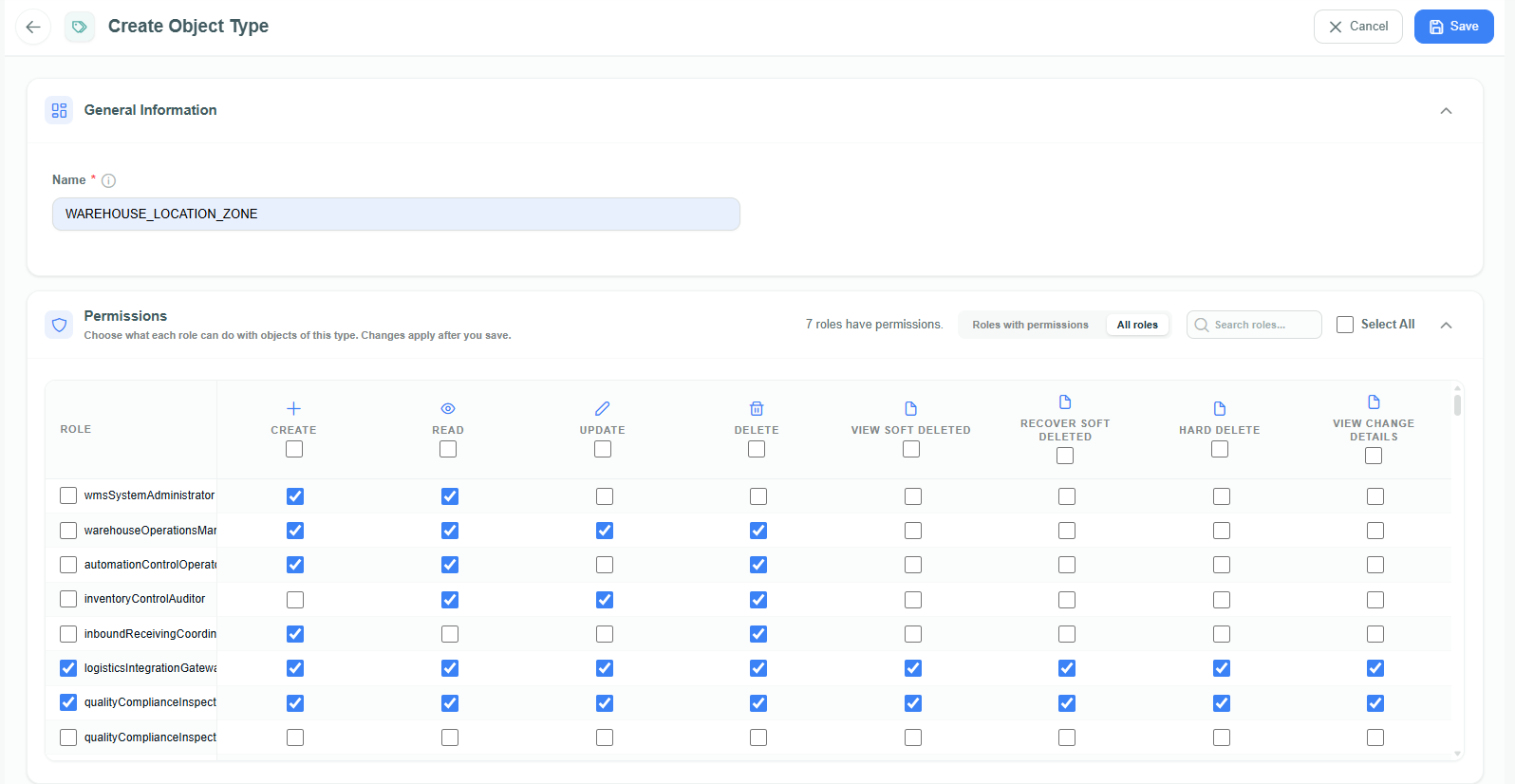
Enter the Object Type name and configure role permissions.
- Select Save. Use Cancel to discard the changes or Back to list to return without saving.
The Object Type UI currently uses inconsistent labels for deleted-object permissions. Create Object Type uses View Soft Deleted, Recover Soft Deleted, and Hard Delete, while the View and Edit pages use View Deleted Objects, Restore Deleted Objects, and Permanently Delete Objects. Treat each pair as the same permission until the UI labels are aligned.
The permissions matrix is where you decide what each role can do with Objects that belong to Object Schemas using this Object Type. Review it carefully before saving, especially when granting the permanent-deletion permission.
Manage Object Type Permissions
Open an Object Type from the list to review or adjust its permissions:
- Use the row's Actions control to open the Object Type for editing.
- Review the General Information and Permissions panels.
- Adjust the permission matrix as needed.
- Select Save to apply changes immediately.
Best Practices
- Give Object Types clear names that reflect their access boundary, such as
MedicalAssetsorWarehouseInventory. - Grant only the permissions each role needs.
- Limit the permanent-deletion permission to roles that require irreversible deletion.
Example: Logistics Object Type
- Name:
Logistics - Admin: all permissions
- Supervisor: Read and Update
- Viewer: Read
Result: Object Schemas that use Logistics share this role-based permission configuration. Administrators can manage the access model once at the Object Type level instead of configuring the same permissions separately for every schema.