Object Attachments in R-COM Gateway
Object Attachments let you associate binary files, such as documents, images, PDFs, or exports, with an individual Object in R-COM Gateway.
Attachments are stored through a configured storage provider and linked to the Object they belong to. Once attached, a file can be viewed, downloaded, or managed directly from the Object, or accessed programmatically from external systems such as a Custom UI or a third-party application.
There are two ways to add and retrieve attachments:
- From Object Explorer — a manual, UI-driven workflow for end users.
- From an external system via the API — a programmatic workflow for integrations, Custom UIs, and automations.
This article covers both.
Prerequisites
Before you can attach files to an Object, make sure the following are in place:
- The Object Schema allows attachments. Attachment support is a per–Object Schema setting and must be enabled before any files can be added.
- A storage provider is configured and linked to the Object Schema. The storage provider determines where the binary file is physically stored. See External Storage Provider for setup details.
If no external storage provider is added and attachments are still enabled on the Object Schema, the system falls back to storing attachments in the gateway database. An external storage provider is only required when you want files stored outside the gateway database.
If the Object Schema does not allow attachments, the Attachments section will not appear in the edit view, and API upload/link calls will be rejected.
Method 1: Manage Attachments in Object Explorer
Use this method when a user needs to add a file to an Object directly from the R-COM Gateway interface.
Step 1: Select the Object
Open Object Explorer, select the Object Schema, and then select the Object you want to update.
Step 2: Confirm the Object Schema Allows Attachments
Make sure the Object Schema is configured to allow attachments (see Prerequisites). If attachments are not enabled, no Attachments section will be available in the next step.
Step 3: Open Update Object and Add Attachments
With the Object selected, open Update Object. In the Attachments panel, select Add attachments or Add files, then choose the file to upload. The interface allows files up to 2 MB and does not allow .exe files. The file is stored through the configured storage provider and linked to the Object.
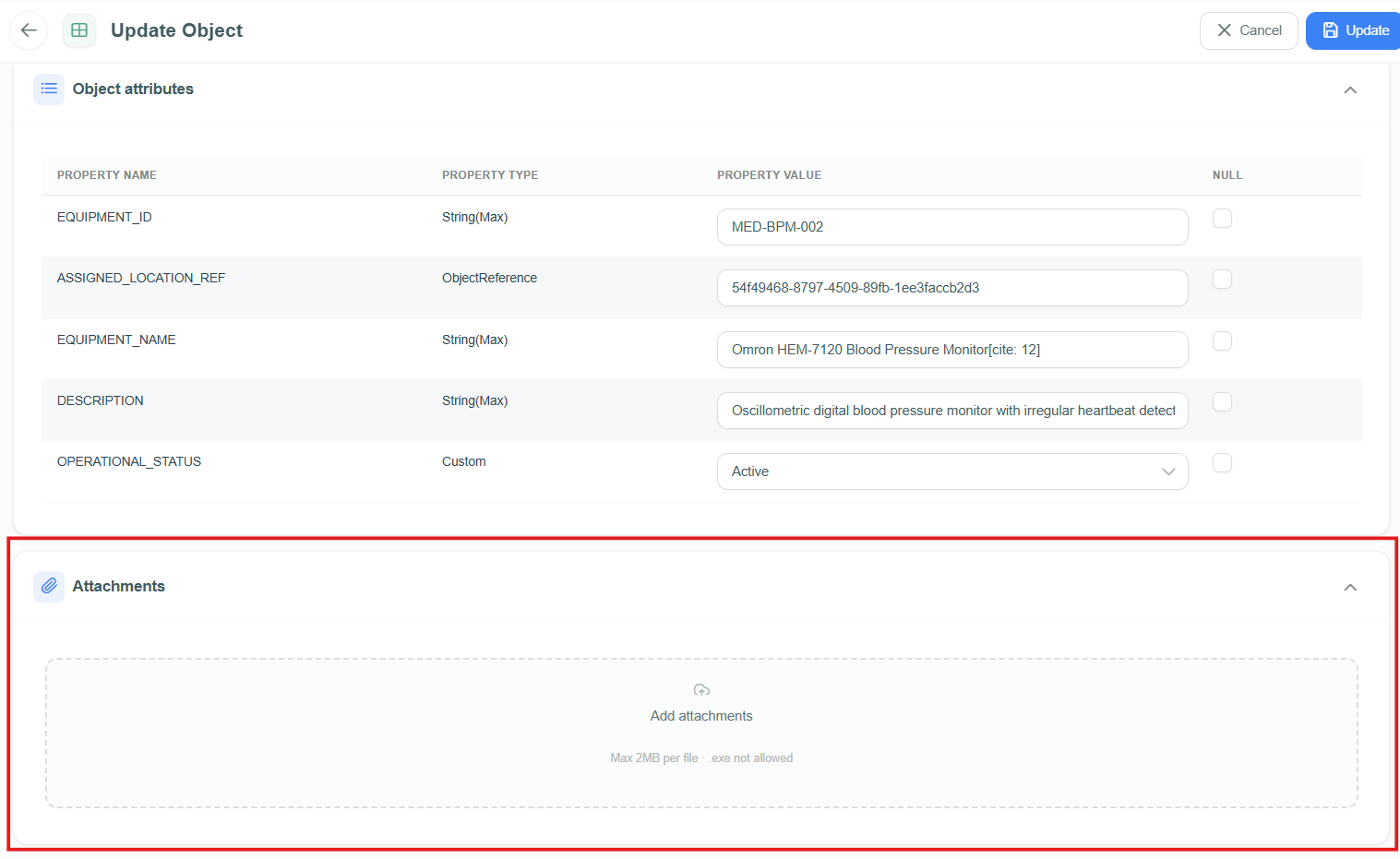
Add files from the Attachments panel in Update Object.
Step 4: View the Attachment
Once uploaded, the attachment appears as a card in the Attachments panel. The panel displays the attachment count and lets you view, download, or remove each file.
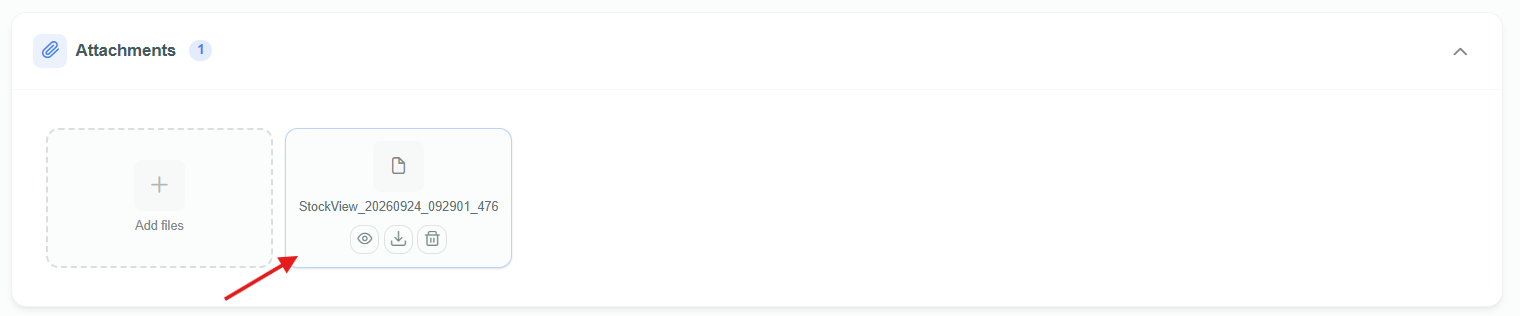
Attachments shown in the Update Object Attachments panel.
Step 5: Download the Attachment
To retrieve a file, select the Download icon on its attachment card.
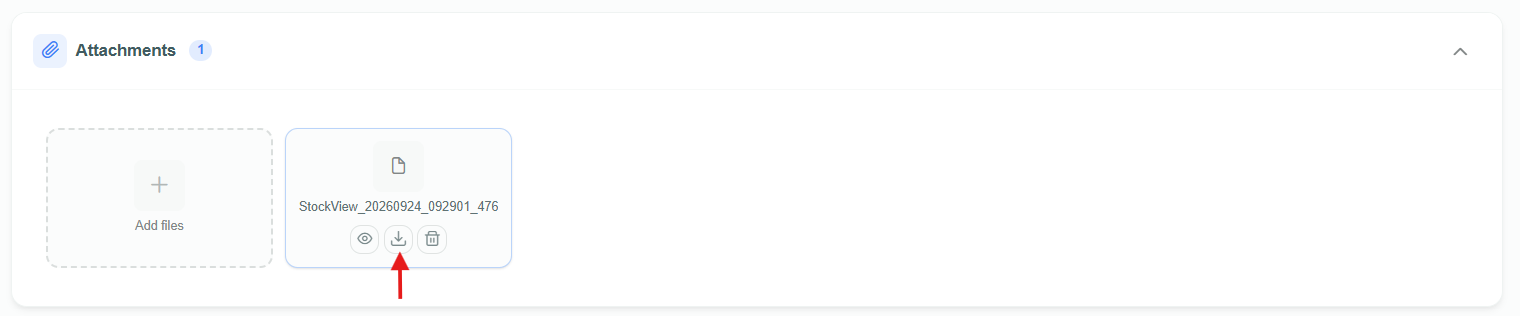
Download a file from its attachment card.
Method 2: Upload and Download Attachments via the API
Use this method when files are managed from an external system — for example, a Custom UI, a mobile client, or a third-party integration. Instead of using the edit view, you upload the file to the storage provider and then link the returned file ID to the Object.
The end-to-end flow has three stages:
- Upload the file to the storage provider and get back an attachment/file ID.
- Link that file ID to the target Object (in a workflow, using the
LinkAttachmentaction). - Download the file later using the attachment/file ID.
Both the upload and download endpoints require the storage provider ID of the provider linked to the selected Object Schema. Copy it from the Manage Storage Provider page — use the provider ID attached to the designated Object Schema.
For both upload and download:
- Calls made from a Custom UI do not need an authorization token — the request is validated automatically.
- Calls from any other external system require an access token. Create one using the External Login API and pass it as a
Authorization: Bearer <token>header.
Step 1: Upload the File
Upload the file to the selected storage provider. The response returns an attachment/file ID that you will use to link and later download the file.
POST https://example-gateway.com/RCOMAPI/api/binary-storage/upload
Content type:
multipart/form-data
Fields:
file=<selected file>
storageProviderId=<Storage Provider ID registered in gateway>
Optional header:
Authorization: Bearer <token>
Example:
curl -X POST "https://example-gateway.com/RCOMAPI/api/binary-storage/upload" \
  -H "Authorization: Bearer <token>" \
  -F "file=@example.pdf" \
  -F "storageProviderId=<Storage Provider ID>"
The response includes an attachment/file ID, for example:
{
  "attachmentId": "<Attachment ID>"
}
Step 2: Link the Uploaded File to an Object
An uploaded file is not yet attached to an Object — it only exists in the storage provider. To attach it, link the returned file ID to the target Object.
In a workflow, use the LinkAttachment action, passing the file ID from Step 1 as the METADATA_ID and the target Object's OBJECT_ID. The action validates that the Object, group, metadata, and provider are consistent, then confirms the file and returns the attachment ID.
For full parameter details, see the LinkAttachment (V1) workflow action.
Step 3: Download the File
Once a file has an attachment/file ID, download it directly from the storage provider.
If you need to discover the attachment IDs for an Object first, use the GetObjectAttachments (V1) workflow action, which returns attachment metadata (filename, type, and identifiers) for a given OBJECT_ID.
GET https://example-gateway.com/RCOMAPI/api/binary-storage/download/{attachmentId}
-
Replace
{attachmentId}with the attachment/file ID. -
Authorizationheader is optional and only required when the gateway enforces authentication:Authorization: Bearer <token>
Example:
curl -X GET "https://example-gateway.com/RCOMAPI/api/binary-storage/download/<Attachment ID>" \
  -H "Authorization: Bearer <token>" \
  --output example.pdf
The response returns the binary file stream with the correct Content-Type, and typically a Content-Disposition header carrying the original filename.
Choosing the Right Method
| Method | Best For |
|---|---|
| Object Explorer (Method 1) | Manual, one-off uploads by end users in the UI. |
| API (Method 2) | Custom UIs, mobile clients, and system integrations. |
Best Practices
- Enable attachments deliberately. Only allow attachments on Object Schemas that actually need them, to keep storage usage and permissions predictable.
- Match the storage provider to the Object Schema. Always use the storage provider ID linked to the designated Object Schema when uploading or downloading via the API.
- Keep tokens secure. When authentication is enabled, protect bearer tokens and never hard-code them in client-side code.
- Preserve filenames and content types. Rely on the
Content-TypeandContent-Dispositionheaders returned on download so files open correctly on the client.