Object Schemas in the R-COM Gateway
Object Schemas in R-COM Gateway provide a structured way to store, manage, and reuse persistent data inside automated workflows.
In many automation scenarios, reacting to an event is not enough. A workflow may also need to know which asset was scanned, where it was last seen, whether it already exists, or whether a specific combination of values is unique. Object Schemas solve this by acting as a persistent data layer for workflow-related entities.
An Object Schema defines both:
- The collection of Objects that belong to that schema.
- The structure that each Object must follow.
For example, an Object Schema named MedicalEquipment can store individual equipment records, where each record contains attributes such as equipment ID, status, assigned department, and maintenance date.
Key Concepts
Object
An Object is a single data record inside an Object Schema. It represents a real-world entity, asset, item, person, or process-related concept.
Examples:
| Use Case | Object Example |
|---|---|
| Warehouse management | A pallet, product, container, or returnable transport item |
| Healthcare | A patient, infusion pump, medical device, or room |
| Asset tracking | A tool, machine, vehicle, or tagged asset |
| Inventory management | A product, stock item, or storage location |
Example Object data:
{
  "product_id": "PRD001",
  "location": "Aisle-3",
  "status": "Available",
  "last_scanned_at": "2025-05-15T10:23:00Z"
}
In this example:
| Attribute | Description |
|---|---|
| product_id | Unique identifier for the product |
| location | Current or last known location |
| status | Current state of the product |
| last_scanned_at | Timestamp of the last scan event |
Object Schema
An Object Schema is a named collection of Objects that share the same structure.
For example, a MedicalEquipment Object Schema may contain records for all medical devices in a hospital. Each equipment record follows the same attribute structure, such as equipment ID, name, location, status, and maintenance date.
Object Structure
The Object Structure defines the attributes available for each Object in the Object Schema.
You can think of the Object Structure as a database table definition. Each attribute behaves like a column, and each Object behaves like a row in that table.
Example:
| Column Name | Data Type |
|---|---|
| equipment_id | String |
| name | String |
| location | String |
| maintenance_due | Date |
| is_active | Boolean |
Every Object created inside this Object Schema must follow this structure.
Create a New Object Schema
Step 1: Navigate to the Object Schema Settings
From the main R-COM Gateway dashboard:
- Go to Data > Object Schemas.
- Select Create Object Schema.
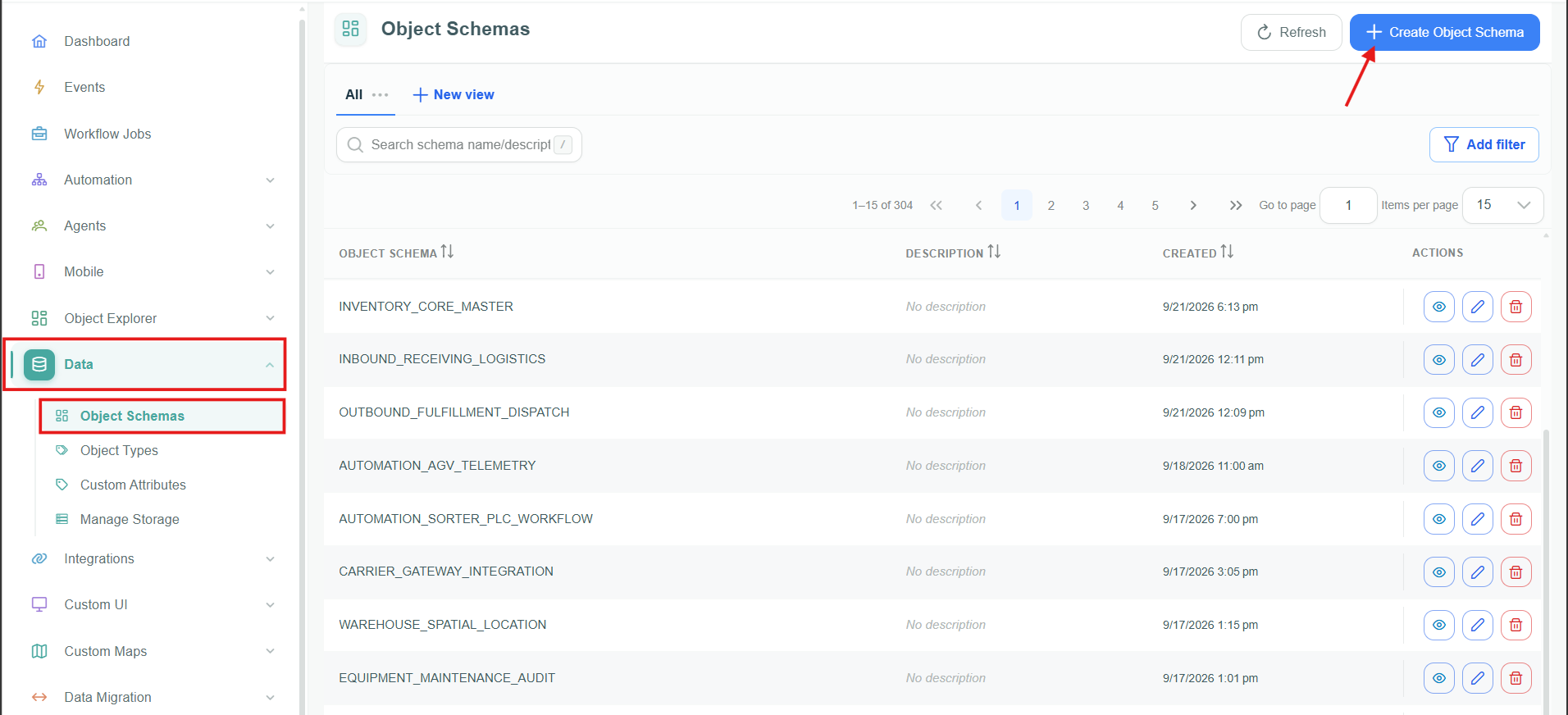
Create a new Object Schema.
Step 2: Configure Basic Settings
Fill in the following fields when creating a new Object Schema:
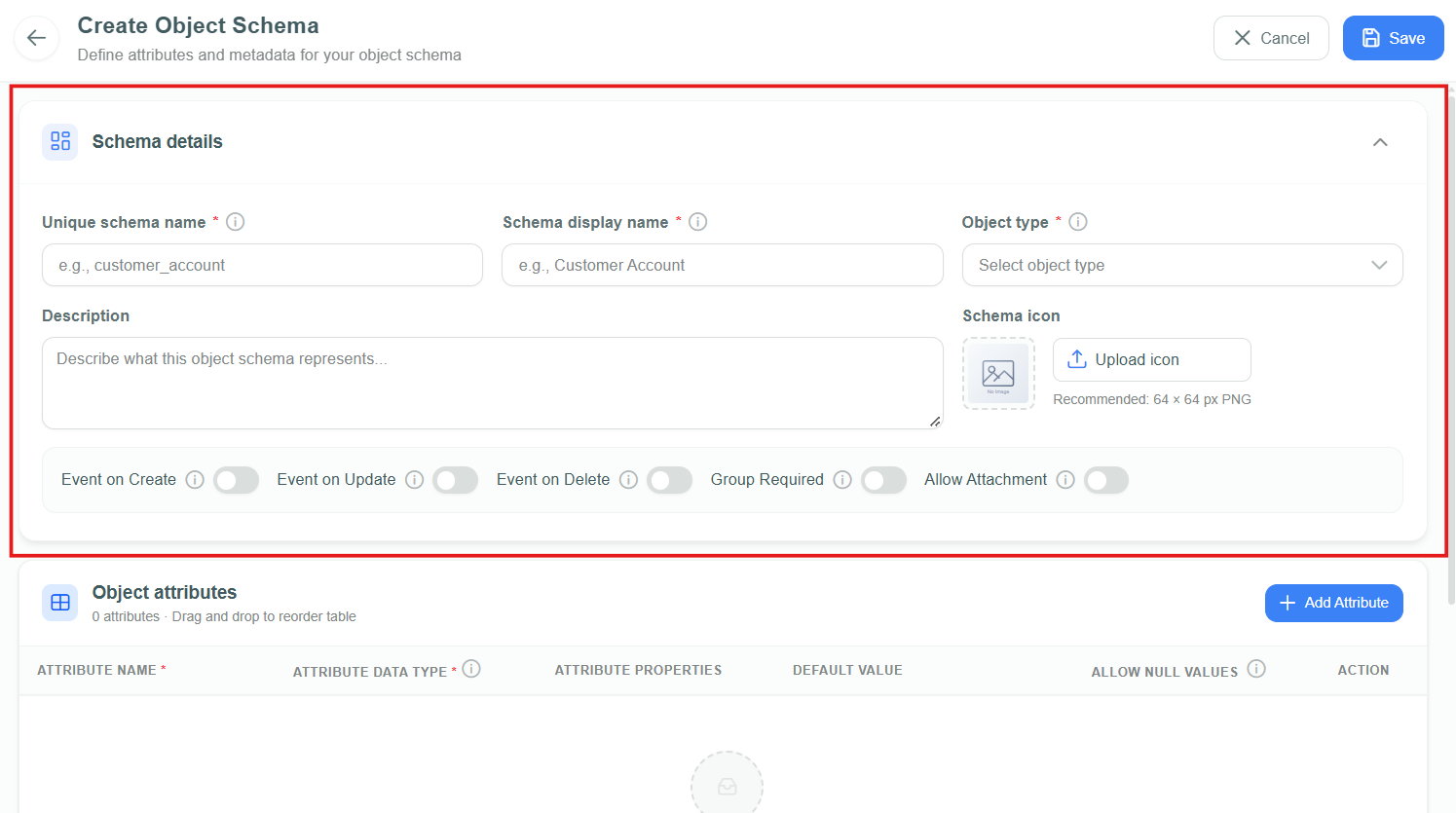
Set up basic Object Schema information.
| Setting | Description |
|---|---|
| Unique schema name | Required internal name for the Object Schema. This value must be unique. Use a stable technical name such as medicalEquipment, productInventory, or patientRecords. |
| Schema display name | Required user-visible name, such as Medical Equipment or Product Inventory. |
| Object type | Required Object Type that classifies the Object Schema and supplies its role permissions. |
| Description | Optional explanation of the Object Schema's purpose. |
| Schema icon | Optional icon. The upload control recommends a 64 × 64 px PNG. |
| Event on Create | Enables an event when an Object is created. |
| Event on Update | Enables an event when an Object is updated. |
| Event on Delete | Enables an event when an Object is deleted. |
| Group Required | Marks the Object Schema as requiring a group. |
| Allow Attachment | Enables attachments for Objects in Object Explorer. |
Step 3: Define Object Attributes (Object Structure)
This is where you define the data fields (the Object Structure) that each Object in the schema can contain. Select Add Attribute to add a row. Drag and drop attribute rows to set their order in the object create and edit forms.
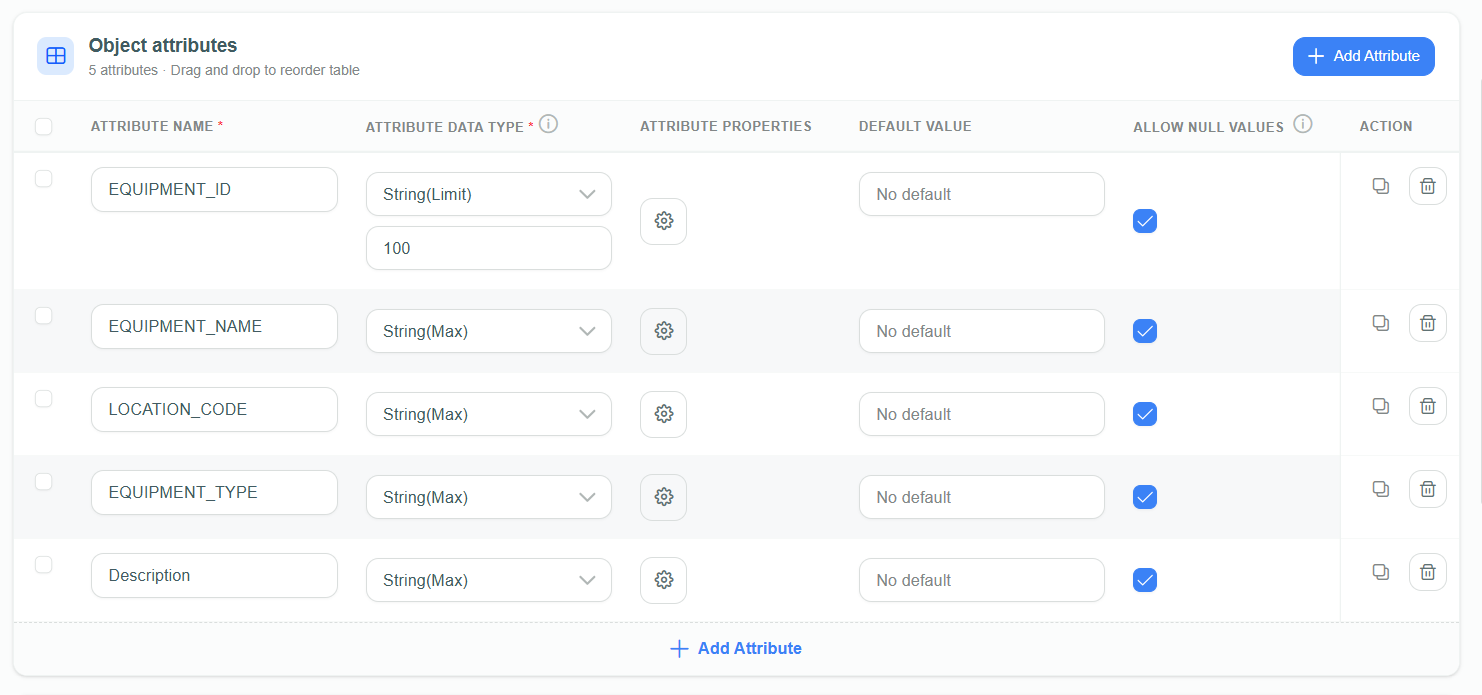
Configure attributes, their order, and default values.
Tip: Select Attribute properties for an attribute to configure validation rules and guidance.
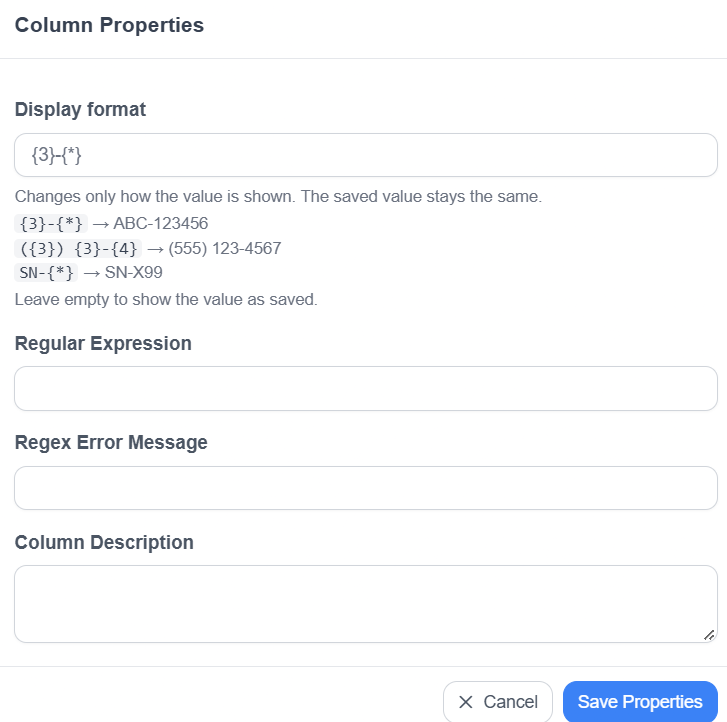
Attribute parameters configuration.
Each Object in the schema follows the structure you define. The attributes table includes:
| Field | Description |
|---|---|
| Attribute name | Internal field name for the attribute. Use lowercase letters, underscores, or camelCase. Avoid spaces and special characters. Examples: product_id, equipmentName, last_scan_time. |
| Attribute data type | Specifies the kind of data the attribute holds. See the Data Types reference below. |
| Attribute properties | Opens the Column Properties dialog. |
| Default value | Optional value configured for the attribute in object create and edit forms. |
| Allow null values | Specifies whether the attribute may be left empty. Mark essential fields as non-nullable to enforce data completeness. |
| Action | Removes the attribute. Referenced columns cannot be modified directly; remove the reference first, then apply changes. |
Data Types
| Data Type | Description | Example |
|---|---|---|
| Number | Whole numeric values | 10, 250, 1000 |
| Decimal | Numeric values with decimals | 12.5, 98.75 |
| String(Max) | Text without a fixed character limit | Long descriptions, comments |
| String(Limit) | Text with a defined maximum length | Product codes, short names |
| Date | Calendar date values | 2026-06-18 |
| Boolean | True / false value | true, false |
| ObjectReference | Links this attribute to another Object within the same client. | |
| Guid | Globally unique identifier | System-generated identifiers |
| Custom | Fixed list or selected custom value | Status values such as Available, In Use, Blocked |
For String(Limit), define the maximum allowed length.
Example:
- Set a limit of
500if the field should accept text up to500characters.
Column Properties
Select Attribute properties to open the Column Properties dialog:
| Option | Description |
|---|---|
| Display format | Available for String(Max) and String(Limit) attributes. Defines how the value is displayed, for example with separators or a prefix. The saved value does not change. See Display Formats for String Attributes. |
| Regular Expression | A regex pattern that validates user input before it is saved. |
| Regex Error Message | The message shown when validation fails. Accepts plain text or translation keys (e.g. ERROR.invalid_email). Provides meaningful feedback when input does not match the expected pattern. |
| Column Description | A short explanation of the field's purpose, displayed as documentation and user guidance when working with the Object. |
Select Save Properties to apply the changes.
Display Formats for String Attributes
A display format adds separators and symbols to a String value when it is displayed, without changing the stored value. Workflows always work with the stored (raw) value.
Build the format from placeholders and literal characters:
{n}shows the next n characters of the value, for example{3}.{*}shows all remaining characters.- Any other character, such as
-,(,), a space, or a prefix likeSN-, is shown as typed.
| Display format | Stored value | Displayed value |
|---|---|---|
{3}-{*} | ABC123456 | ABC-123456 |
({3}) {3}-{4} | 5551234567 | (555) 123-4567 |
SN-{*} | X99 | SN-X99 |
Leave Display format empty to display the value as it is stored.
Step 4: Define Unique Constraints
Primary Key Management: Manual primary-key management is handled through Unique Constraints.
Unique Constraints allow you to enforce data integrity rules across one or more attributes in the Object Schema. They ensure that no two Objects share the same combination of values for the constrained columns. A Unique Constraint defines one or more attributes that must have a unique value combination across all Objects in the Object Schema.
How Unique Constraints Work
- Each unique constraint contains one or more attributes.
- When a new Object is created, R-COM Gateway validates the Object against all configured unique constraints.
- All constraints must pass for a new Object to be successfully added to the schema.
- Each constraint spans one or more columns you select.
- Within a single constraint, at least one of the included attribute values must be present for that constraint to be evaluated.
- Multiple constraints are evaluated independently — all must be satisfied simultaneously.
- If any unique constraint fails, the Object is rejected because it would create a duplicate value or duplicate value combination.
Managing Constraints
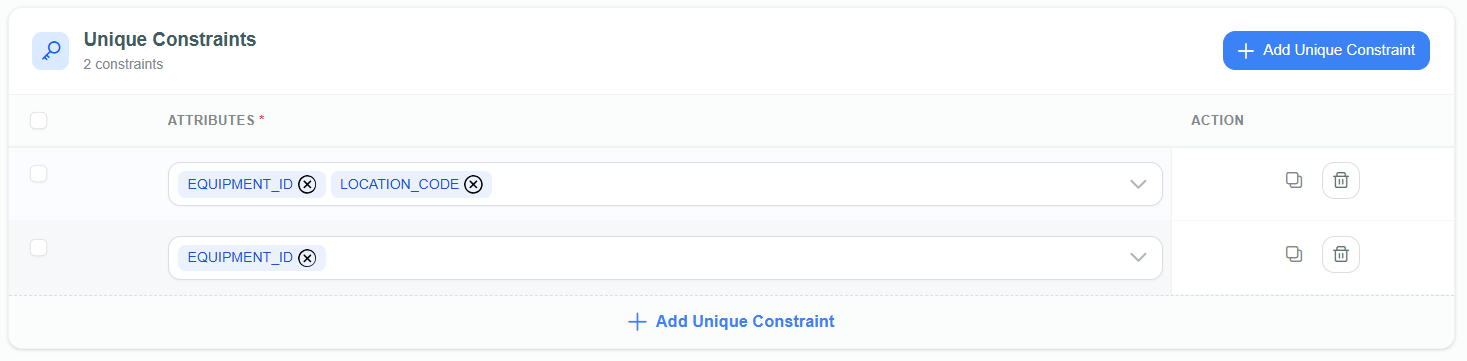
Unique Constraints configuration.
- Scroll to Unique Constraints below Object attributes.
- Select Add Unique Constraint to create a new constraint row.
- Select one or more attributes to include in the constraint.
- Repeat for each additional constraint required.
- To remove a constraint, use its Action control.
Example: A constraint on [EquipmentName + Location] means no two equipment records may share the same name and location simultaneously. A separate constraint on [EquipmentID] ensures the ID is always globally unique.
Final Step: Save Your Object Schema
Once you’ve defined the structure and settings:
- Review your configuration.
- Select Save to finalize the Object Schema.
Example: Creating a "Medical Equipment" Object Schema
Goal
Track all medical devices in a hospital environment.
Navigation
Data > Object Schemas > Create Object Schema
Configuration
- Unique schema name:
MedicalEquipment - Schema display name: Medical Equipment
- Object type:
HospitalAssets - Event on Update: enabled
- Schema icon: upload a relevant equipment icon
Attributes
setting up object attributes.
Finalize
Select Save to save.