Setting Up an Event Processor in RCOM Gateway
An Event Processor in RCOM Gateway acts as the critical bridge between your Data Ingestion Channels (such as REST API, MQTT, or Scheduler) and your Workflows. It continuously listens for incoming event data and automatically triggers the linked workflow when configured conditions are met.
Prerequisites
Before creating an Event Processor, make sure the following are ready:
-
✅ One or more Data Ingestion Channels are configured and active (e.g.,
REST API,MQTTtopic, or scheduled trigger). -
✅ One or more Workflows have been created to handle the incoming event data.
Need help with setup? Refer to:
Create a New Event Processor
From the RCOM Gateway Dashboard:
- Settings > Client Settings > Event Processor
This page lists all existing Event Processors. You can:
- View details
- Edit or delete an entry
- Compile an Event Processor
To create a new one, click ➕ Create New
Configure Event Processor Fields
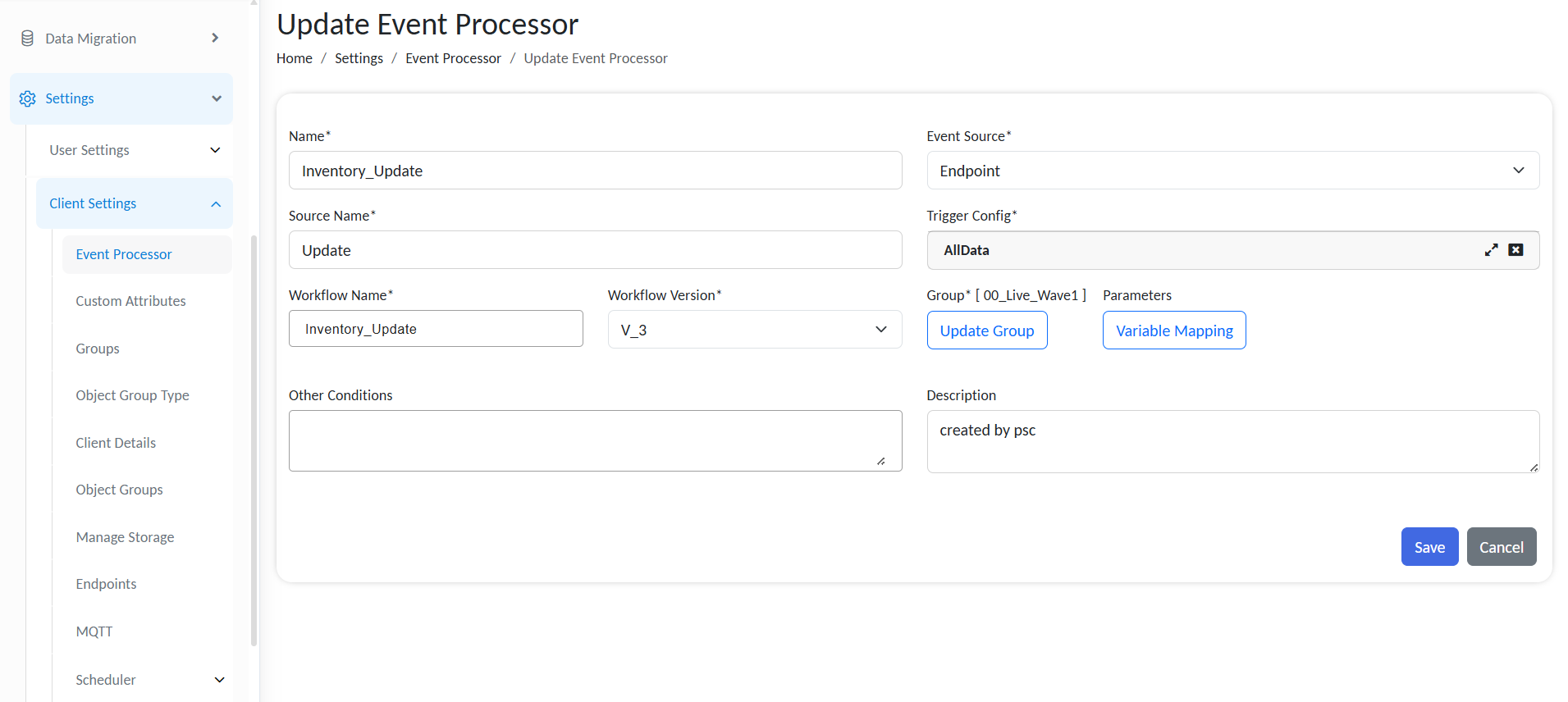
Configure Event Processor
| Field | Description |
|---|---|
| Name | Display name for the Event Processor in the Gateway UI |
| Event Source | Type of data ingestion channel (e.g., REST API, MQTT, Scheduler) |
| Source Name | The route name (REST), topic name (MQTT), or schedule ID (Scheduler) |
| Trigger Type | The type of event (e.g., UHFTagRead, CustomTrigger, GhostData) |
| Workflow | The workflow to trigger when the event is received |
| Workflow Version | Specific version of the workflow to execute |
| Group | Access control group for visibility and restrictions |
| Description | (Optional) Clarifies the purpose or behavior of the Event Processor |
Variable mapping
The Event Processor serves as the link between your Data Ingestion Channel (REST API, MQTT, or Scheduler) and a Workflow.
Variable Mapping lets you map incoming event data (or static values) directly into the input parameters your workflow expects.
This ensures that each run of the workflow receives exactly the data it needs.
To map variable:
-
Click on Variable Mapping.
This tab appears only after a workflow is selected. -
The Parameter column lists every input parameter you defined in the workflow.
- If no parameters appear, return to your workflow editor and add them under Parameters.
-
Under Static/Dynamic, choose the type of data.
-
Dynamic:
- Select Dynamic in the Type column.
- In the Value field, pick from the dropdown of all parsed fields received from your ingestion channel
(JSON data, MQTT topic fields, etc.).
-
Static:
- Select Static in the Type column.
- Enter a literal string in the Value field.
-
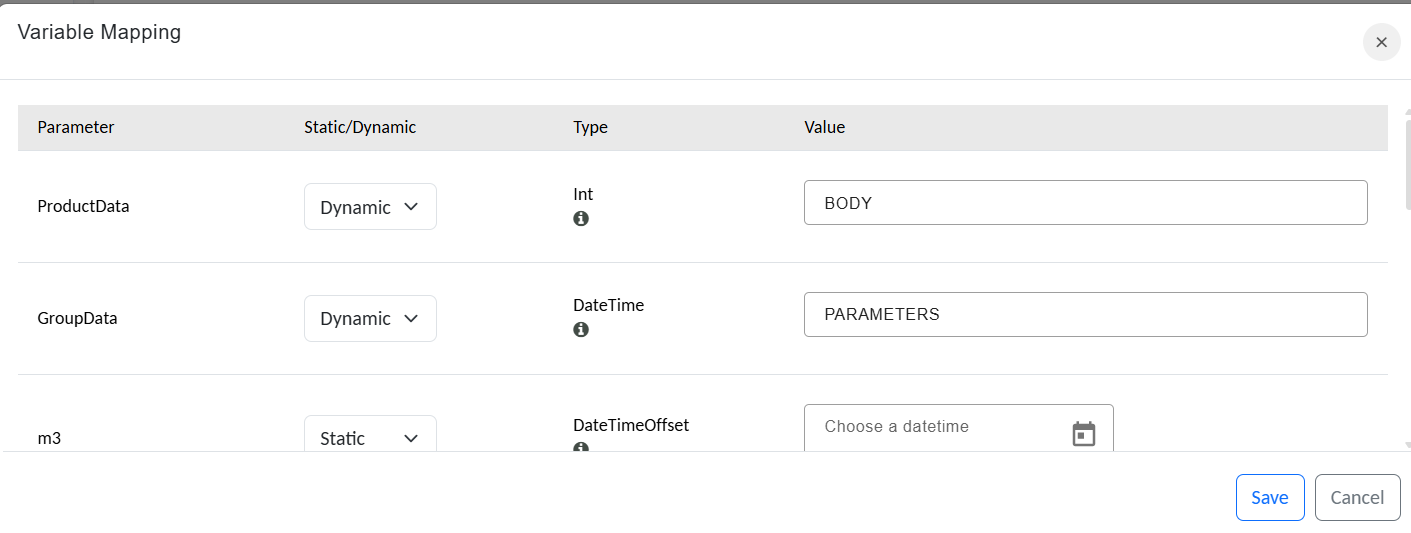
Variable mapping for selected workflow
- Once every parameter has a mapping, click Save.
- Your Event Processor will now inject those values each time it fires the workflow.
Save and Activate
Once all fields are configured:
- Click Save
- The Event Processor will immediately begin monitoring the specified ingestion channel
- When matching data arrives, the linked workflow will be triggered automatically
Example Use Case
Scenario: You want to track when tagged pallets enter a cold storage zone.
Configuration:
- Event Source:
MQTT - Source Name:
entry - Trigger Type:
UHFTagRead - Workflow:
ColdZoneEntryAlert - Workflow Version:
v3 - Group:
WarehouseOps
Result:
When a tagged pallet passes the reader, a message is published to the MQTT topic entry. The Event Processor picks it up and triggers the ColdZoneEntryAlert workflow automatically.