Object Group Types in RCOM Gateway
In RCOM Gateway, Object Group Types provide a hierarchical way to organize and manage access to collections of Object Groups. This categorization improves data governance, simplifies permission management, and aligns object data with functional or departmental boundaries.
What Are Object Group Types?
Each Object Group in RCOM Gateway is associated with a parent container called an Object Group Type. Think of it as a category that helps:
- Organize Object Groups based on processes or access policies.
- Simplify role-based access control across multiple Object Groups.
- Enable modular management of grouped data (e.g., inventory, employee records, asset tracking).
For example, you can create a Group Type called MedicalAssets and assign object groups like Equipment, Rooms, or Devices under it. Permissions can then be managed centrally for the whole category.
Where to Begin
From the RCOM Gateway Dashboard, go to:
Settings > Client Settings > Object Group Type
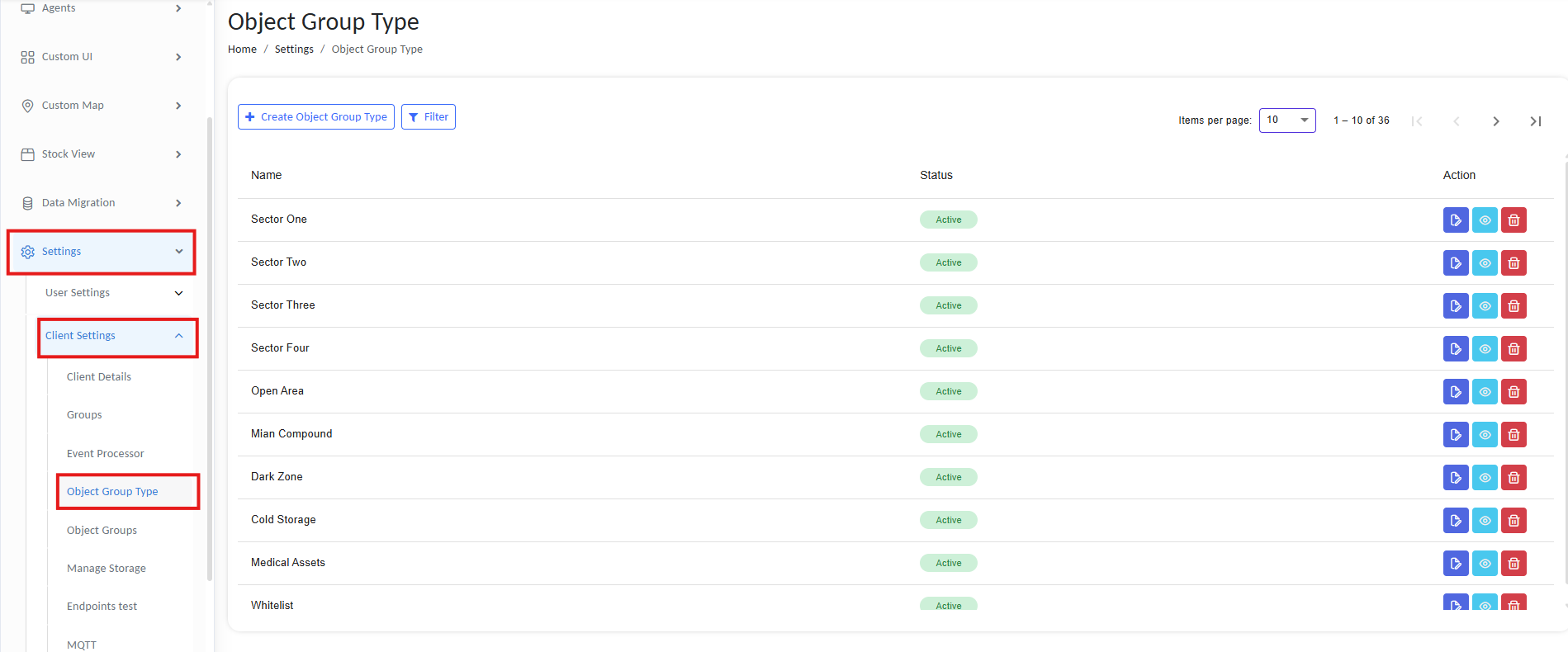
Object group types
This page lists all existing Object Group Types along with their status and available actions (edit, delete).
Create an Object Group Type
- Click ➕ Create Object Group Type.
- Enter a name for the new Object Group Type (e.g.,
HospitalRooms,ProductionAssets). - A permissions table is displayed below, showing only roles that already have access to Object Groups (e.g.,
Admin,Supervisor,PROLE, etc.). - For each listed user role, select access rights by enabling checkboxes:
| Permission | Description |
|---|---|
| Create | Can create new Objects under this type |
| Read | Can view Objects and their data |
| Update | Can modify the Object configuration and contents |
| Delete | Can remove Objects |
| View Soft Deleted | Can see Objects marked as deleted |
| Recover Soft Deleted | Can restore Objects marked as deleted |
| Hard Delete | Can permanently delete Objects |
| View Update Details | Can inspect change logs or update history |
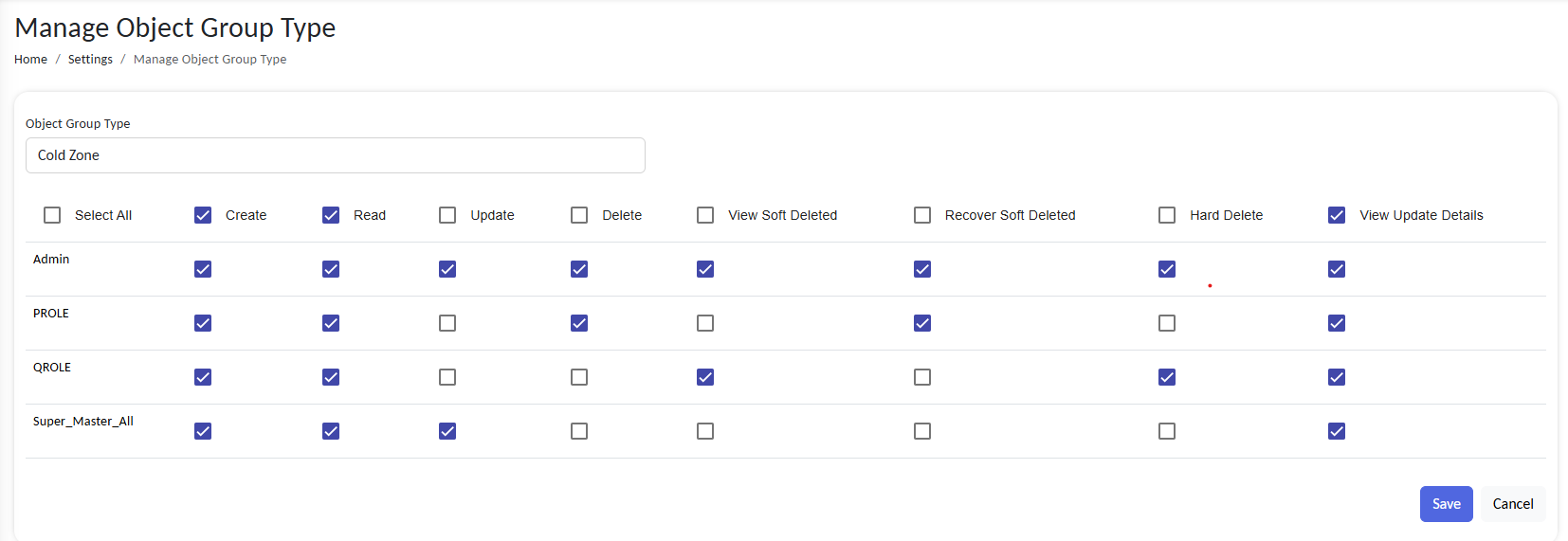
Configure new Object group type
Only user roles with base access to Object Groups are shown. Others are excluded.
- Click Save to finalize the creation, along with role access configuration.
Managing Object Group Type Permissions (Afterward)
Although permissions are usually configured during creation, you can still review and modify them later:
- Navigate to the Object Group Type list
- Click Edit beside the group type
- Adjust the permission matrix as needed
- Save changes to apply updates immediately
Best Practices
- Use clear, role-specific access policies (e.g.,
Supervisor = Read + Update,Admin = Full Access) - Assign Object Groups to the correct type early to inherit access rules
- Avoid over-provisioning roles with
Hard Deleteunless absolutely necessary
Example: Setting Up LogisticsZones Group Type
- Name:
LogisticsZones - Roles and Permissions:
Admin: Full accessSupervisor: Read, UpdateViewer: Read only
Result: All object groups created under LogisticsZones will follow this role-based access model automatically.