Custom Attributes in Object Groups
A Custom Attribute functions similarly to standard attributes, having a specified type and name. The key distinction is that Custom Attributes allow administrators to define a fixed set of allowed values. Users must select from these values when assigning attributes, ensuring consistent data entries.
Example:
- A standard attribute like "Name" with type "String" accepts any text input.
- A Custom Attribute such as "Status" only accepts values like "Active", "Inactive", or "Pending".
Creating a Custom Attribute
Follow these steps to define a Custom Attribute:
Steps
- From the dashboard, go to: Settings > Client Settings > Custom Attributes
- Click on Create New Attribute.
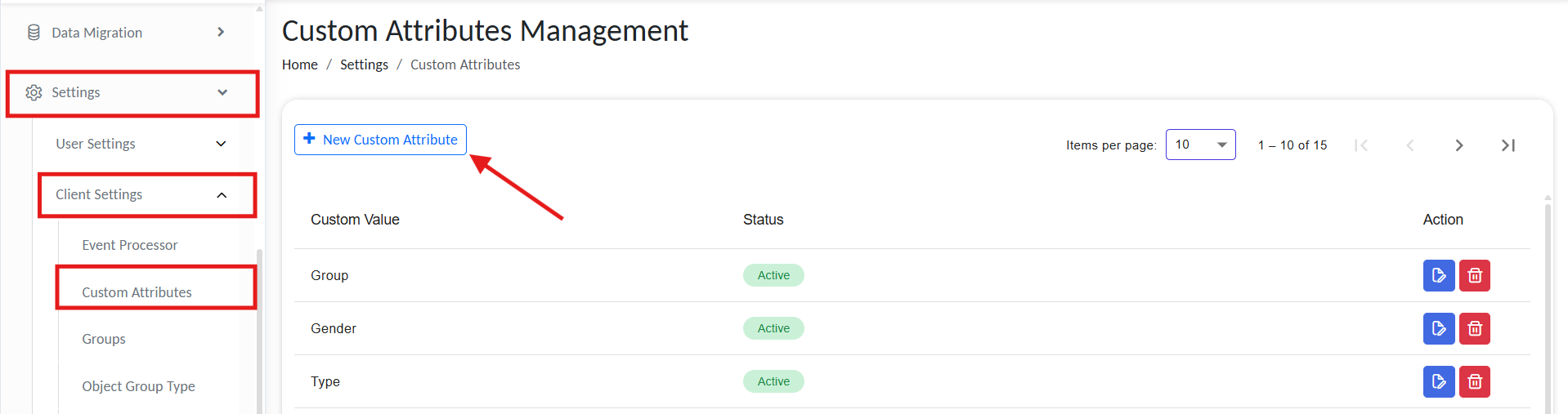
List of active custom attributes
- Define Attribute Details:
- Attribute Value: Provide the Attribute Value label.
- Allowed Types: Specify the Allowed Value types clearly.
- Translations (Optional): Add translations in English (
en) and German (de) for each allowed value.
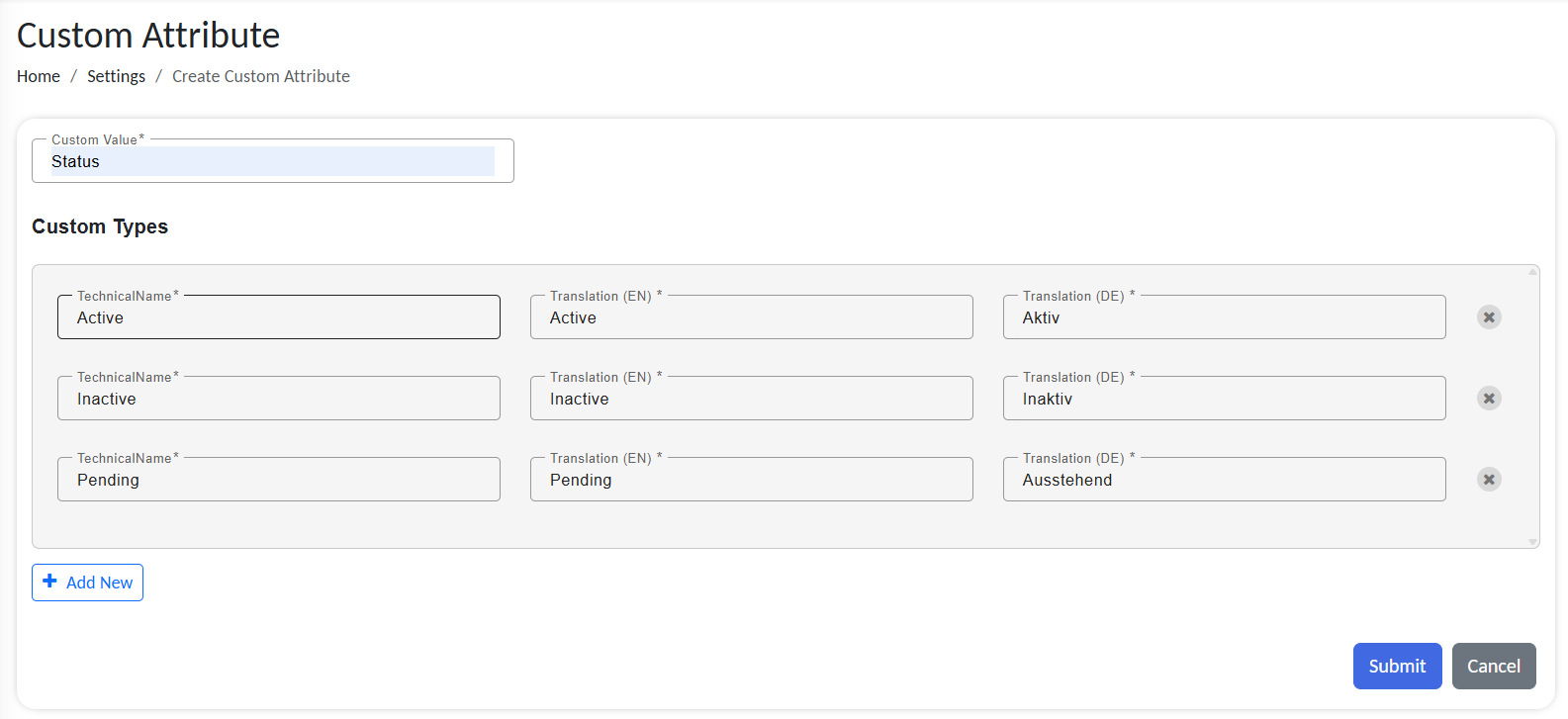
Configure new custom attribute
Example:
- Attribute Name:
Status - Allowed Values: Active, Inactive, Pending
- Translations:
- Active: en - Active, de - Aktiv
- Inactive: en - Inactive, de - Inaktiv
- Pending: en - Pending, de - Ausstehend
Utilizing Custom Attributes
Here is how you can use the created custom attribute in a object group.
- While adding a new attribute, set the Attribute Type as Custom.
- In the value field, select the predefined value from the dropdown menu.
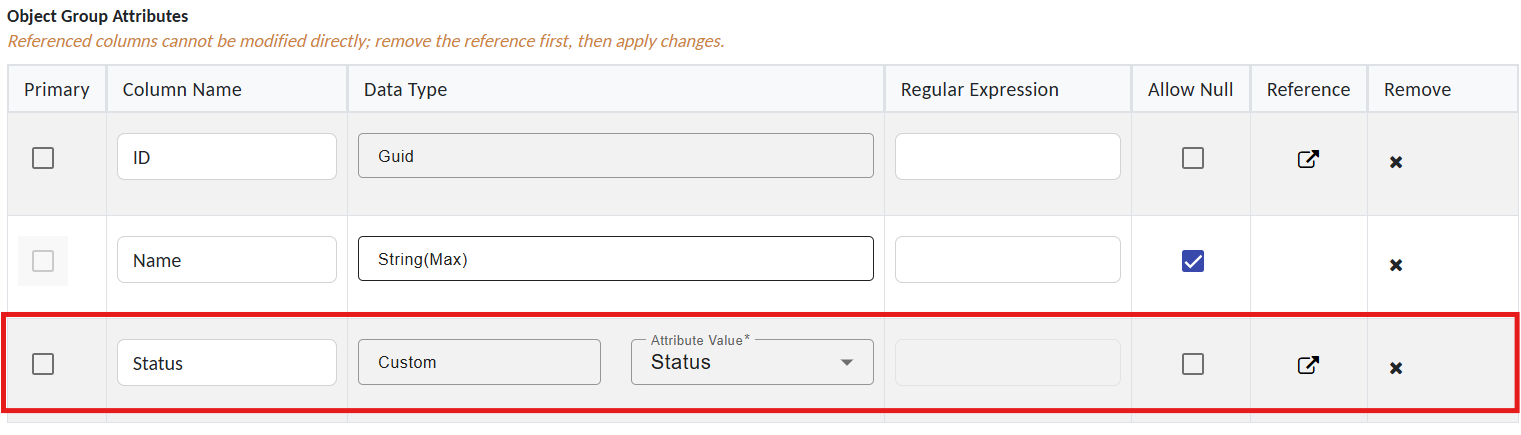
Using custom attribute in a object group
-
Once the Object Group is saved, the Custom Attribute will only accept these predefined values.
Example Usage:
Adding a new entry via Endpoint. When a workflow attempts to push data to the database using this object group as a schema, the ID field will accept any valid GUID as input, and similarly, the Name field will accept any string. However, the Status field will only accept one of the three predefined values: Active, Inactive, or Pending. If any other value is provided for Status, the workflow will fail, and no new entry will be added to the database.
Benefits of Custom Attributes
- Data Consistency: Prevents erroneous data entry by limiting inputs to pre-defined, valid options.
- Simplified Data Management: Easier maintenance and query building with standardized attribute values.
- Enhanced Data Quality: Ensures uniformity across data entries, crucial for accurate reporting and analytics.