Scheduling Events with the Event Scheduler
The Event Scheduler allows R-COM Gateway to trigger workflows based on time, rather than device events or external API calls. It creates internal, time-based events that flow through the standard ingestion pipeline.
Use the Scheduler when an action must occur on a fixed schedule - daily, hourly, or as a one-time execution without requiring external systems or hardware devices.
When to Use the Scheduler
The Event Scheduler can be applied in different scenarios, including:
- Run periodic tasks such as daily reports, system cleanups, or audits at fixed times.
- Trigger one-off actions (e.g., 31st Dec at 11:59 PM).
- Running maintenance or automation routines that have no corresponding device event.
- And more.
The matching Event Rule picks up the scheduled event and executes the linked workflow.
Create a Scheduled Event
To create a scheduler-based trigger:
Step 1: Navigate to Scheduler
From the Gateway dashboard:
- Go to Automation > Scheduler.
- Select Create Schedule.
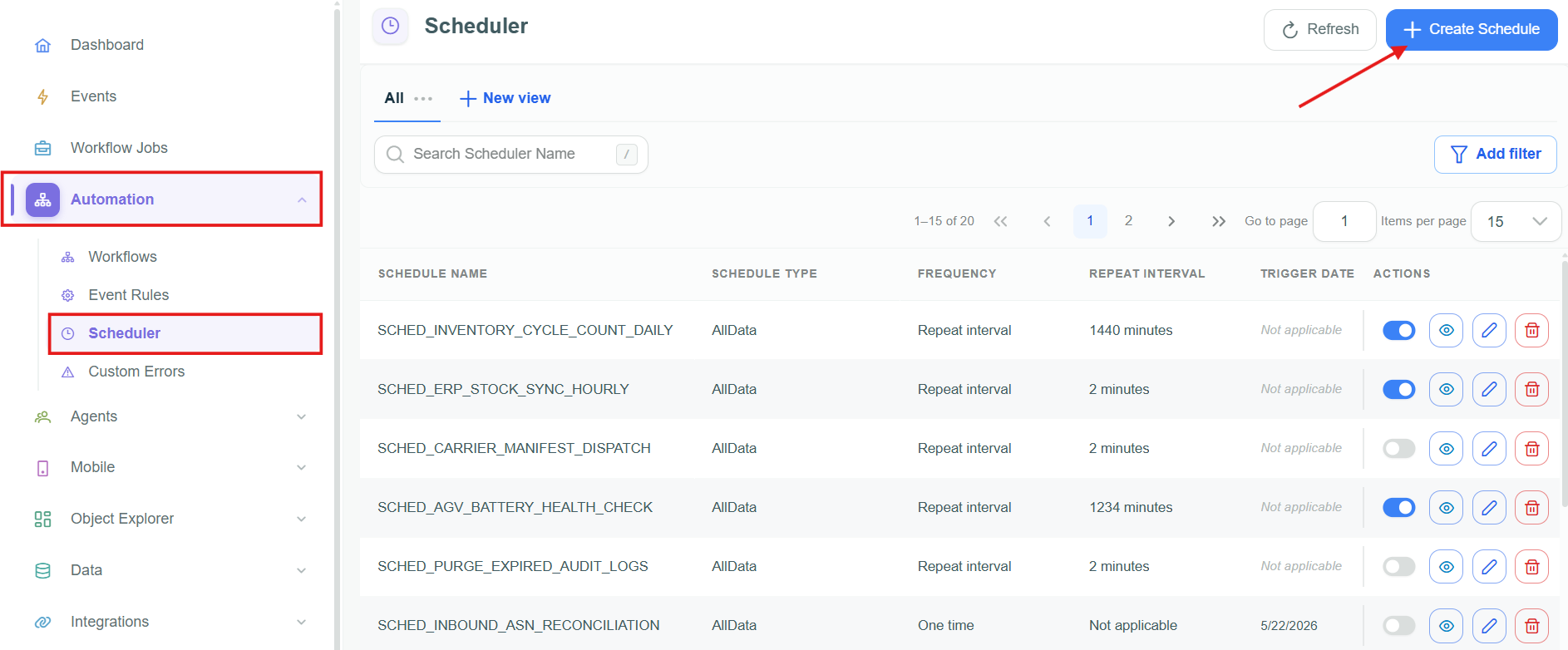
List of scheduled triggers
Step 2: Configure Scheduler Fields
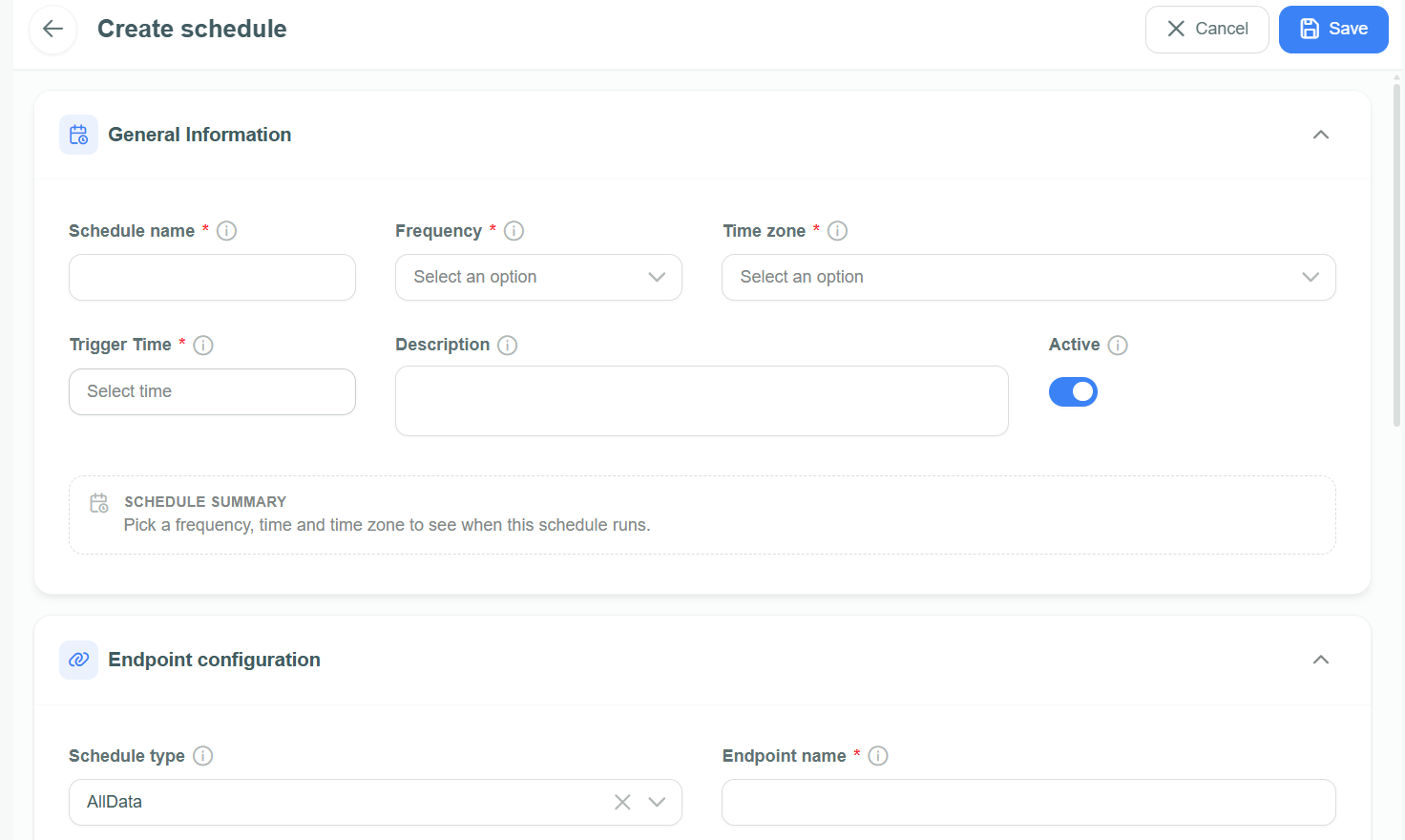
Schedule REST API Trigger
| Field | Description |
|---|---|
| Schedule name | Unique identifier for this scheduled task. |
| Frequency | How often to trigger the event. - Daily: Runs at the selected Trigger Time each day. - Repeat interval: Requires Start date, Start Time, and Repeat every (minutes). - One time: Requires Trigger Date and Trigger Time. |
| Trigger Time | Time of day to trigger the event (24-hr format). |
| Trigger Date | Required if One time is selected. |
| Time Zone | Execution zone (e.g., Asia/Kolkata UTC+05:30). |
| Description | Optional explanation of the schedule. |
| Active | Enables or disables the schedule. |
| Schedule type | Select the event format, such as AllData. |
| Endpoint name | Source name used by the matching Event Rule. |
| Request headers | Optional key/value request headers. |
| Query parameters | Optional key/value query parameters. |
| Request body (JSON) | Optional JSON payload sent with the scheduled event. |
The Schedule summary updates as you configure the schedule so that you can verify the next planned execution.
Step 3: Save and Activate
- Select Save.
The new entry will appear in the Scheduler list, with status marked as Active.
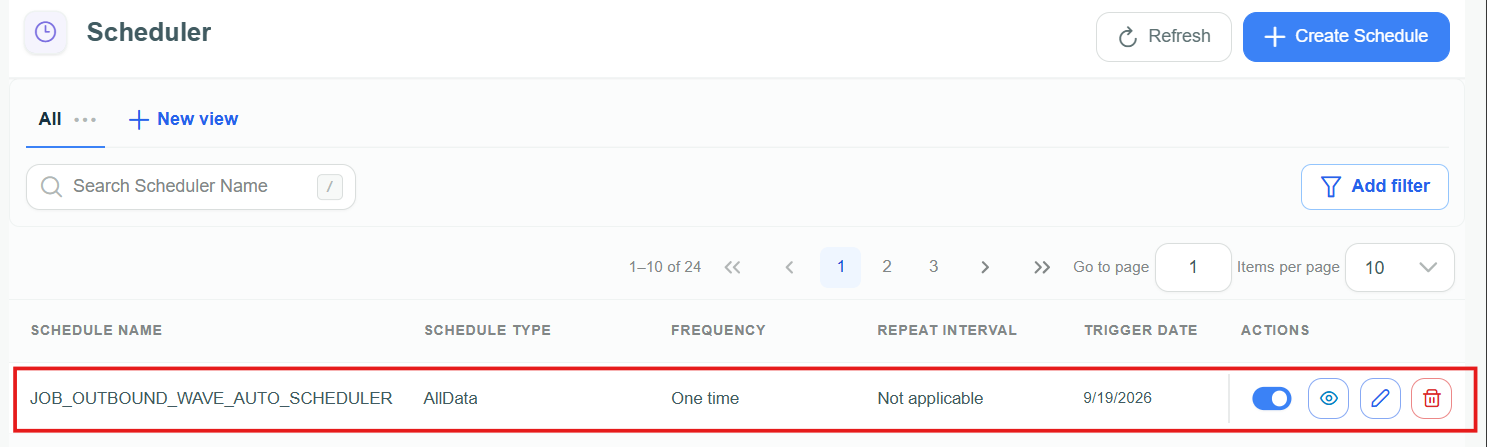
Active scheduled trigger
How Scheduled Events Flow Through the System
At the scheduled time:
- Gateway generates a Scheduled Event.
- The event is passed into the selected source name.
- The matching Event Rule receives the event.
- The configured workflow is triggered with the provided body/headers/params.
✅ Best Practices & Notes
- Match the Scheduler's Endpoint name with the Event Rule's Source Name.
- Align the Time Zone carefully to prevent timing mismatches.
- Test workflows with sample events before activating them on a schedule.
- Use meaningful Scheduler names to keep track of recurring tasks easily.