Workflow Jobs in RCOM Gateway
Workflow Jobs are a powerful diagnostic and monitoring tool in RCOM Gateway. Every time a workflow is triggered, whether by RFID scans, API calls, MQTT messages, or custom events, it results in a workflow job. These jobs record exactly how the workflow ran: what data it processed, what actions it performed, and whether it succeeded or failed.
They are essential for:
- Operational Transparency: Understanding what your automation is doing.
- Debugging: Isolating issues when workflows fail.
- Optimization: Finding bottlenecks or inefficiencies in your logic.
Accessing Workflow Jobs
To review past executions/workflow jobs:
- Navigate to Workflows > Workflow Jobs in the sidebar.
- You'll see a table of all workflow job instances, sorted by most recent first.
- Each entry provides a snapshot of that workflow’s execution.
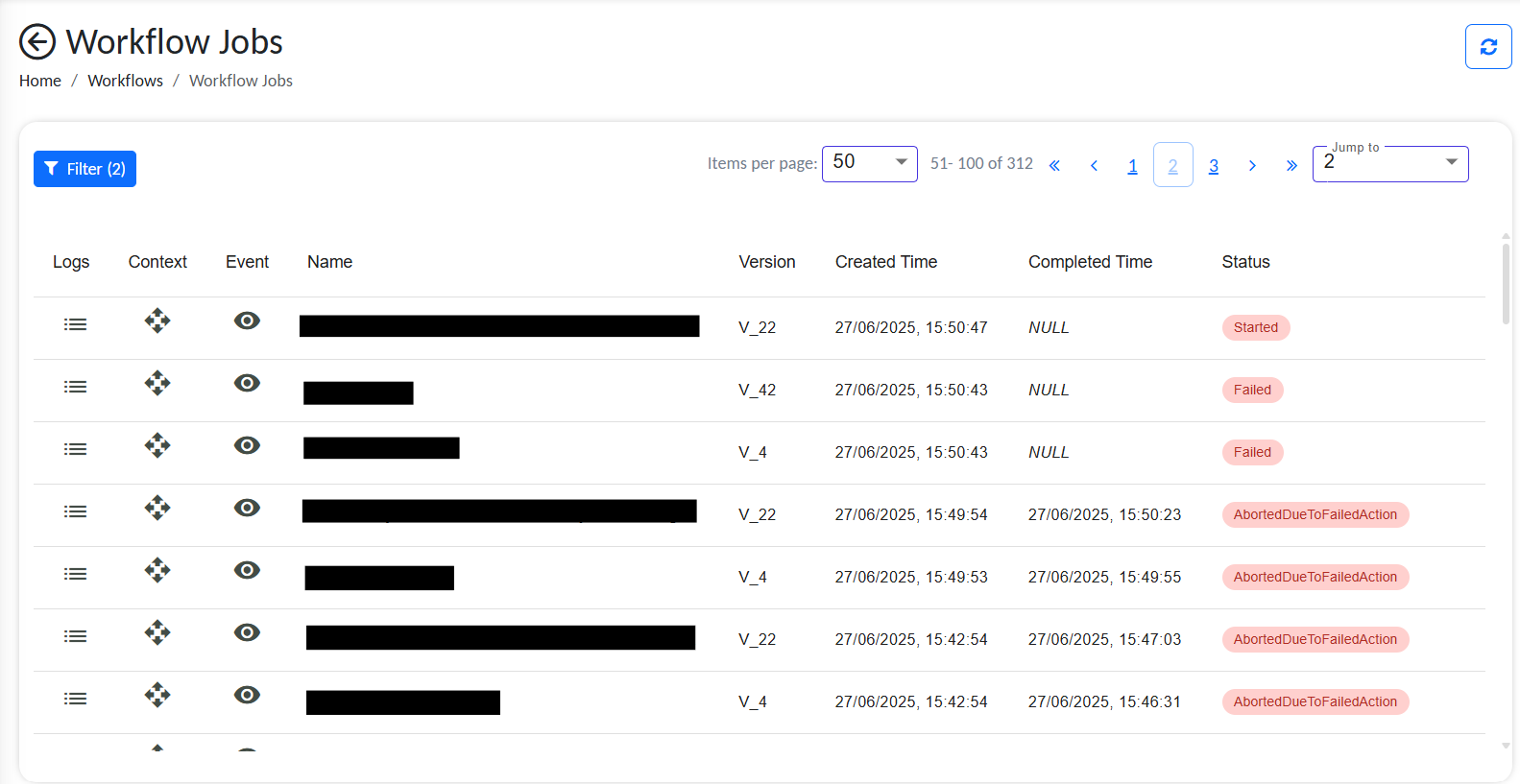
List of workflow jobs
Workflow Jobs Table Overview
| Column | Description |
|---|---|
| Logs | Opens a detailed step-by-step execution log for the job. |
| Context | View all runtime variables used/generated during the workflow. Crucial for tracing data inputs and outputs. |
| Event | View the source event that triggered the workflow and all jobs under that event. |
| Name | The name of the executed workflow. |
| Version | The version of the workflow executed. |
| Created Time | Timestamp when the job was initiated. |
| Completed Time | Timestamp when the job finished (or failed). |
| Status | Final result of the job. example: - Completed - CompletedButFailureOnDBUpdates - AbortedDueToFailedAction |
Viewing Workflow Logs
To inspect what happened in a specific job:
- Click the Logs icon next to the job.
- A modal opens showing detailed logs with timestamped entries.
- The log levels (e.g.,
FINEST,WARNING,ERROR) help you filter and locate critical issues.
Example Error:
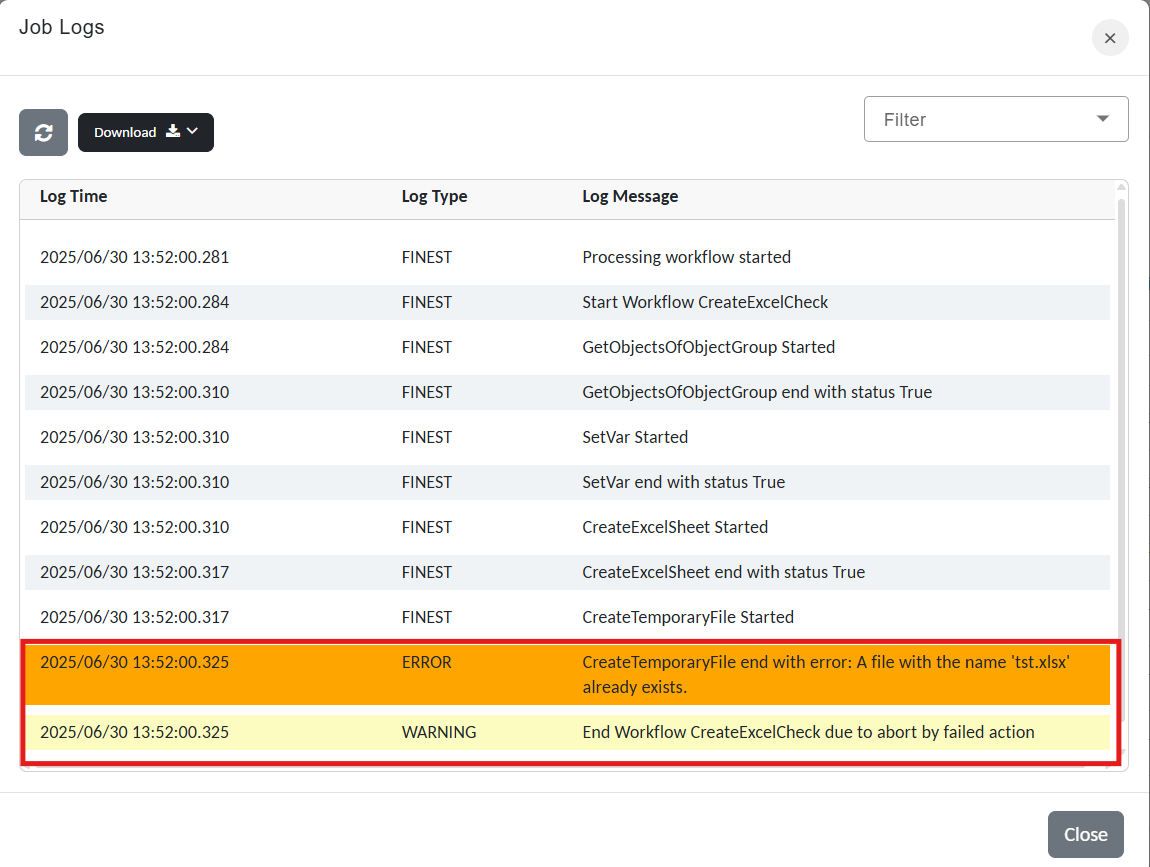
List of workflow jobs
This particular error indicates that the workflow was terminated because a database entry with the same name already existed during the execution of the CreateTemporaryFile action.
Inspecting Workflow Context
To understand how variables were set and transformed during a job:
- Click the Context icon for the relevant job.
- You’ll see runtime values including:
- Global variables (
CLIENT_ID,SUBWORKFLOW_API_BASE, etc.) - Payload-specific fields (
objid,T_CUSTOMER, etc.) - and more...
- Global variables (
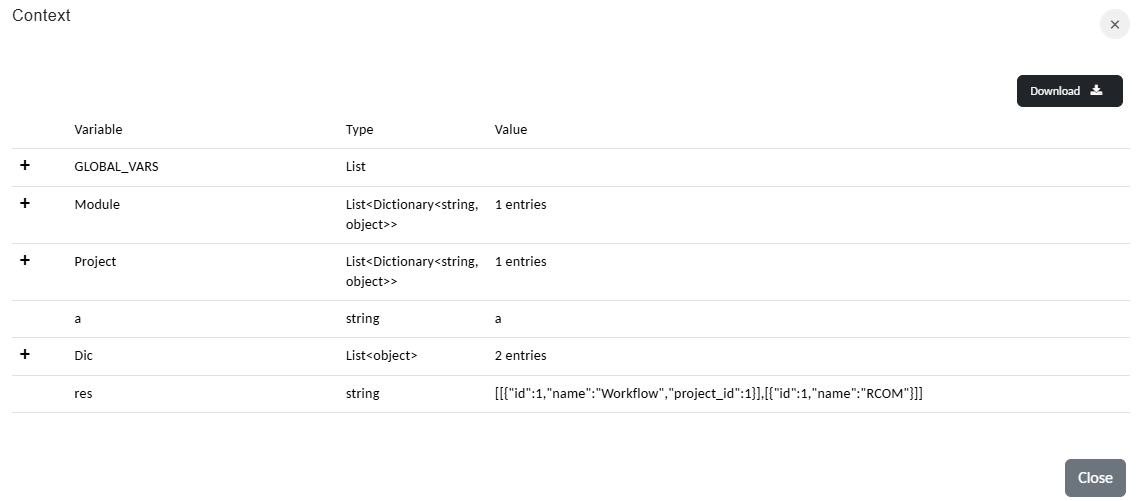
Workflow context
This is particularly useful when troubleshooting value mismatches, null references, or incorrect variable propagation in complex workflows.
To downlaod the context and view it offline click on Download at the top right corner and a json version of the context will be downloaded.
Common Status Indicators and Their Meaning
| Status | Meaning |
|---|---|
Completed | Workflow ran successfully with no errors. |
Failed | A general failure occurred, often logic or data related. |
AbortedDueToFailedAction | A required action failed, stopping execution. |
CompletedButFailureOnDBUpdates | Workflow logic ran fine, but DB/storage update failed. |
WorkflowNotFound | The referenced workflow was missing or deleted. |
Created, Started, Undefined | Intermediate or rare internal statuses. |
Use the combination of Logs + Context to trace and correct such issues.
Example Troubleshooting Flow
- Check Status →
AbortedDueToFailedAction. - Click Logs → Review the exact step that failed.
- Click Context → Confirm that variables were correctly passed.
- Update the workflow logic or fix the source data (e.g., correct SQL column name).
- Rerun Event (if available) to retry with updated logic.