Understanding Workflow Context in RCOM Gateway
RCOM Gateway is a dynamic, event-driven automation platform that allows you to build flexible workflows triggered by physical or digital events. One of the most powerful diagnostic and functional tools available in RCOM Gateway is the workflow context. This article explains what workflow context is, how it works, and how to view and use it effectively.
What Is Workflow Context?
When a workflow in RCOM Gateway is executed, either by an API call, an MQTT message, a scheduled event, or manual triggering, a workflow context is created. This context acts as the live memory of the workflow job and contains all relevant runtime variables, including:
- Input parameters
- Global variables
- Intermediate outputs from workflow actions
- Retrieved or computed values (e.g., from databases, REST APIs)
- Data structures passed between actions
Each workflow job has its own unique context, ensuring data isolation and traceability.
When Is It Generated?
A workflow context is automatically created whenever a workflow job starts. This applies to workflows triggered by:
- Event Processors (REST API, MQTT, Scheduler)
- Manual execution from the UI
- Subworkflow invocations
Why It Matters
Workflow context serves multiple purposes:
| Purpose | Description |
|---|---|
| Debugging | Lets developers and engineers trace data across every step of the workflow. |
| Transparency | Helps understand what data the workflow received and how it was transformed. |
| Data Passing | Enables action blocks to share information by reading/writing to the context. |
| Runtime Behavior | Offers insight into conditional logic or loops driven by variable values. |
| Auditability | Retains a snapshot of input, output, and transformations for each workflow job. |
Note: The workflow context is compressed before saving in the database to save space. You can choose to disable data compression by overriding the environment variable WORKFLOWPROCESSOR__ENABLEDATACOMPRESSION.
Real Example: Inspecting Workflow Context
The screenshots below show a live workflow context in action:
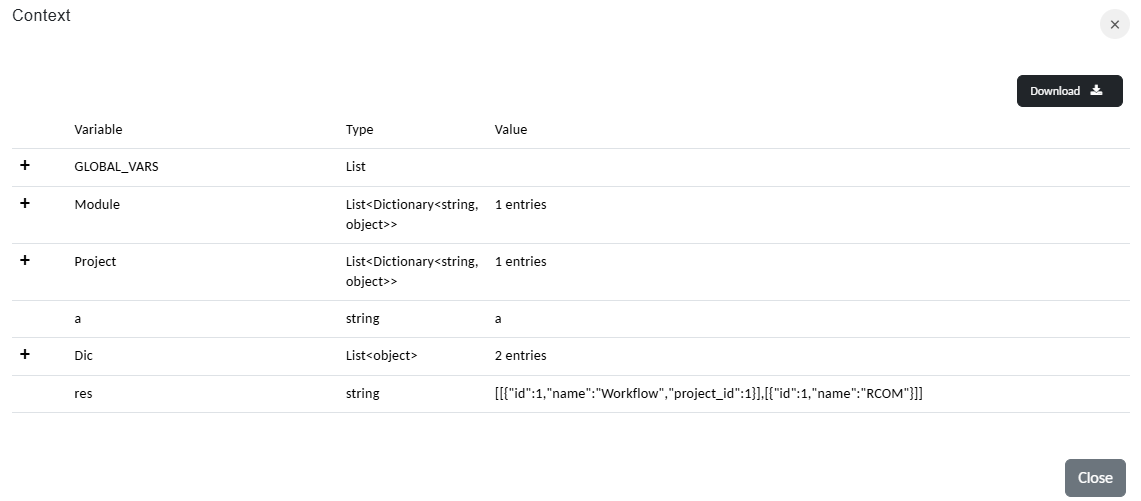
Example workflow context
In this example:
GLOBAL_VARSinclude platform-level settings like API base URLs, timeouts, and keys.res: respose data send back from the workflow.
There could be more variables based on the actions used in the workflow. If you want to examine the context offline you can use the download option to download the context as JSON data.
These values are created and updated during execution via workflow actions like SetVar, FetchObjectDetails, HttpRequest, etc.
How to View Workflow Context
You can inspect the workflow context for any completed or running job via two routes:
Option 1: From the Workflow Job Log
- Go to Dashboard > Workflows > Workflow Jobs.
- In the job detail view, click Context to view all runtime variables.
Option 2: From the Event That Triggered It
- Go to Dashboard > Events.
- Find the event you want to inspect.
- Click the inline Jobs link.
- Click Context inline to the job that you want.
This gives full visibility into how the workflow reacted to a particular event and what data it processed.
Best Practices
- Name your variables clearly when using
SetVarorHttpRequestactions to make context debugging easier. - Use dictionaries or lists to structure complex data for downstream steps.
- Log key values using the
Logaction so you can correlate log messages with context values. - Avoid polluting context with unnecessary or redundant variables; it keeps jobs lighter and easier to debug.