Custom Errors in RCOM Gateway Workflows
The Custom Errors feature allows you to define standardized, multilingual error messages that can be reused across workflows and displayed consistently throughout the platform.
When workflow actions fail, errors are often generic, requiring log and action review to identify the cause. Custom errors enable centralized management of error definitions, attaching them to action failure routes to capture and display meaningful messages and guidance, facilitating quick and easy debugging.
This ensures:
- Clear and consistent error communication
- Multilingual support for global teams
- Actionable guidance for end users
- Improved transparency in workflow job monitoring
Overview
Custom Errors allow you to:
- Define unique error identifiers
- Provide user-friendly descriptions
- Add actionable resolution guidance
- Translate error messages into supported system languages
- Attach errors to workflow logs and process status updates
All error definitions are centrally managed and reusable across the platform.
Where to Manage Custom Errors
Navigate to:
Settings > Client Settings > Custom Errors
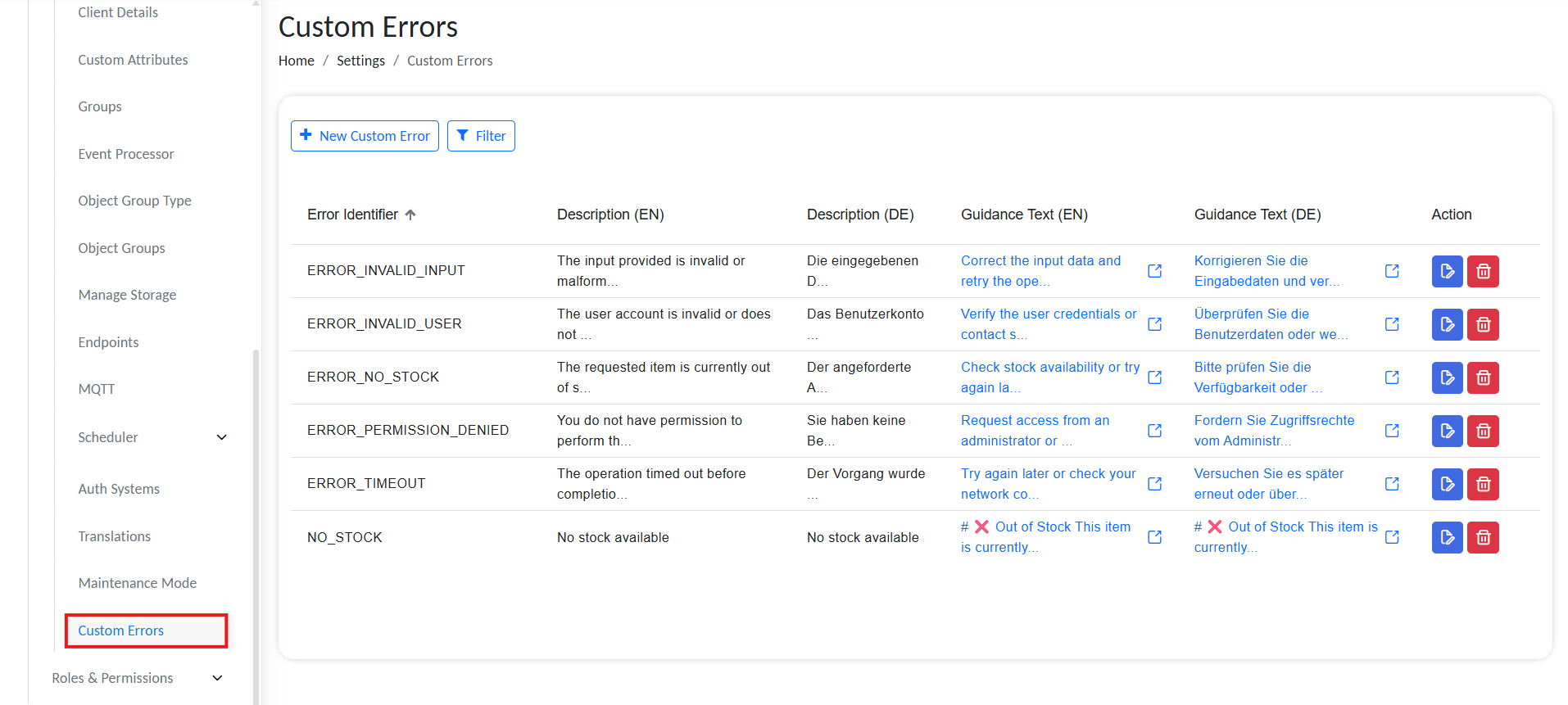
Custom Errors
From this page, you can:
- View all defined errors and details
- Create new errors
- Edit existing errors
- Delete unused errors
- Filter errors for easier management
Deleting Custom errors that are alreday in use may casue the workflows to fail.
Creating a Custom Error
- Go to:
Settings > Client Settings > Custom Errors - Click
New Custom Error - Configure the following fields:
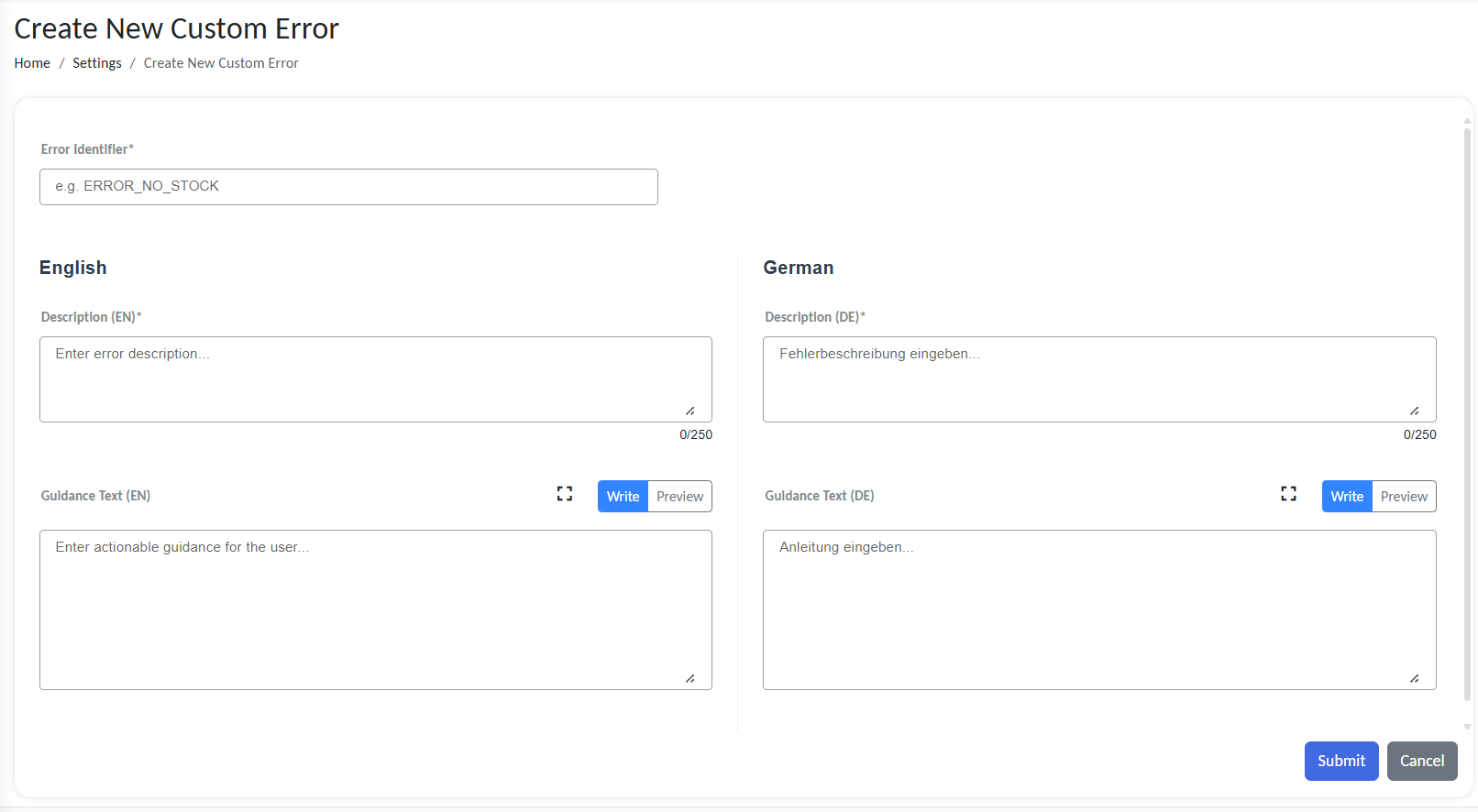
Create new Custom Error
Error Identifier (Required)
A unique internal code used to reference the error.
Example:
ERROR_NO_STOCKERROR_INVALID_INPUTERROR_PERMISSION_DENIED
Best Practice:
- Use uppercase letters
- Use underscores instead of spaces
- Keep identifiers stable once used in workflows
Description (Per Language)
A short, user-friendly explanation of the issue.
This text is shown to users when the error occurs.
Example:
- EN: “No stock available.”
- DE: “Kein Bestand verfügbar.”
Guidance Text (Per Language)
Actionable instructions to help the user resolve the issue.
Example:
- EN: “Check stock availability or contact the warehouse supervisor.”
- DE: “Bitte prüfen Sie die Verfügbarkeit oder wenden Sie sich an den Lagerverwalter.”
Guidance should be clear, specific, and resolution-focused.
Click Submit to save.
The error is now available for use inside workflows.
Using Custom Errors in Workflows
Custom Errors can be attached within workflows in two main ways.
1. Log (V3) Action
- Attach a Custom Error when logging workflow information.
- Visible in the detailed job log view
- Used primarily for troubleshooting and diagnostics
- Added to the main job overview on execution.
2. SetProcessStatus Action
- Attach a Custom Error when updating a workflow job’s status.
- Displayed prominently in the workflow job view
- Provides immediate context for failed or blocked processes
- Ideal for user-visible process failures
Permissions
Access to manage Custom Errors is controlled through role-based permissions.
Permissions include:
- View
- Create
- Edit
- Delete
Administrators can configure these under:
Settings > Roles & Permissions
Example Use Case
Scenario: A workflow attempts to process an order, but stock is unavailable.
Instead of displaying a generic failure message, the workflow attaches:
ERROR_NO_STOCK
The user sees:
Description:
“No stock available.”
Guidance:
“Check stock availability or try again later.”
This provides immediate clarity and next steps.
Best Practices
- Keep descriptions concise and user-friendly.
- Avoid technical jargon in user-facing text.
- Provide clear resolution steps in guidance.
- Maintain consistent naming conventions for error identifiers.
- Periodically review and remove unused error definitions.