Object Explorer
Object Explorer is the working area for objects defined by an Object Schema. Use it to locate an object, review its current values and relationships, correct data, or create a new object for the selected Object Type and Object Schema.
Object Explorer is organised around the data model. An Object Type determines the business grouping, while an Object Schema determines the fields available for its objects. See Object Types and Object Schemas for configuration details.
Browse Objects
- Navigate to Object Explorer.
- Select an Object Type.
- Select an Object Schema to view its objects.
- Use Add filter to narrow the list. Select Refresh to reload the current results.
The object list has Active Objects and Deleted Objects tabs. Use the active list for normal data work. Use the deleted list when you need to review objects that have been deleted; the actions available there depend on your Object Type permissions.
Filters apply to the selected Object Type and Object Schema. Combine filters to focus on the values or records relevant to the current task, and use Refresh after an update or import to retrieve the latest results.
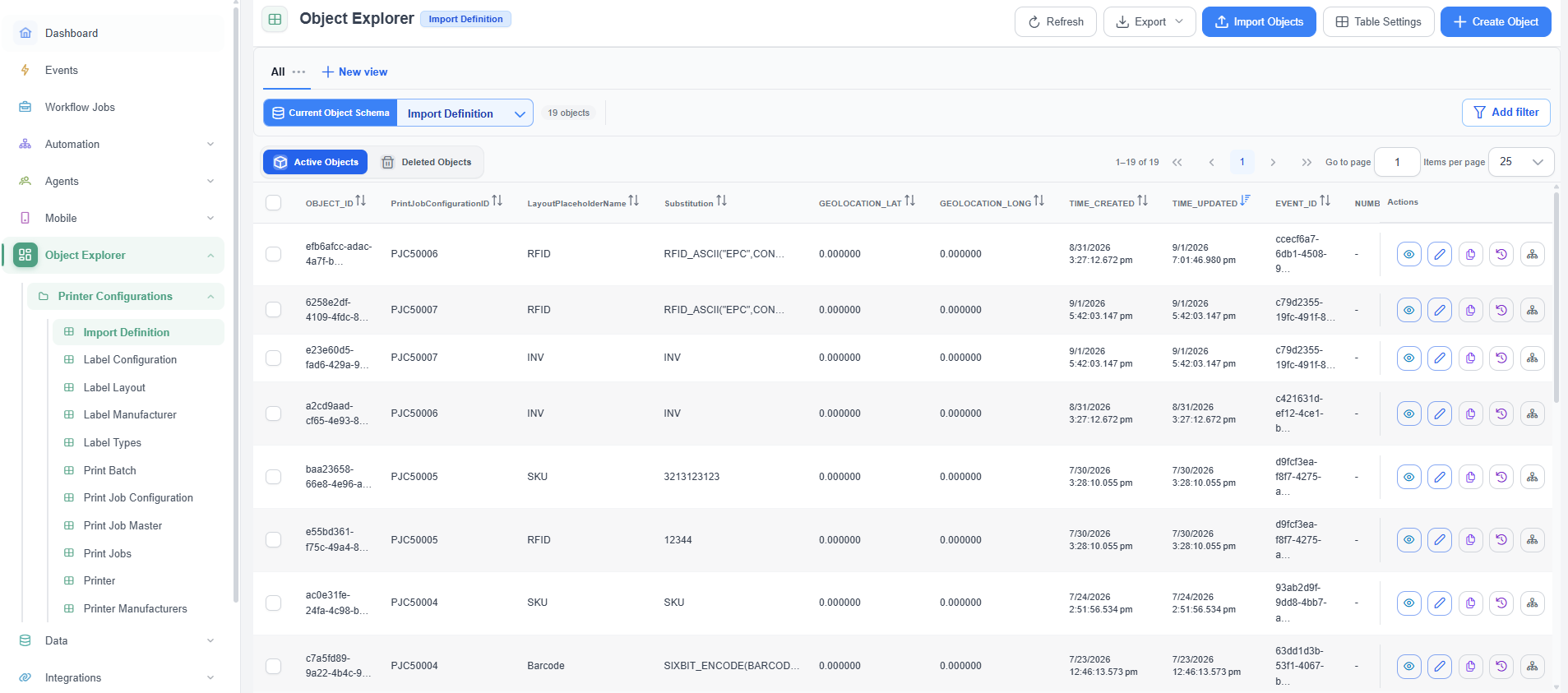
Select an Object Type and Object Schema, then use filters and the Active Objects or Deleted Objects tabs to view objects.
Create and Manage Objects
Select Create Object to add an object for the selected schema. The fields shown in the form are defined by that Object Schema, so the information required can differ between schemas.
From an object row, you can:
- Select View object to open Object Details.
- Select Edit object to open Update Object.
- Select Duplicate object to create a copy.
- Select View object history to review Object History.
- Select View object references to see related objects.
| Action | Purpose |
|---|---|
| View object | Opens Object Details to review the object without changing it. |
| Edit object | Opens Update Object to change values for the selected object. |
| Duplicate object | Creates a copy that can be used as the starting point for a similar object. |
| View object history | Opens Object History to review recorded changes. |
| View object references | Shows objects related to the selected object. |
Use Duplicate object when creating another object with similar values. Review every copied field before saving so identifiers and relationships remain correct.
Import, Export, and Table Settings
Use Export to export objects from the current Object Explorer context in CSV or Excel format. Use Import Objects to bring Excel object data into the selected Object Type and Object Schema. Use Table Settings to configure how the object list is displayed for the current user or task.
To upload object data, select the required Object Type and Object Schema, then select Import Objects and choose the Excel (.xlsx) file. You can drag and drop the file or select Choose File. Select Upload to continue.
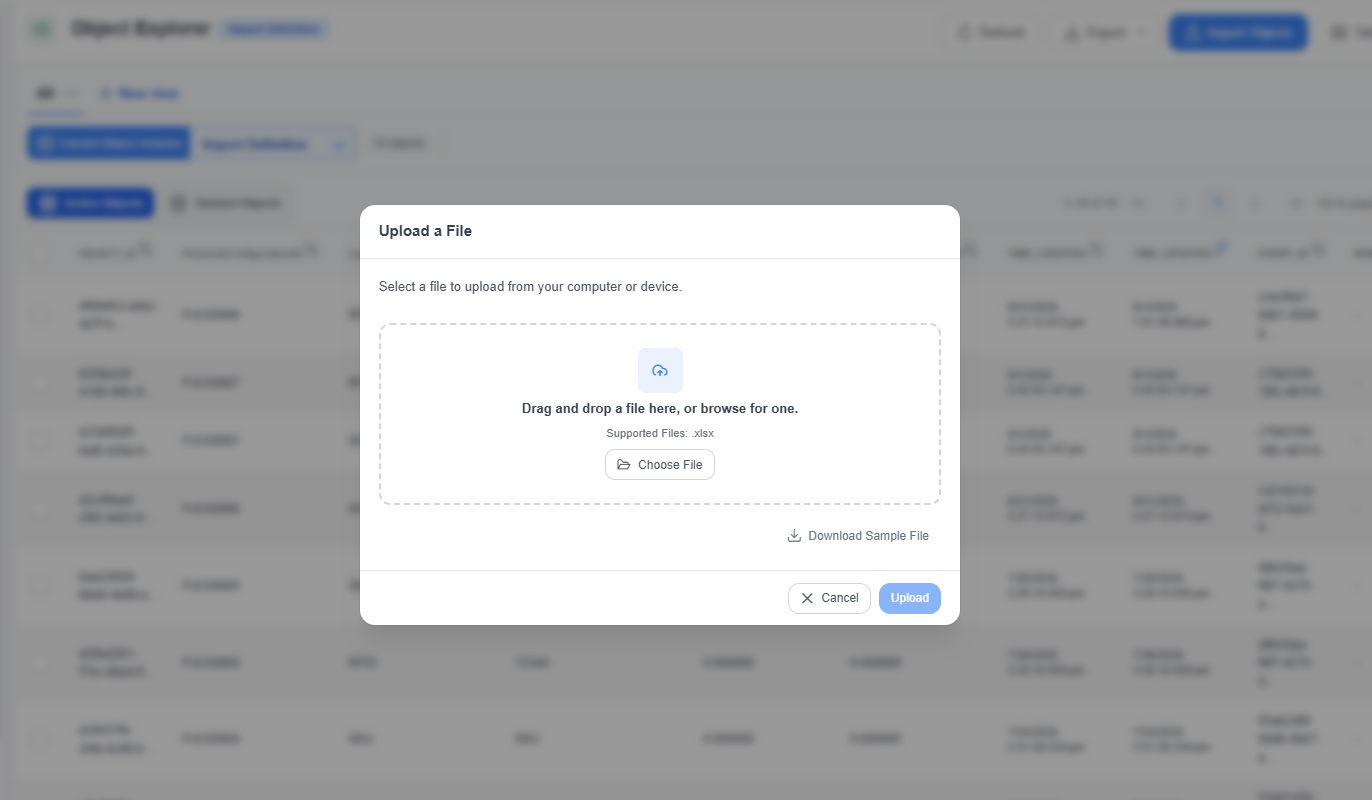
The Import Objects dialog supports Excel (.xlsx) files.