Data Migration with Packages
Data migration is essential when moving configurations between environments (e.g., test → production), performing backups, or restoring a system state. RCOM Gateway provides two mechanisms for this: XML Import/Export and Packages.
While the XML-based Import/Export option allows for quick migration or backup of entire datasets, RCOM Gateway also offers a more advanced and secure alternative: Packages. This mechanism introduces versioned, scoped exports with granular permission control, structured review workflows, and side-by-side comparison during import.
Exporting a Package
To export configurations as a package:
- Navigate to Data Migration > Packages
- Click + New Package
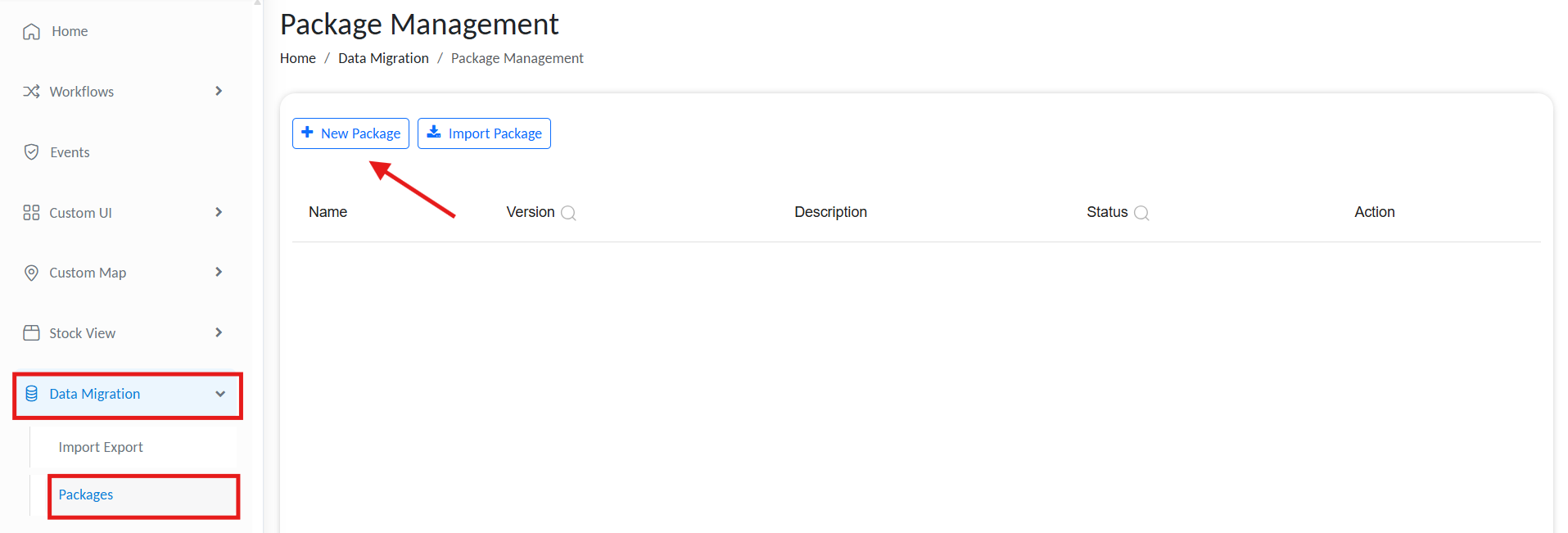
Creating a new JSON package export
-
Fill in:
- Package Name
- Version
- Description
-
Under Modules, select the components you want to export. Available selections include:
- Workflows
- Object Groups
- Custom UIs
- Custom Maps
- Endpoints
- MQTT Configurations
- External Users
- Groups
- Log Deletion
- Roles and Permissions
- Custom Attributes
- Storage Locations
- Global Variables
- Scheduler
- Object Data
- Event Processors
You can export an entire module by selecting it or choose specific data from the selected module.
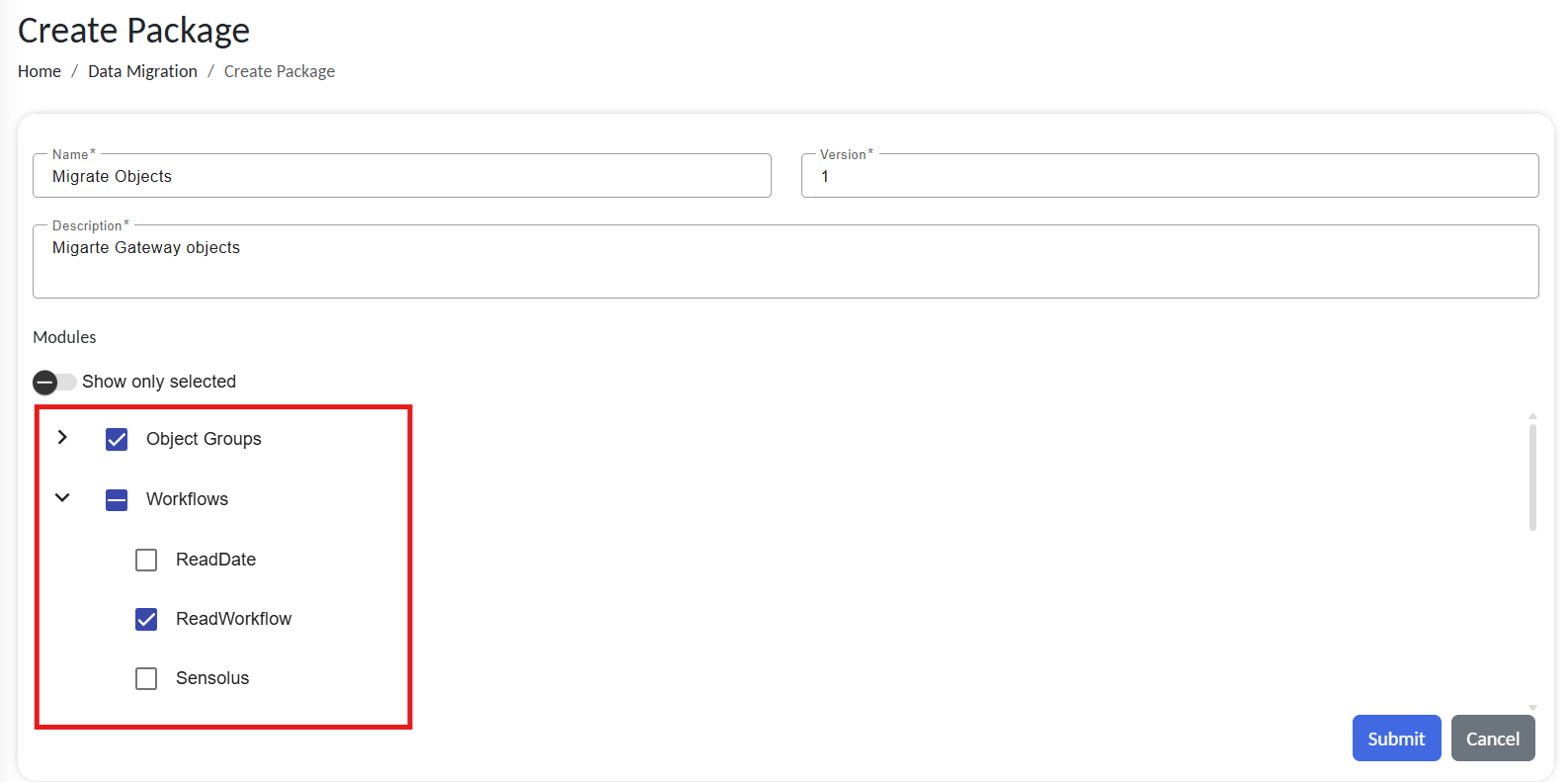
Export only selected data from a module
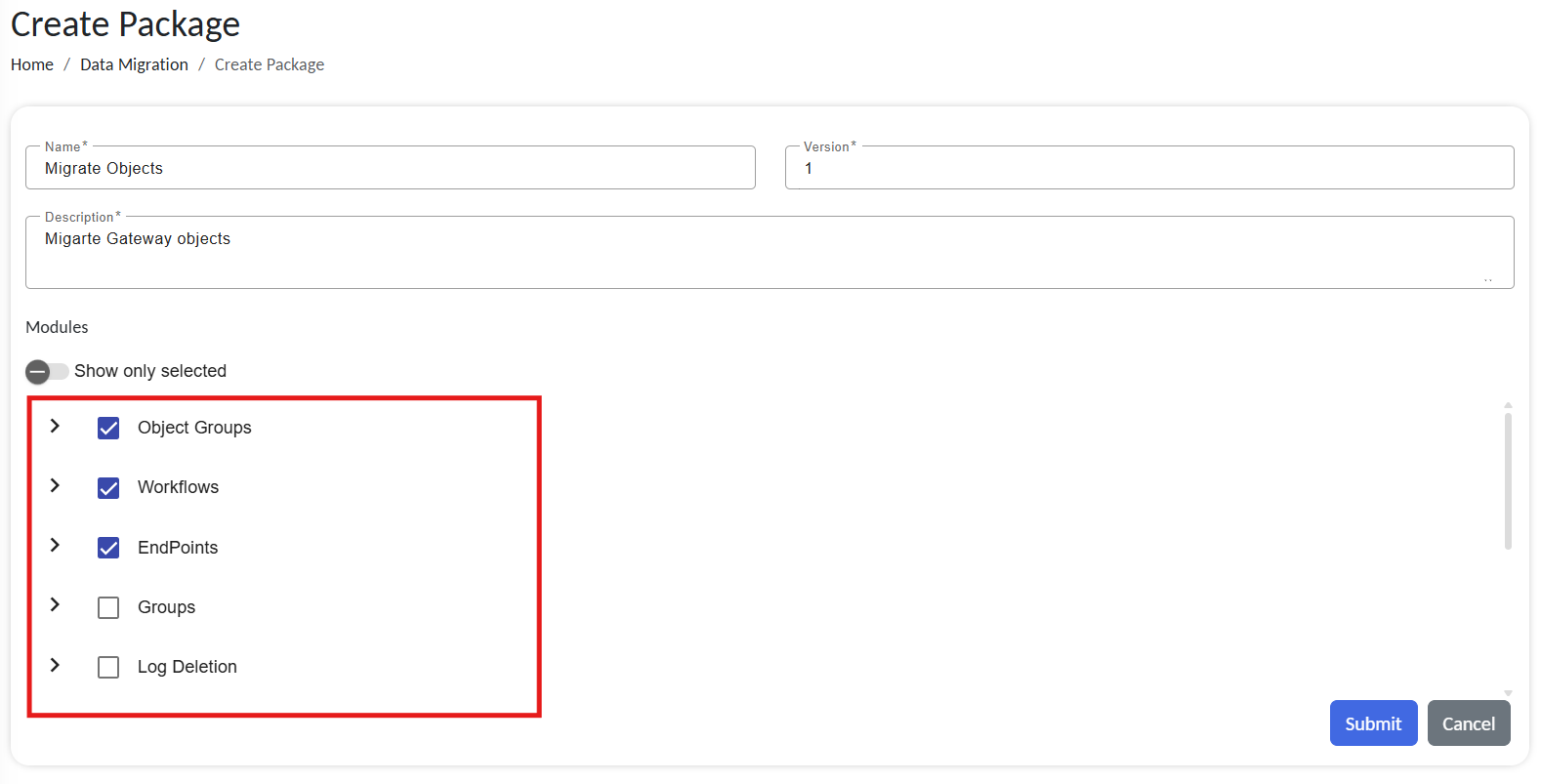
Export selected modules
Click Submit
The package now appears in the Package Management list with a Created status.
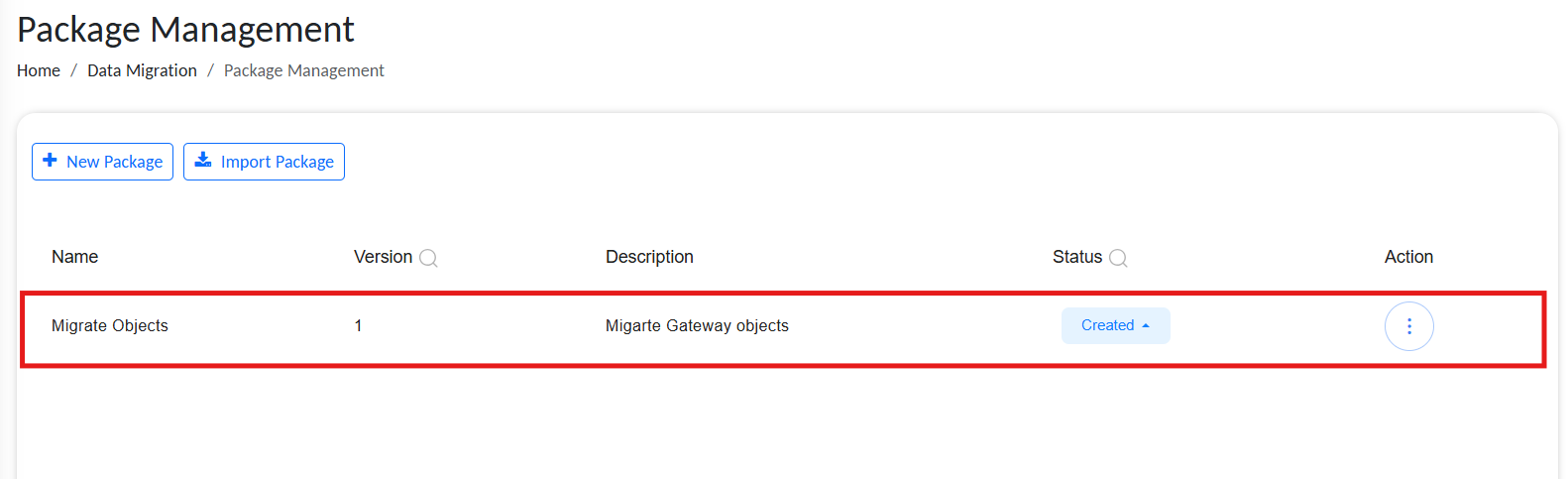
List of created packages
Status: Created vs Ready
- Created: Draft mode. The package can still be edited.
- Once finalized, change the status to Ready to lock it for export.
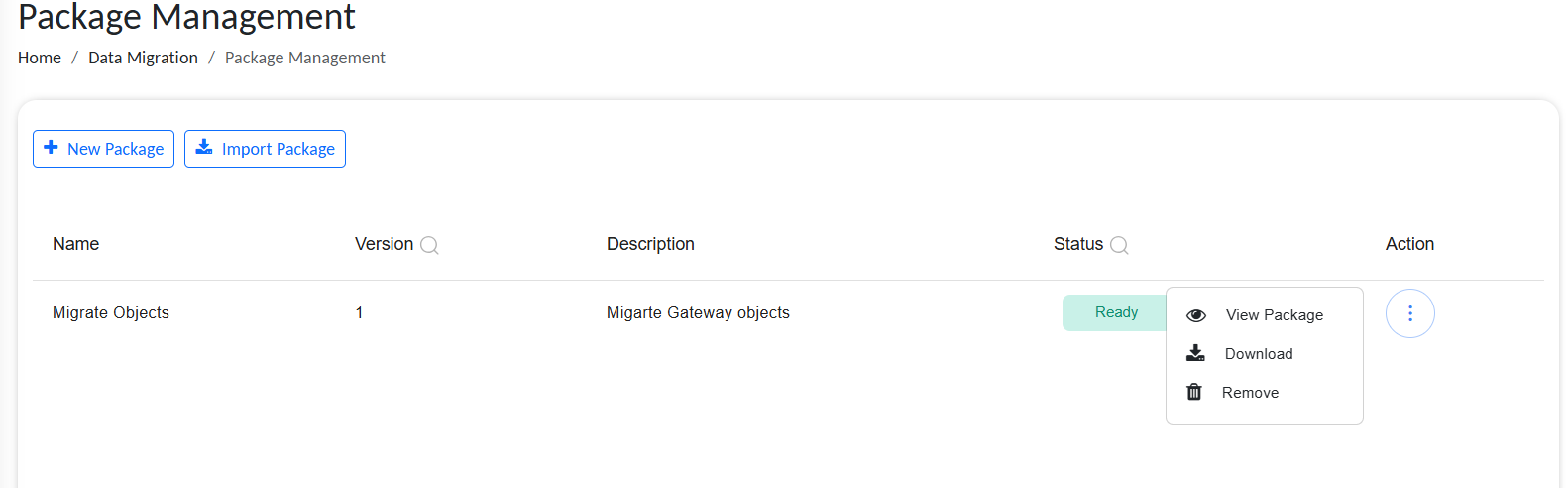
Downloading a ready JSON package
After the status is set to Ready, you can Download the package (as a .json file).
Importing a Package
To import a .json package file:
- Go to Data Migration > Packages in the gateway.
- Click Import Package
- Click on Upload, select the
.jsonpackage file. - Once uploaded, you can preview the file to view its contents.
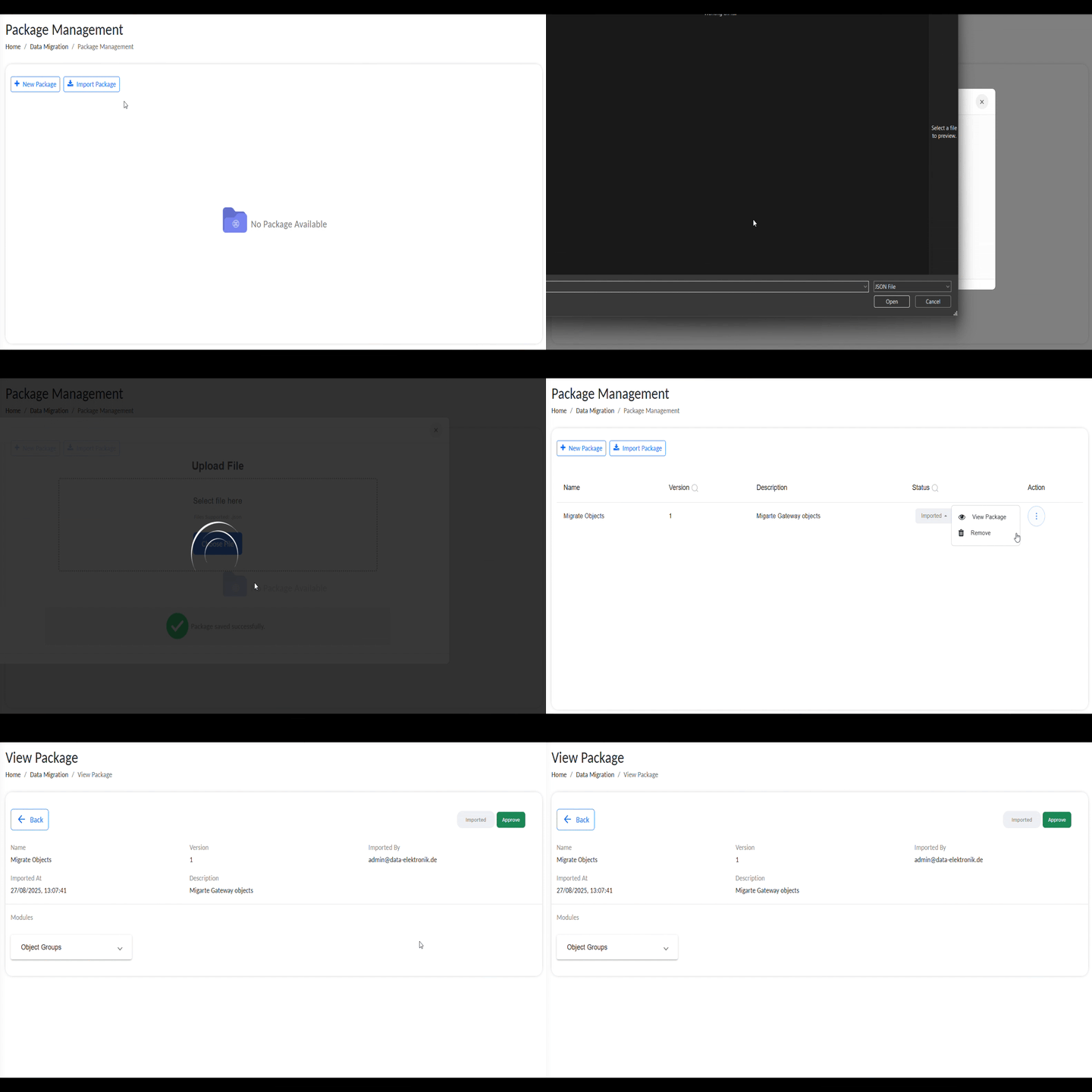
Uploading and previewing a JSON package
From the preview page, you can find the package contents.
Click on Approve to preview and approve the package.
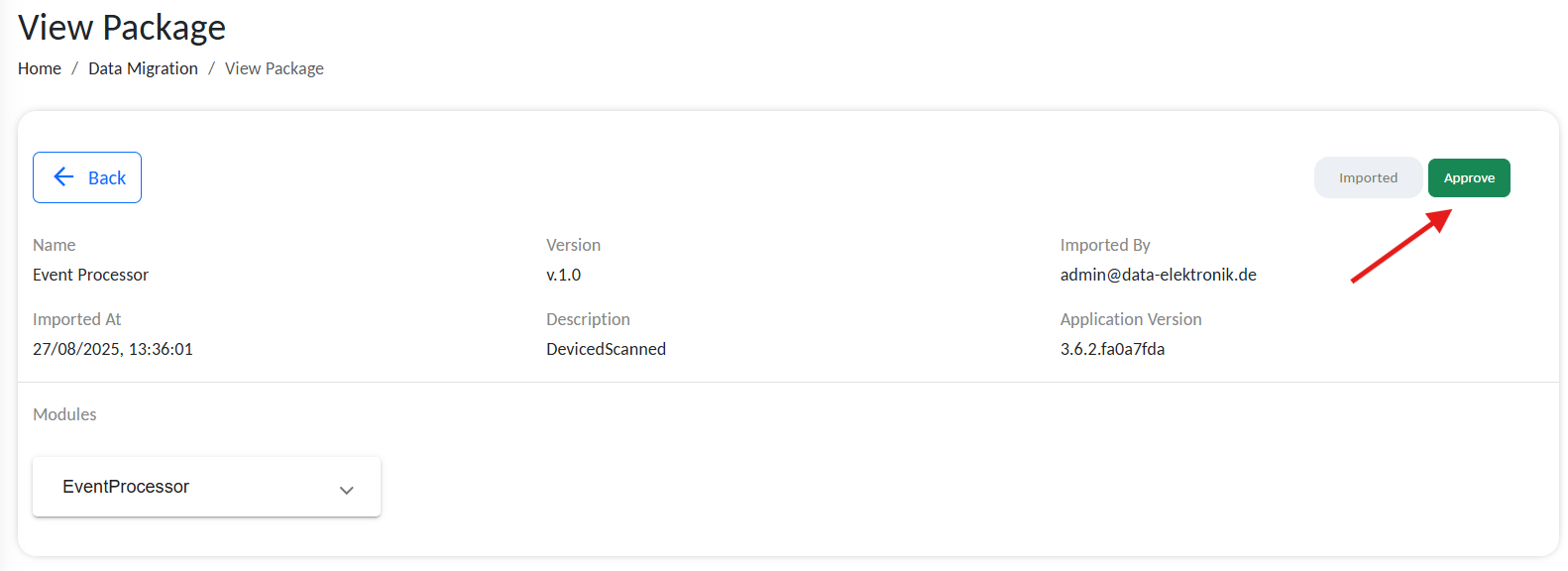
Approving a package during import
The preview page will list all fields in the available content, indicating whether the package includes new items or existing ones.
The status will be either "new" for new items or "no change" for existing items.
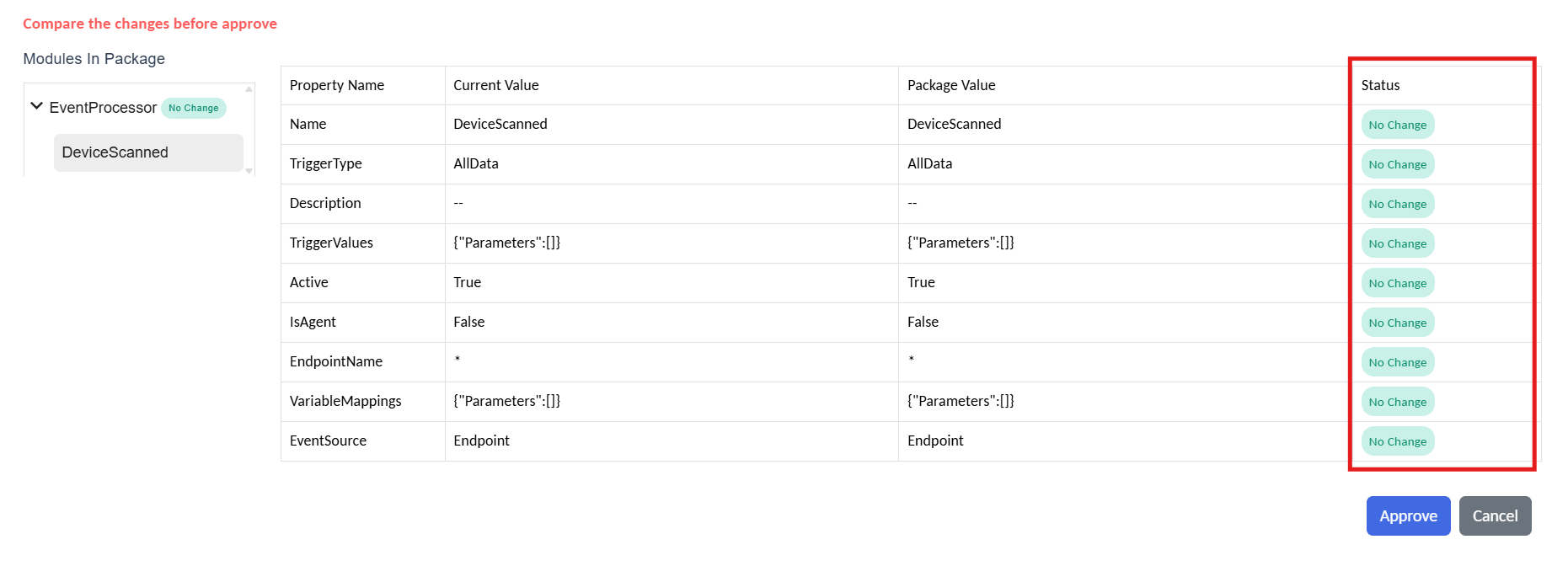
Package import with no changes
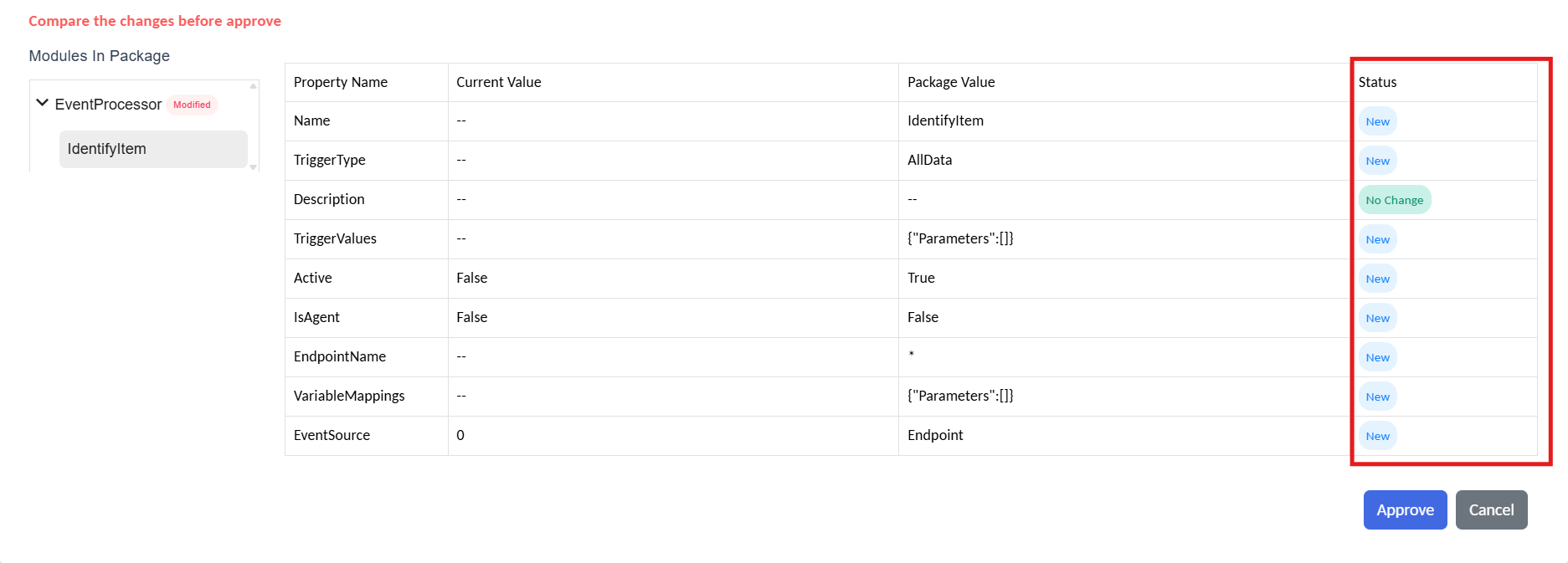
Package import with changes
The preview provides a clearer understanding of what you are importing and updating.
Once you’ve reviewed the differences and confirmed, click Approve to complete the operation.
Setting up Permission Metrix
One main advantage of using packages over standard XML migration is the ability to implement granular permission controls.
For example, consider two users: Supervisor and Manager.
- The Supervisor can create, update, or delete a package during export.
- Only the Manager can import the file into the system or view the uploaded file and the contents.
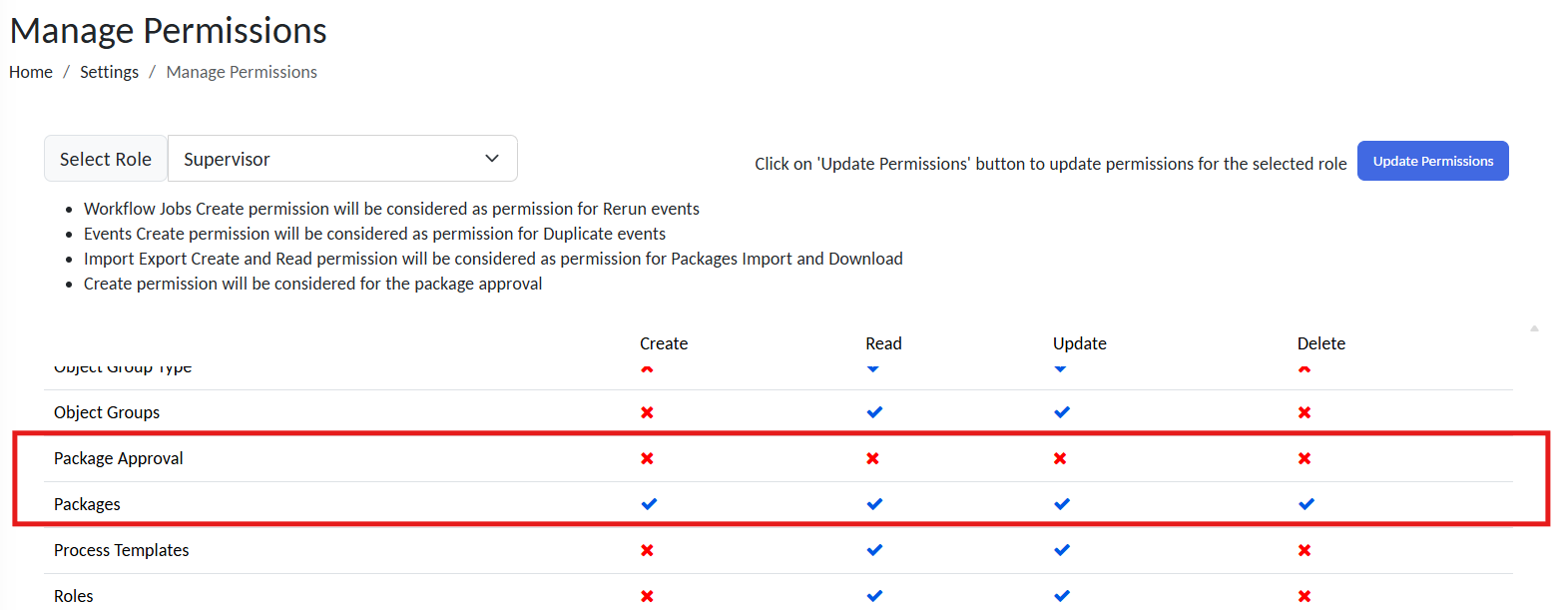
Supervisor permission setup
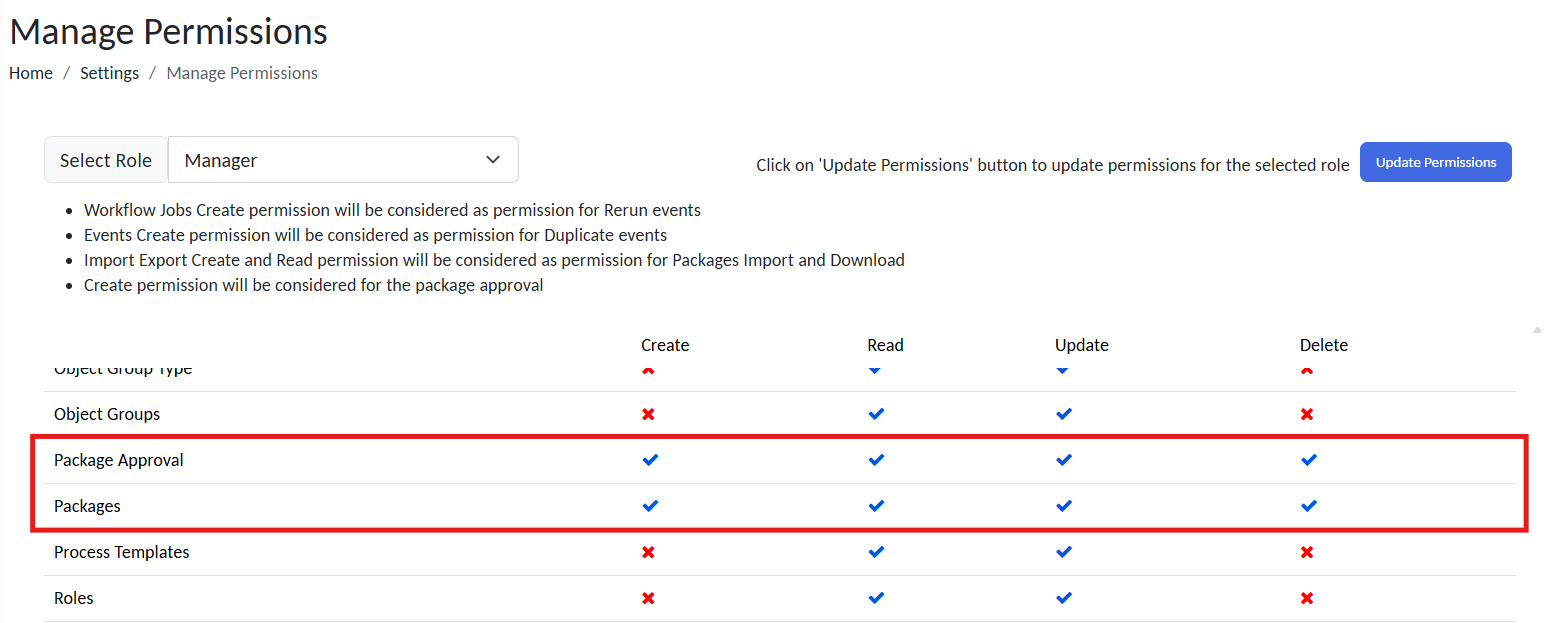
Manager permission setup
To know more about how to set up access controls for user roles, refer to the article:
Best Practices
- Use Packages in production or multi-team environments where accountability matters.
- Apply meaningful versioning (e.g.,
v1.2-prod-release). - Always preview before import to avoid overwriting live configurations unintentionally.
- Restrict import rights to trusted admin roles.
- Maintain an archive of exported packages for rollback and audit purposes.