Process Templates
A process template defines what an agent does with device data: which devices it connects to, how the data is processed on the edge host, and where the results are sent. You build a template in a visual designer by placing components on a canvas and connecting them.
A template is reusable. To run it, add it as a process to one or more agents; each process can override the template's variables for its agent. See Step 3: Add Processes and Manage a Process.
Templates are built from components, which must be uploaded to the Gateway first. See Manage Agent Components.
The Process Templates List
Navigate to Agents > Process Templates. The list shows each template's ID, Name, Versions, and Last Changed date. The Versions column shows how many versions the template has and how many of them are active and inactive.
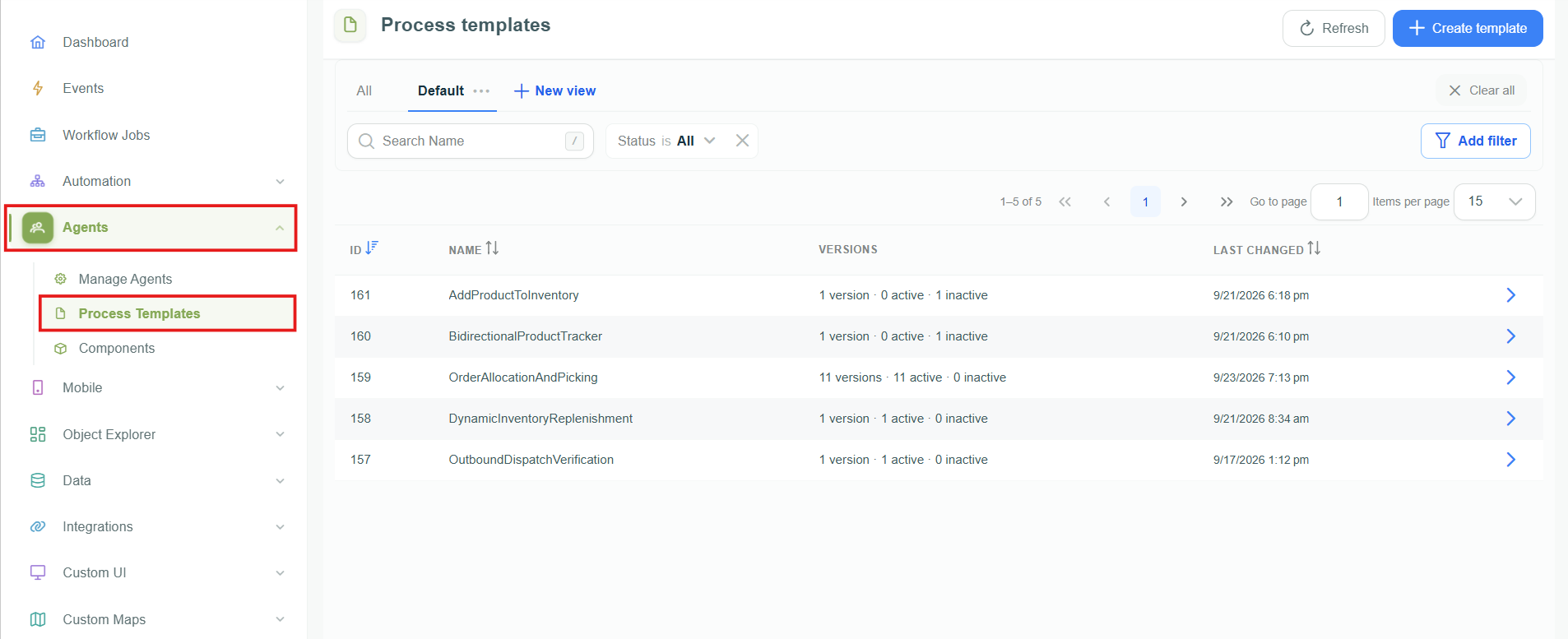
Process templates list
Use the search field, Add filter, and saved views to find templates. Select a template to open its versions. Select Create template to create a new one.
The Designer
Select Create template, or edit an existing template version, to open the designer.
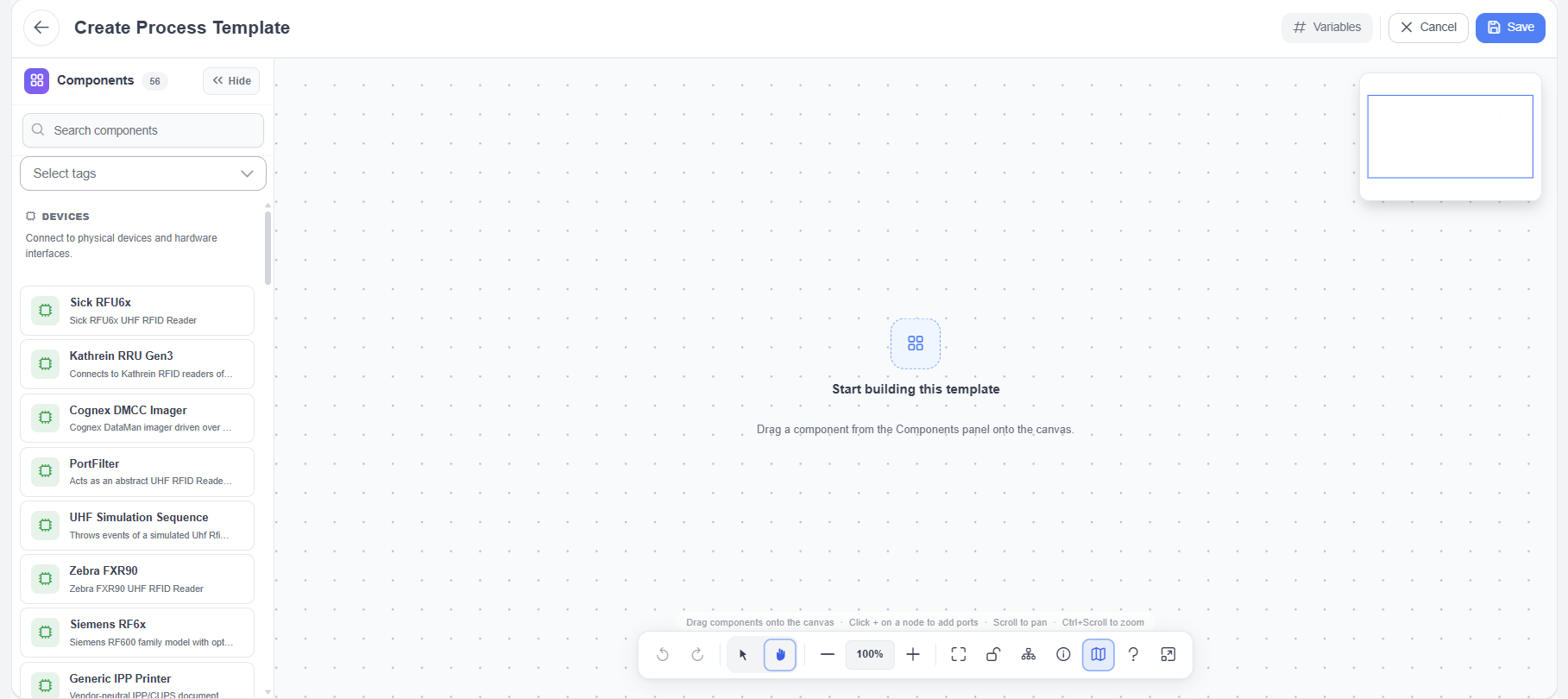
Process template designer
- Component library (left) – All uploaded components, grouped into Devices, Services, and Functions. Use Search components or Select tags to find a component, and select Hide to collapse the library.
- Canvas (right) – Drag components from the library onto the canvas and connect them.
- Header – Back to list (arrow), Variables, Cancel, and Save.
Canvas Controls
| Control | Description |
|---|---|
| Undo (Ctrl+Z) / Redo (Ctrl+Y) | Reverses or repeats the last change. |
| Select tool / Hand tool | Selects components, or moves the canvas. You can also scroll to pan and press Ctrl while scrolling to zoom. |
| Zoom Out / Zoom In / Fit to View | Adjusts the zoom level. |
| Lock canvas | Prevents accidental changes to the layout. |
| Auto arrange | Arranges the components automatically. |
| Preview on click | Shows a component's values when you select it, without opening its settings. |
| Minimap | Shows an overview of large templates. Select Hide minimap to hide it. |
| Keyboard shortcuts (?) | Lists the available keyboard shortcuts. |
| Fullscreen | Shows the designer in full screen. |
Components
| Type | Purpose | Connection rule | Examples |
|---|---|---|---|
| Device | Connects to physical devices and hardware interfaces, such as RFID readers, imagers, and printers. | Can connect only to a Service or another Device. | Siemens_RF6x_V1, Multiplexer_V1, Simulation_V1 |
| Service | Runs long-lived logic and integrations, such as read points, buffers, and MQTT clients. | Can connect to any component type. | Readpoint_V1, BufferedSender_V1 |
| Function | Transforms, encodes, or sends data. | Cannot receive data directly from a Device. | TagForward_V1, WebRequest_V1, TagFormatCrossTalkJson_V1 |
A valid template starts with a Device component as the entry point for data.
Inputs and Outputs
Each component has inputs and outputs: named ports through which it receives and sends data. The component shows the number of available inputs and outputs, for example Inputs: 26 and Outputs: 15.
- A component can have several outputs for different results, for example one for a successful delivery and one for a timeout.
- To use an additional input or output on the canvas, select + next to INPUTS or OUTPUTS on the component.
- Data that leaves an output has named values, for example
deviceIdortimestamp. The next component's parameters can use these values (see Parameters).
Build a Template
Step 1: Add and Configure Components
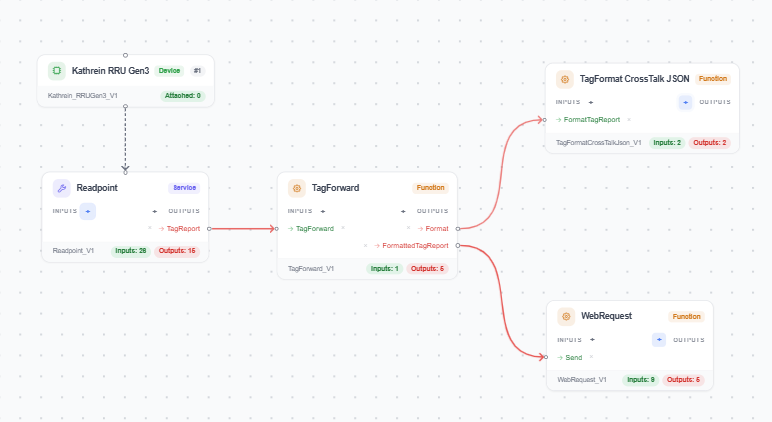
The following steps build the example template below: an RFID reader whose tag reads are formatted as JSON and sent to a web service. How to draw and configure each connection is described in Step 2.
Example process template
On the canvas, each component shows its display name at the top and its identifier, for example Readpoint_V1, at the bottom.
- Add the reader (Device). From Devices in the component library, drag Kathrein RRU Gen3 (
Kathrein_RRUGen3_V1) onto the canvas. Open its settings and enter the reader's connection parameters, such as its IP address. - Add the read point (Service). From Services, add
Readpoint_V1and connect the reader to it. The read point collects the reader's tag reads and reports them on its TagReport output. - Add tag forwarding (Function). From Functions, add
TagForward_V1. Connect the TagReport output ofReadpoint_V1to the TagForward input ofTagForward_V1. - Add the formatter (Function). Add
TagFormatCrossTalkJson_V1. Connect the Format output ofTagForward_V1to its FormatTagReport input.TagForward_V1uses this connection to have each tag report formatted as JSON. - Add the destination (Function). Add
WebRequest_V1. Connect the FormattedTagReport output ofTagForward_V1to its Send input.WebRequest_V1sends the formatted tag report to the web service.
The data flows from the reader through the read point to TagForward_V1, which has the tag report formatted and then passes it on to WebRequest_V1.
A Device cannot connect directly to a Function. In this example, the reader connects to Readpoint_V1 (a Service), not to TagForward_V1.
Step 2: Connect Components
Drag from an output port of one component to an input port of the next. Then open the connector to configure how data passes between the two components.
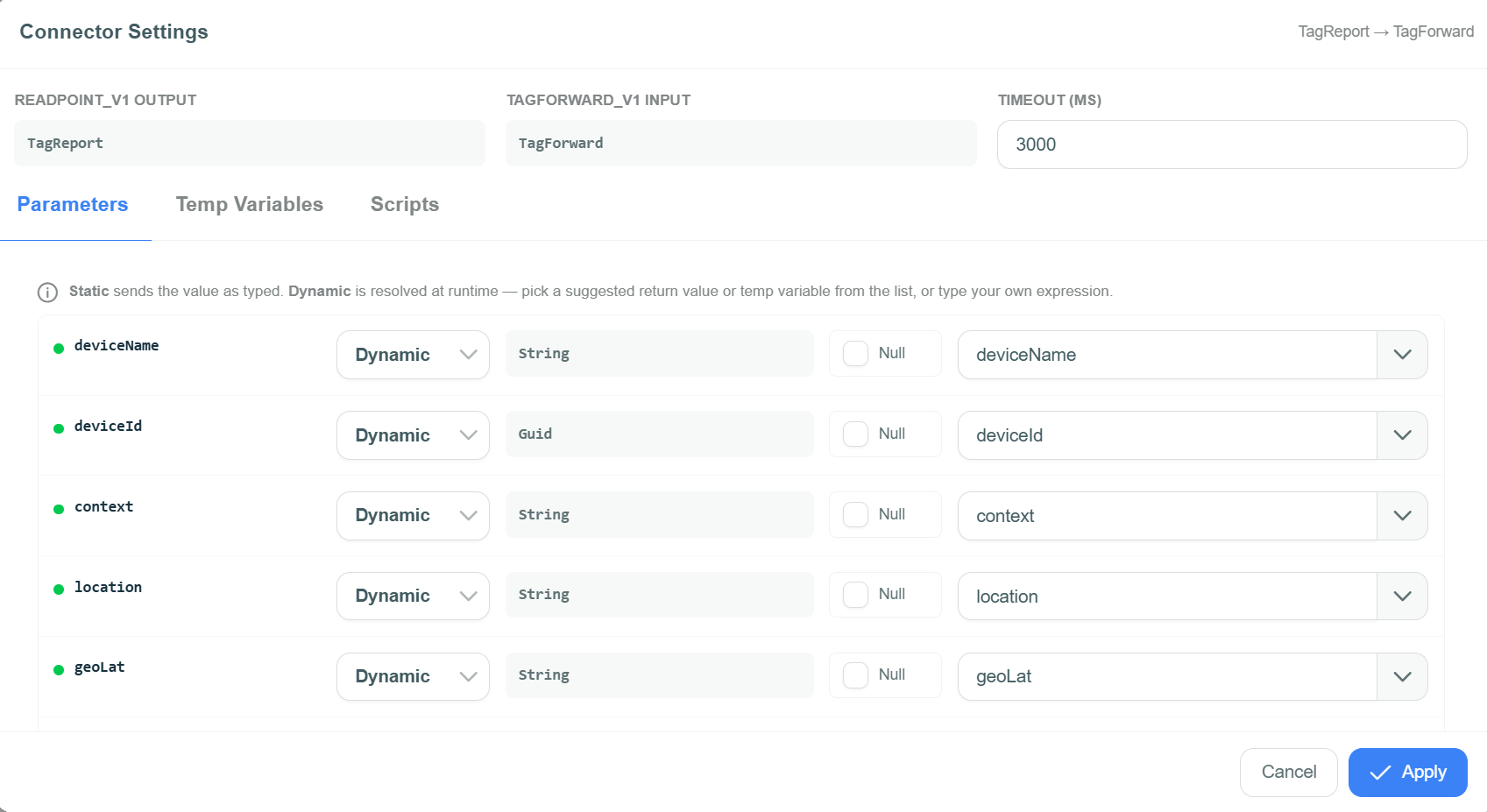
Connector Settings
The top of the Connector Settings dialog shows:
- Output – The output of the upstream component that sends the data.
- Input – The input of the downstream component that receives it.
- Timeout (ms) – How long the connector waits for the downstream component. If the time is exceeded, the connector reports a timeout error.
Parameters
The Parameters tab lists the parameters the downstream component needs. For each parameter:
| Field | Description |
|---|---|
| Name | The parameter of the downstream component. |
| Static / Dynamic | Static sends the value exactly as typed. Dynamic resolves the value at runtime: select a value from the upstream output or a temporary variable from the list, or type an expression. |
| Type | The expected data type, for example String, Guid, Int, Boolean, or a list type. |
| Null | Allows the parameter to be empty. If cleared, a missing value causes a validation error. |
| Value | The constant (Static) or the source value or expression (Dynamic). |
Temp Variables
Temporary variables exist only while the connector runs and are not stored. Use them to prepare values for the parameters.
Scripts
- Pre-call script – Runs before the downstream component is called, for example to adjust or normalize values or to enrich the data. If empty, the data is passed on unchanged.
- Post-call script – Runs after the downstream component has finished, for example to transform the result or to add logging.
- Abort expression – Stops the connector when the expression is true, for example
deviceId == nullorrssi < -80. - Return value mapping – For components that return values, maps the returned values back to the upstream component.
Select Apply to save the connector settings.
Step 3: Save the Template
Select Save in the designer header. Each save creates a new version of the template.
Template Variables
Select Variables in the designer header to define variables, for example device IP addresses, URLs, or topic names, that the template's components can use.
Variables make templates reusable: each process that runs the template can set its own values without changing the template. See Manage a Process.
Manage Template Versions
Select a template in the list to open the Process Template Details page. It shows the number of versions and how many of them are active and inactive. Each version shows its Version number (for example V_8), Description, Last Changed date, and Status (Active or Inactive). Use Search versions to find a version.
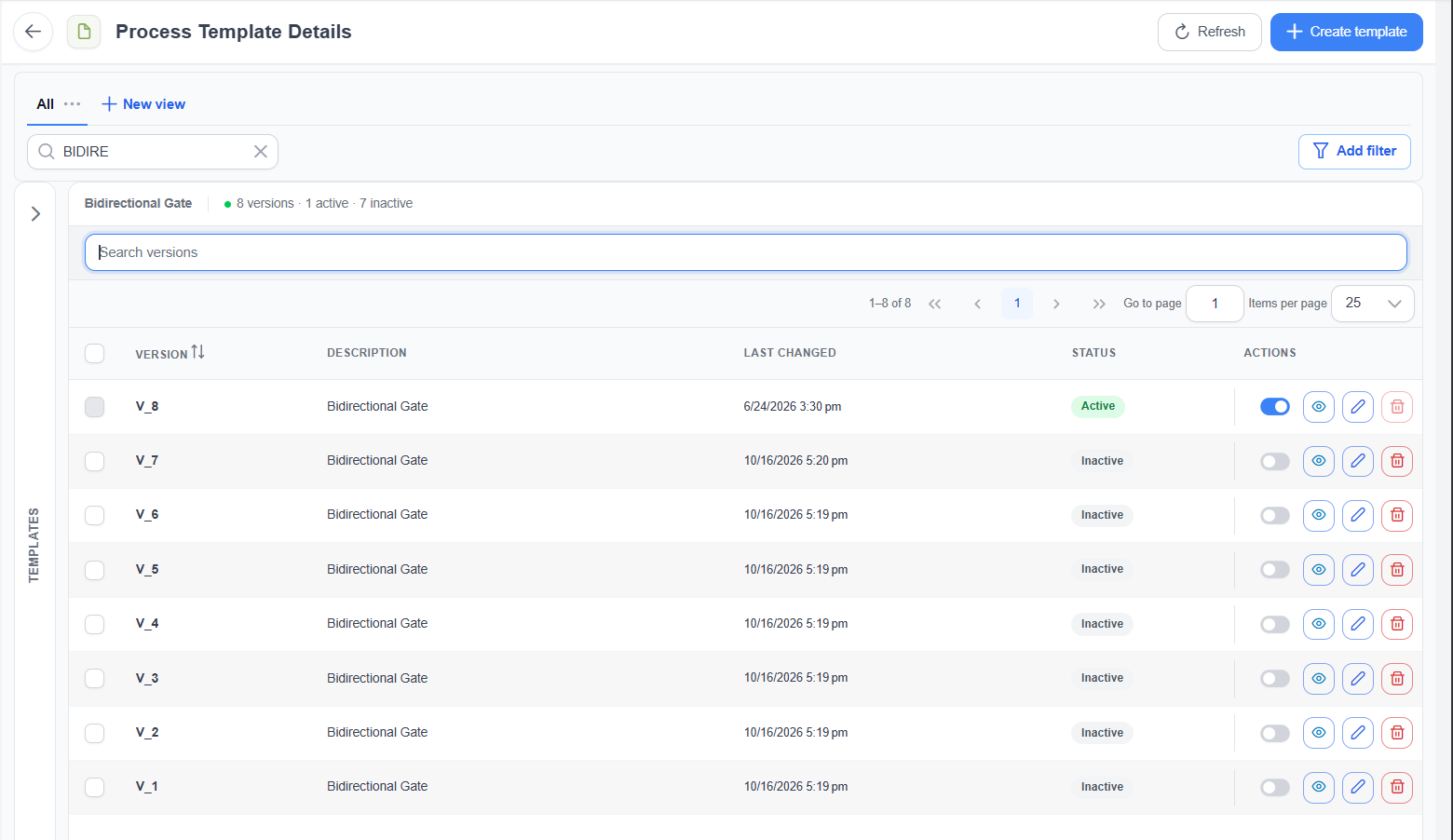
Template versions
| Action | Description |
|---|---|
| Switch | Activates or deactivates the version. |
| View | Opens the version in the designer in read-only mode. Select Edit there to change it. |
| Edit | Opens the version in the designer. |
| Delete | Permanently deletes the version. Only inactive versions can be deleted; deactivate a version first. |
When you add a process to an agent, you choose which version it runs; the newest version is marked Latest. To move an existing process to another version, edit the process and select the version.
Best Practices
- Use variables for device-specific values, such as IP addresses and topics, so that one template works for many agents.
- Use the version description to record what changed.
- Check all connections and parameters before you save.
- Deactivate and then delete versions that are no longer used, so that the version list stays clear.