Manage Agent Components
Components are the building blocks of process templates. Each component is uploaded to the R-COM Gateway as a ZIP package and then appears in the component library of the template designer.
Use Agents > Components to upload component packages, copy component identifiers, download packages, and delete components that are no longer needed.
Component Types
| Type | Purpose |
|---|---|
| Device | Connects to physical devices and hardware interfaces, such as RFID readers, imagers, and printers. |
| Service | Runs long-lived logic and integrations, such as read points, buffers, and MQTT clients. |
| Function | Transforms, encodes, or sends data. |
For the rules on how the types can be connected, see Process Templates: Components.
The Components List
Navigate to Agents > Components. The list shows each component's name, Component identifier, Type, and Uploaded date. Use the search field, Add filter, and saved views to find components.
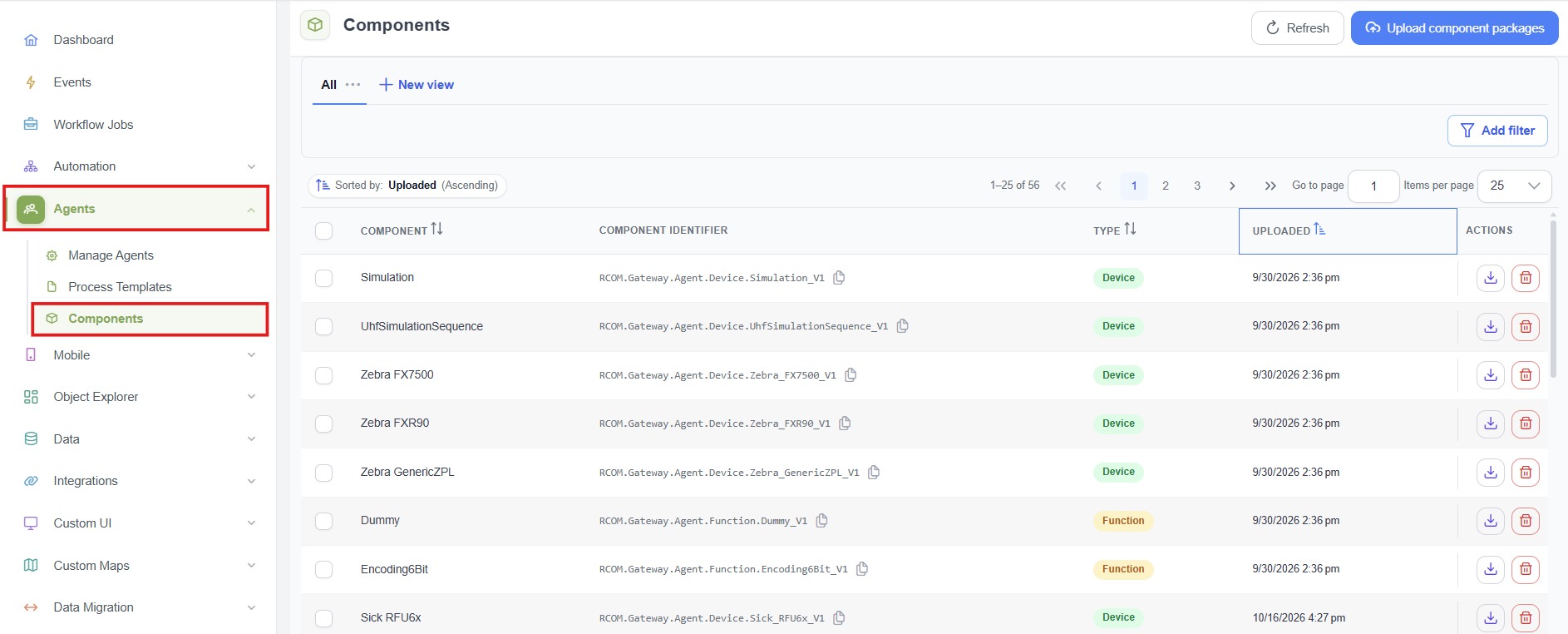
Components page
The component identifier is the technical name of a component, for example RCOM.Gateway.Agent.Device.Simulation_V1. Select the copy icon next to an identifier to copy it, for example for a support request.
| Action | Description |
|---|---|
| Download | Downloads the component package, for example as a backup or to transfer it to another Gateway. |
| Delete | Removes the component from the Gateway. |
Before you delete a component, make sure that no process template uses it. Templates that use a deleted component can no longer be edited or deployed as expected.
Upload Component Packages
- Navigate to Agents > Components.
- Select Upload component packages.
- Drag one or more ZIP packages into the dialog, or select Browse files. Each package can be up to 100 MB.
- Select Validate and upload.
Each package is validated before it is added. A package is rejected if a component with the same identifier already exists; existing components are never replaced.
To upload a revised component, give it a new identifier, for example by increasing the version suffix from _V1 to _V2. The new version is then added as a separate component.
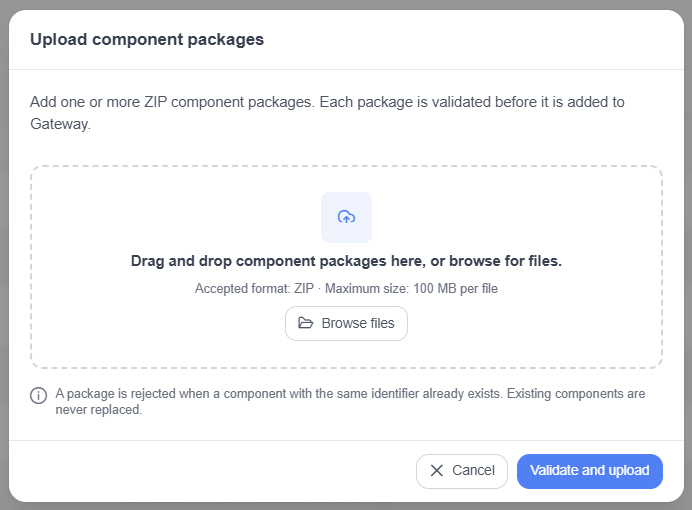
Upload component packages dialog
Deprecated Components
The following generic controllers are deprecated. They still work, but plan to replace them in your templates:
GenericDeviceController_V1GenericUhfRfidDeviceController_V1GenericTcpDeviceController_V1GenericLPrinterController_V1
Recommended Workflow
- Upload the required component packages.
- Check that each component appears in the list with the expected type and identifier.
- Create or edit a process template and add the components from the component library.
- Check the template's connections and parameters, save it, and add it to an agent as a process.