Building a Real-Time Custom UI with MQTT in R-COM Gateway
Example: A Live Production Line Counter
This tutorial shows you how to build a Custom UI that updates in real time using MQTT. Instead of refreshing the page or polling an API, the interface reacts the moment a new message is published to a topic.
We will build a Live Production Line Counter: a R-COM Gateway workflow publishes the running unit count for a production line using the MQTTPublisher action, and our Custom UI displays that count and updates instantly whenever a new message arrives.
In most real deployments the workflow is the main source of the data — it processes events, applies business logic, and pushes the result to a topic that the UI listens on.
By the end you will have configured:
- A WSS-enabled MQTT client in the gateway.
- A workflow that publishes live updates using the MQTTPublisher action.
- A Custom UI (HTML + CSS + JavaScript).
- An MQTT subscription inside the UI that reads live messages through the predefined
messagevariable.
How Real-Time Updates Work
A Custom UI runs entirely inside the user's browser. A browser cannot open a raw TCP MQTT connection (ports 1883 / 8883), so the UI subscribes through an MQTT client that connects to the broker over WSS (WebSocket Secure).
The end-to-end flow looks like this:
Because the UI runs in a browser served over HTTPS:
- The connection must use WSS (
wss://). Plainws://is blocked as insecure (mixed content). - The standard MQTT TCP ports (
1883,8883) will not work from the browser. - Your broker must expose a WebSocket (WSS) listener (commonly port
8084or443).
Prerequisites
Before you start, make sure you have:
- Access to the gateway with permission to create MQTT clients, workflows, Custom UIs, and roles.
- An MQTT broker that exposes a WSS (WebSocket Secure) listener (for example, Mosquitto or HiveMQ configured with a WebSocket listener on port
8084). - A workflow that can publish the line count (using the MQTTPublisher action, shown in Step 6). Optionally, an MQTT tool such as MQTT.fx, MQTT Explorer, or
mosquitto_pubfor quick manual testing.
Our example uses the topic factory/line1/count with this JSON payload:
{
  "line": "Line-1",
  "count": 1287,
  "status": "running",
  "updatedAt": "2026-06-22T10:15:00Z"
}
Step 1: Configure a WSS-Enabled MQTT Client
The Custom UI does not define its own broker connection. It references an existing MQTT client by name, so we create that client first.
- Go to Settings > Client Settings > MQTT.
- Click + New MQTT.
- Fill in the connection details, pointing the client at your broker's WSS endpoint:
| Field | Example Value | Notes |
|---|---|---|
| MQTT Client ID | custom_ui_line1 | A unique identifier for the client. |
| Name | LineCounterWSS | The name the Custom UI will reference. Remember this value. |
| Host | wss://broker.example.com:8084/mqtt | The broker's WSS endpoint. Must be reachable from the browser. |
| Port | 8084 | The broker's WebSocket-Secure listener port. |
| Use TLS | Enabled | Required for the encrypted wss:// transport. |
| Username / Password | (optional) | Only if your broker requires authentication. |
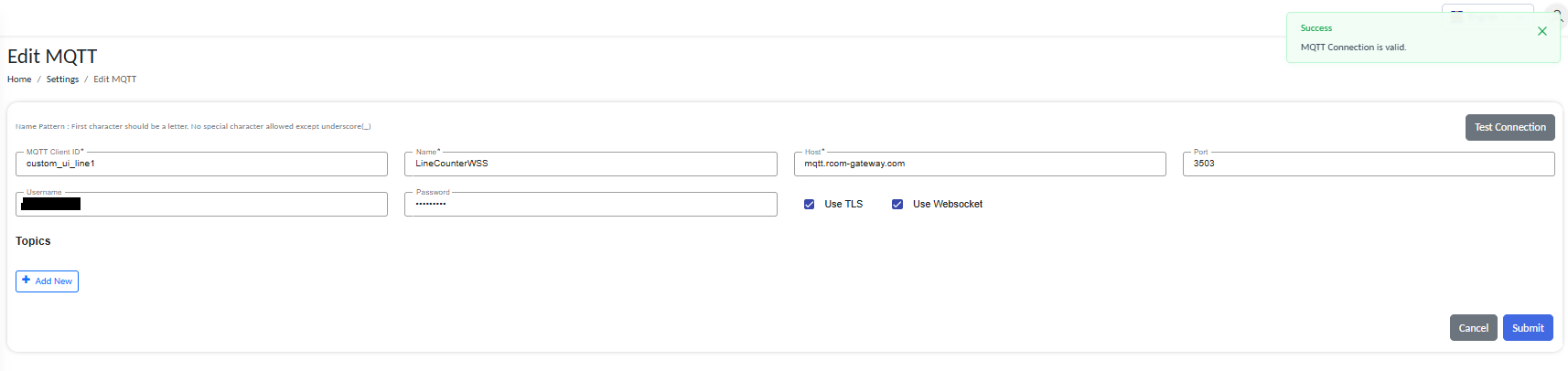
Configure a WSS-enabled MQTT client under Settings > Client Settings > MQTT
- Click Test Connection to verify connectivity. On success you will see a “MQTT Connection is valid” message.
- Click Submit to save.
The Name you set here (LineCounterWSS) is exactly what you will select inside the Custom UI later. For a full walkthrough of every field, see the MQTT Client Configuration guide.
Step 2: Create the Custom UI
- Navigate to Custom UI → Custom UI Management.
- Click Create New.
- Configure the basic settings:
| Setting | Example Value | Purpose |
|---|---|---|
| Custom UI Name | Line 1 Live Counter | A friendly name to identify the interface. |
| Role Assignment | Floor_Operator | Which roles may access the UI (skip if using public access). |
| Bootstrap Option | Enabled | Provides ready-made styling for a quick, clean layout. |
| Allow Public Access | Enabled (optional) | Lets the UI open without login, e.g. on a wall-mounted screen. |
- Save to open the code editor.
Step 3: Add the HTML
The HTML defines the structure of the counter. We use element IDs (count, status, updatedAt) that our JavaScript will update.
<div class="counter-card">
  <h2>Production Line 1</h2>

  <div class="count" id="count">--</div>
  <div class="label">units produced</div>

  <span class="status" id="status">waiting…</span>
  <div class="updated">Last update: <span id="updatedAt">never</span></div>
</div>
Step 4: Add the CSS
The CSS styles the card and the status badge.
.counter-card {
  max-width: 360px;
  margin: 40px auto;
  padding: 24px;
  border-radius: 12px;
  background: #ffffff;
  box-shadow: 0 4px 16px rgba(0, 0, 0, 0.08);
  text-align: center;
  font-family: Arial, sans-serif;
}

.count {
  font-size: 64px;
  font-weight: 700;
  color: #009688;
  line-height: 1.1;
}

.label {
  color: #666;
  margin-bottom: 16px;
}

.status {
  display: inline-block;
  padding: 4px 12px;
  border-radius: 999px;
  background: #e0e0e0;
  color: #333;
  font-size: 14px;
}

.status.running { background: #c8f7dc; color: #0a7a3f; }
.status.stopped { background: #ffd6d6; color: #b00020; }

.updated {
  margin-top: 12px;
  font-size: 12px;
  color: #999;
}
Step 5: Add the MQTT Subscription
Now connect the UI to the broker so it can receive live messages.
- In the Custom UI editor, open the MQTT panel and click Manage Subscription → Add New.
- Configure the subscription:
| Field | Example Value | Description |
|---|---|---|
| Name | LineCounterWSS | The WSS-enabled MQTT client you created in Step 1. This selects the broker connection. |
| Topic | factory/line1/count | The topic the UI listens to. Wildcards + and # are supported. |
| EditJS | (see Step 6) | The JavaScript that runs each time a message arrives on the topic. |
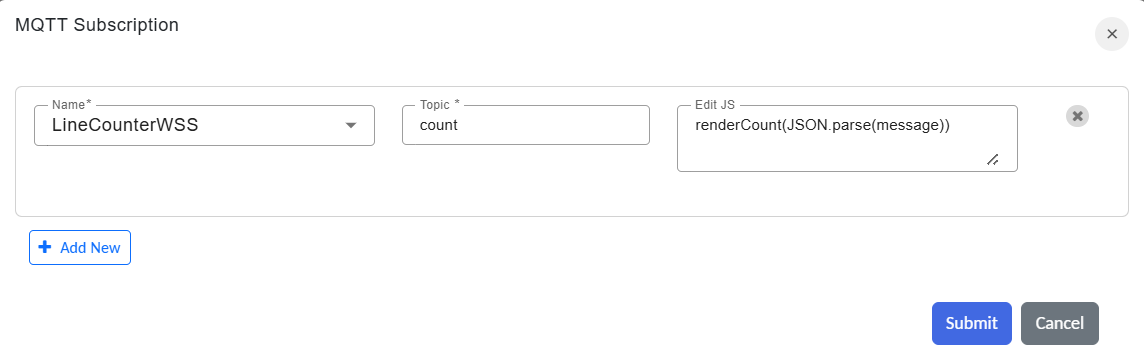
Add an MQTT subscription: select the MQTT client, set the Topic, and add EditJS
There is no Host field here. The broker address, port, and WSS transport all come from the MQTT client selected in the Name field (configured under Settings > Client Settings > MQTT).
Step 6: Handle Incoming Messages with the message Variable
Each MQTT subscription has its own EditJS editor that runs whenever a message arrives. Inside it, a predefined variable named message holds the incoming payload.
Key facts about message:
- It is automatically populated by the gateway — you never declare or fetch it yourself.
- It contains the raw payload as a string.
- If the publisher sends JSON, parse it with
JSON.parse(message). - The EditJS code re-runs for every new message, so
messagealways holds the latest value.
Add the following to the subscription's EditJS editor:
// `message` is predefined and holds the incoming MQTT payload (a string).

function renderCount(message) {
  let data;
  try {
    data = JSON.parse(message);           // parse the JSON payload
  } catch (e) {
    console.error("Invalid MQTT payload:", message);
    return;                               // ignore malformed messages
  }

  // Update the number
  const count = data.count ?? 0;
  document.getElementById("count").textContent = count.toLocaleString();

  // Update the status badge
  const statusEl = document.getElementById("status");
  const status = (data.status ?? "unknown").toLowerCase();
  statusEl.textContent = status;
  statusEl.className = "status " + status;   // applies .running / .stopped styles

  // Update the timestamp
  const ts = data.updatedAt ? new Date(data.updatedAt).toLocaleTimeString() : "now";
  document.getElementById("updatedAt").textContent = ts;
}

// Invoke the handler with the predefined `message` variable
renderCount(message);
Whenever a new message is published to factory/line1/count, the gateway re-runs this code with the updated message, and the counter, status badge, and timestamp refresh instantly — no page reload required.
Wrapping JSON.parse(message) in try/catch (as above) keeps a single malformed message from breaking the whole handler.
Step 7: Publish Live Updates from a Workflow (MQTTPublisher)
In a real deployment, the data shown in the UI usually comes from a workflow. The workflow processes events (for example, each unit scanned on the line), builds the payload, and pushes it to the topic using the MQTTPublisher action. This is the main source of the live updates.
Inside your workflow, add an MQTTPublisher action configured to publish to the same topic the UI listens on:
| Parameter | Example Value | Description |
|---|---|---|
| MQTT_CLIENT | LineCounterWSS | An MQTT client connected to the same broker as the UI. The WSS client from Step 1 works. |
| TOPIC | factory/line1/count | Must match the Topic configured in the UI subscription (Step 5). |
| QOS_LEVEL | 0 | 0 (at most once) is fine for frequent dashboard updates; use 1 if no update may be lost. |
| PAYLOAD | (JSON, see below) | The message body the UI will receive in its message variable. |
| AWAIT_RESPONSE | false | Dashboards are fire-and-forget; no broker reply is needed. |
| TIMEOUT_MILLIS | 0 | Only relevant when AWAIT_RESPONSE is true. |
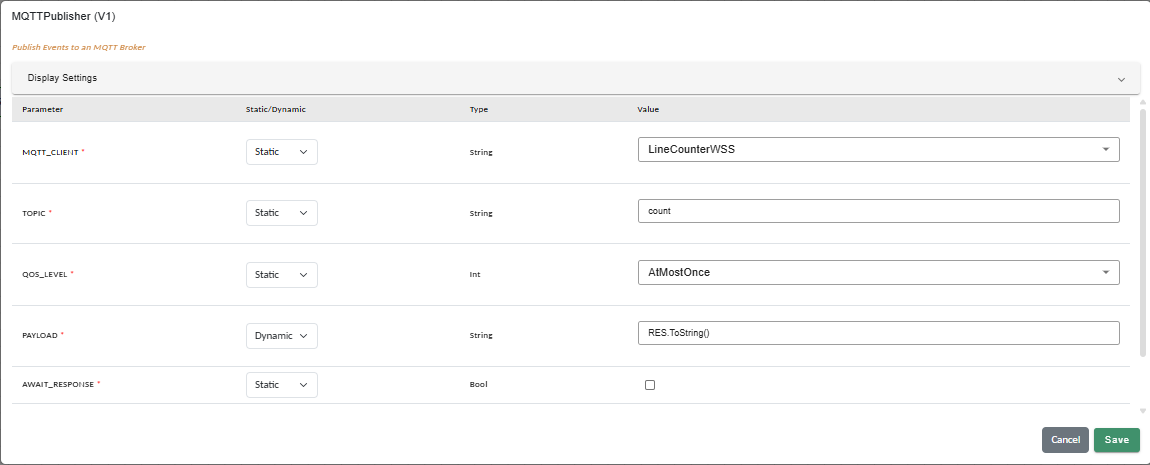
The MQTTPublisher action publishing the payload to the topic the UI listens on
Build the PAYLOAD as a JSON string (for example with JsonSerializer, or by composing it directly) so it matches what the UI expects:
{
  "line": "Line-1",
  "count": 1288,
  "status": "running",
  "updatedAt": "2026-06-22T10:16:00Z"
}
Each time the workflow runs and the MQTTPublisher action executes, the broker forwards the message to every subscribed Custom UI, and the counter updates instantly.
Step 8: Save and Test
- Save the Custom UI. Each save creates a new version, so you can roll back if needed.
- Open the UI's shareable link in a browser (or use Preview from Custom UI Management).
- Trigger the workflow from Step 7 (for example, by sending it an event or running it manually). Its MQTTPublisher action pushes a message to
factory/line1/count. - Watch the UI update immediately. Trigger the workflow again with different
countandstatusvalues (for example"status":"stopped") and confirm the number, badge color, and timestamp all change in real time.
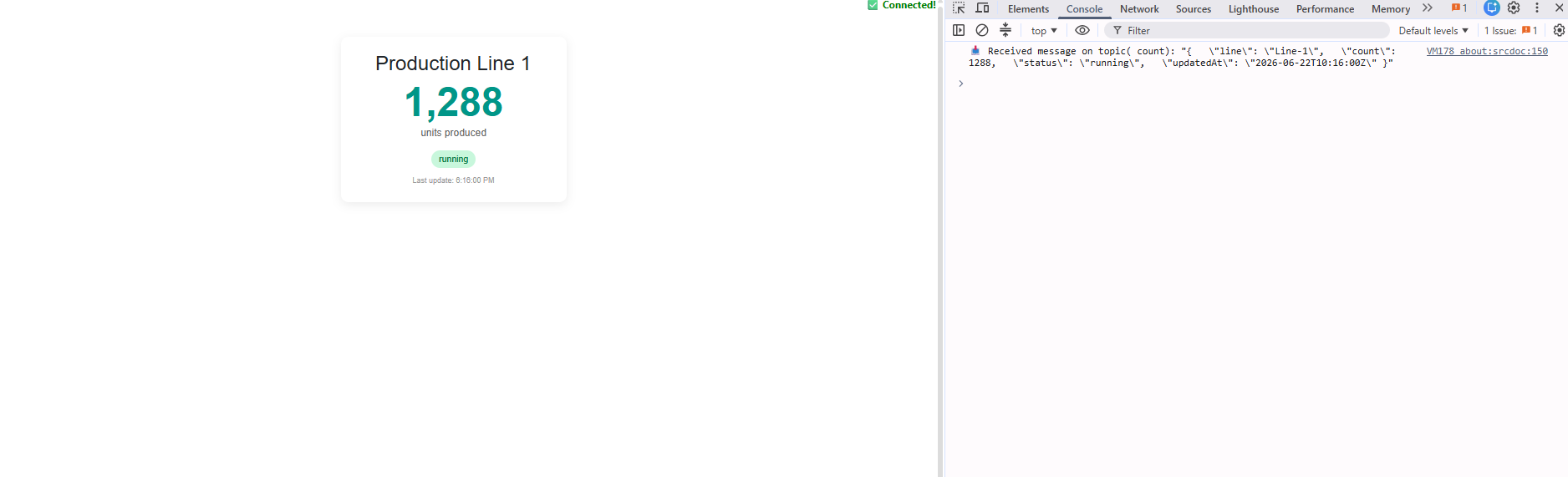
The Custom UI reflecting the latest count, status, and timestamp after a message is published
If you want to verify the UI before wiring up the workflow, you can publish a message by hand with any MQTT tool, such as mosquitto_pub:
mosquitto_pub -h broker.example.com -p 8883 \
  -t "factory/line1/count" \
  -m '{"line":"Line-1","count":1288,"status":"running","updatedAt":"2026-06-22T10:16:00Z"}'
Troubleshooting
| Symptom | Possible Cause | Solution |
|---|---|---|
| UI never updates | Browser cannot reach the broker over WSS | Confirm the MQTT client uses wss:// and the broker's WebSocket listener/port is open. |
| Console shows a mixed-content error | Subscription is using ws:// instead of wss:// | Use a WSS-enabled MQTT client; the UI is served over HTTPS and blocks insecure sockets. |
Values show as undefined | Payload field names don't match the code | Ensure the JSON keys (count, status, updatedAt) match what the publisher sends. |
| Nothing happens for some messages | Topic mismatch | The subscription Topic must match the publisher's topic exactly (mind wildcards). |
| “Invalid MQTT payload” in the console | Publisher sent non-JSON or malformed data | Publish valid JSON, or adjust the handler to accept the payload format you use. |
Summary
You built a Custom UI that updates in real time using MQTT by:
- Creating a WSS-enabled MQTT client under Settings > Client Settings > MQTT.
- Building a Custom UI with HTML, CSS, and JavaScript.
- Adding an MQTT subscription that references the WSS client by Name and listens on a Topic.
- Reading each incoming payload through the predefined
messagevariable in EditJS and updating the DOM. - Publishing the live data from a workflow using the MQTTPublisher action — the main source of updates in production.
The same pattern works for live sensor dashboards, asset tracking, production monitoring, and alert screens — anywhere you need the interface to reflect events the instant they happen.