MQTT Client Configuration in R-COM Gateway
MQTT is a lightweight, publish-subscribe messaging protocol designed for low-bandwidth, high-frequency data transfer ideal for IoT and industrial devices. In R-COM Gateway, MQTT serves as a real-time event ingestion channel, connecting barcode/RFID readers, sensors, and visual systems with the automation core.
This guide walks you through configuring MQTT clients in R-COM Gateway to receive and route device data for real-time processing.
Where to Begin
From the R-COM Gateway dashboard, go to:
- Settings > Client Settings > MQTT
Here you can:
- View existing MQTT configurations
- Edit or delete entries
- Create new MQTT clients
To create a new one, click “+ New MQTT”
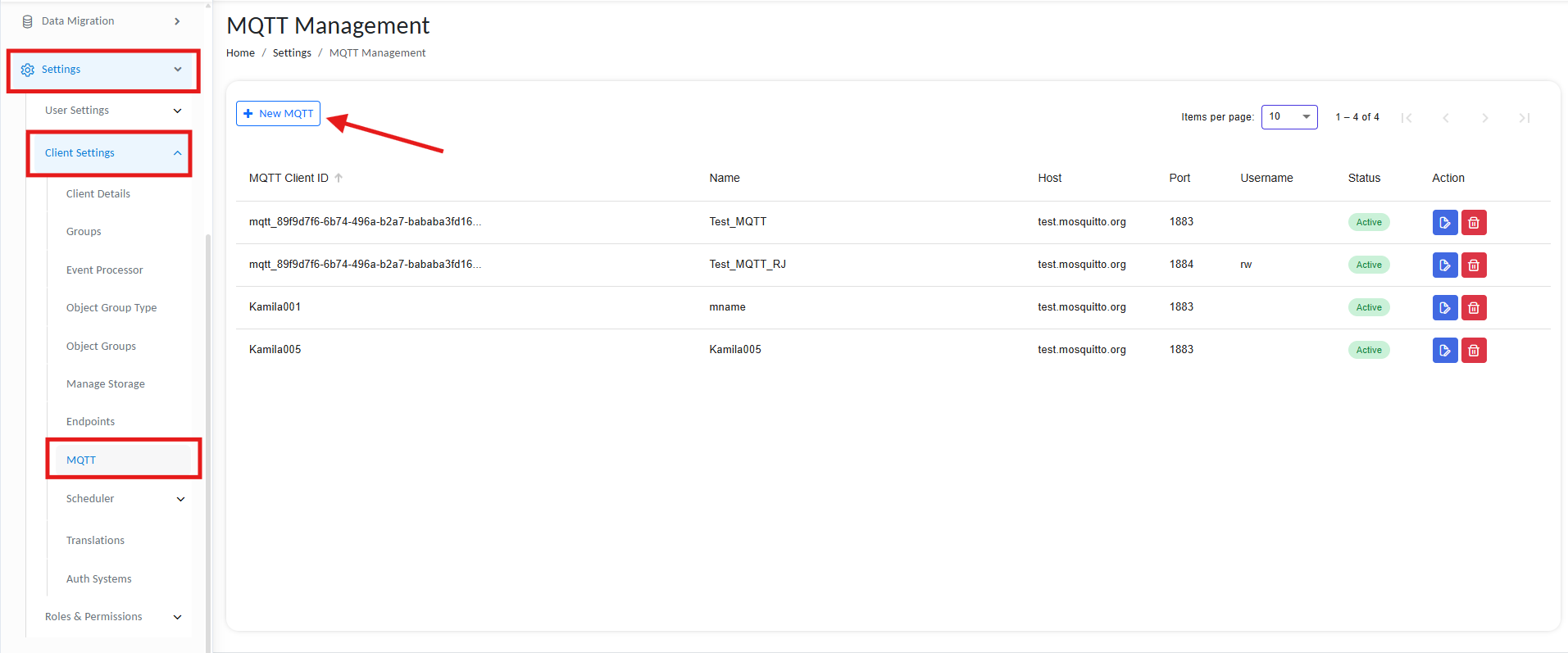
Avaialble MQTT Connections
Step 1: Create an MQTT Client
Each MQTT Client configuration establishes a connection with a remote broker and manages subscriptions for inbound data.
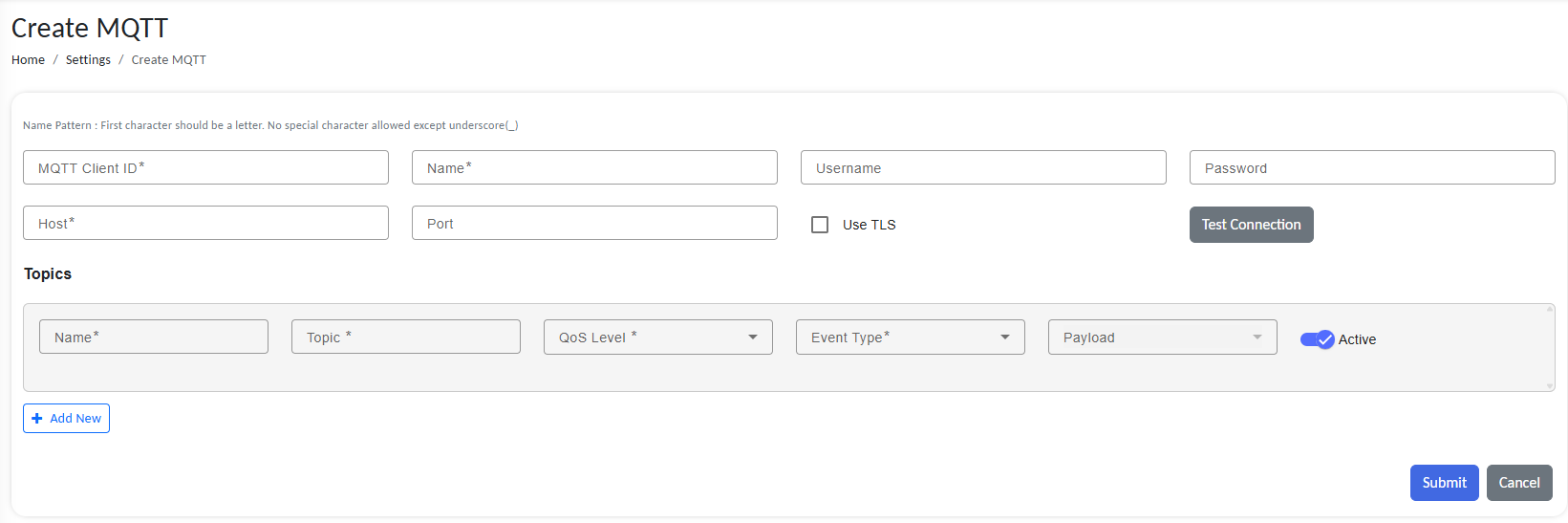
Configure new MQTT
Connection Details
| Field | Description |
|---|---|
| MQTT Client ID | A unique identifier for the client. (e.g., mqtt_reader001) |
| Name | Friendly name to identify the connection within the gateway (e.g., Test_MQTT, Sensor_Bridge). |
| Username / Password | Optional fields used for authenticating with the broker. |
| Host | Broker URL or IP address (e.g., test.mosquitto.org). |
| Port | Broker port number (1883 for unencrypted, 8883 for TLS). |
| Use TLS | Enable this if secure communication over SSL/TLS is required. |
Test Connection
Click to verify broker connectivity with the entered parameters. On a successful test, a popup with “MQTT Connection is valid“ message will be shown.
Step 2: Define MQTT Topics
Use the Topics section to subscribe to incoming MQTT messages and associate them with internal R-COM Gateway events.

Define MQTT topic
Add a new topic:
Click + Add New to open the topic configuration row.
Topic Configuration Fields
| Field | Description |
|---|---|
| Name | Internal label for this topic (e.g., TagEvents) |
| Topic | The full MQTT topic string (e.g., factory/sensors/+/temp) |
| QoS Level | Delivery guarantee level: 🔹 AtmostOne – Fire-and-forget (no acknowledgment)🔹 AtleastOne – Guaranteed delivery but may duplicate🔹 ExactlyOne – Guaranteed once-only delivery with handshake |
| Event Type | Defines how R-COM Gateway processes the message (e.g., UHFTagRead, CustomTrigger, GhostData) |
| Payload | Specifies the expected payload format (usually auto-selected from event type) |
| Active | Toggle to enable or disable this topic |
MQTT Wildcard Support
MQTT wildcards make it easy to subscribe to groups of related topics without creating a separate subscription for every topic. They can only be used in subscription filters—not when publishing messages.
+ — Single-level wildcard
The + wildcard matches exactly one topic level.
For example, subscribing to:
devices/+/data
matches:
devices/sensor-01/data
devices/sensor-02/data
devices/gateway-a/data
but does not match:
devices/sensor-01/status
devices/region-a/sensor-01/data
Use + when one part of a topic changes, such as a device ID, room name, or customer ID.
# — Multi-level wildcard
The # wildcard matches all remaining topic levels, including zero or more levels. It must appear at the end of a topic filter and occupy an entire level.
For example, subscribing to:
devices/#
matches:
devices/sensor-01/data
devices/sensor-01/status
devices/region-a/sensor-01/data
A subscription to:
devices/sensor-01/#
receives every message published beneath that specific device, such as telemetry, status updates, and configuration events.
Practical examples
home/+/temperature
Receives temperature readings from every room:
home/kitchen/temperature
home/bedroom/temperature
factory/line-1/#
Receives all messages for production line 1:
factory/line-1/machine-a/status
factory/line-1/machine-b/telemetry
Best practices
- Keep topic structures consistent so wildcard subscriptions remain predictable.
- Use
+when you only need one variable topic level. - Use
#carefully, since broad subscriptions can receive a large volume of messages. - Apply appropriate access controls: wildcard subscriptions should only be permitted where the client is authorized to read every matching topic.
For more info on wildcard support, refer to the official documentation.
Step 3: Save the Configuration
Once all fields are filled:
-
Click Submit to save the MQTT client and topic subscriptions.
-
Your MQTT connection will appear in the management list with an Active status if successful.
How it works
Once submitted and tested, R-COM Gateway begins receiving tagread messages for real-time processing.
- Use any MQTT client to connect to your broker (e.g., tcp://test.mosquitto.org:1883)
- Ensure the connection is active
- Subscribe to the same topic that you just configured
- Set a QoS
- Publish to the topic
- The message will be captured by the associated R-COM Gateway Event Rules and forwarded to the selected workflow.
Troubleshooting
| Symptom | Possible Cause | Solution |
|---|---|---|
| Status remains Inactive | Incorrect broker address or authentication failure | Verify host, port, and credentials. Use Test Connection. |
| No events processed | Incorrect topic syntax or wrong event type | Ensure the topic matches the published topic. Check event type bindings. |
| Frequent disconnections | Client ID conflict or low keep-alive timeout | Use unique client IDs. Increase keep-alive settings on broker. |
| Payload not recognized | Event type mismatch | Ensure payload structure aligns with the selected Event Type. |
| Connection fails with TLS | Certificate issue | Make sure TLS is supported and proper certificates are configured if needed. |
✅ Final Checklist
Before going live:
✅ Verify broker connectivity using the Test Connection button
✅ Use secure TLS settings in production environments
✅ Confirm topic names and wildcard usage match expected device topics
✅ Test message flow using MQTT tools like MQTT.fx or mosquitto
✅ Ensure Event Type and Payload are aligned with your business logic