Create Custom UI
Overview
The Custom UI feature in R-COM Gateway enables administrators and developers to build fully functional web applications directly within the gateway environment.
A Custom UI consists of HTML, CSS, and JavaScript code served by the gateway and connected to the R-COM Gateway backend through REST APIs and MQTT topics. This allows organizations to build custom dashboards, control panels, operational portals, or complete business applications that interact with gateway workflows, objects, and devices.
Unlike traditional dashboards, Custom UI in R-COM Gateway functions as a front-end application layer, where the gateway acts as the backend service responsible for data processing, automation, event handling, and security.
This architecture allows you to build tailored user interfaces without deploying additional web infrastructure.
Typical use cases include:
- Warehouse operator portals
- Production monitoring dashboards
- Vendor interaction portals
- Asset tracking interfaces
- Control panels for industrial processes
- Custom workflow interaction interfaces
Custom UI Architecture
A Custom UI in R-COM Gateway operates as a web front-end connected to the gateway backend.
The interaction flow typically follows this model:
In this architecture:
Frontend
- HTML defines the interface layout
- CSS handles styling
- JavaScript manages UI logic and API communication
Backend
- R-COM Gateway workflows process business logic
- Object Groups store persistent data
- Event Ruless handle incoming events
- Endpoints expose APIs for UI communication
The gateway therefore acts as a secure backend platform for the UI.
Key Capabilities
The Custom UI system provides several advanced capabilities beyond simple dashboards.
Full Web Application Development
Developers can build complete front-end applications using standard web technologies.
Supported components include:
- HTML interfaces
- CSS styling
- JavaScript logic
- external libraries (Bootstrap, FontAwesome, etc.)
These applications can interact with gateway services such as:
- REST APIs
- Object Groups
- Workflows
- MQTT real-time messaging
This enables the development of full operational tools such as inventory portals, asset management systems, and monitoring interfaces.
Direct UI Access via Shareable Link
Each Custom UI can be accessed directly through a dedicated URL generated by the gateway.
This allows the interface to be opened in any browser without navigating through the gateway administration interface.
Typical usage scenarios include:
- Public dashboards
- Operator control panels
- customer portals
- kiosk displays
- large-screen monitoring dashboards
Users simply open the provided URL in a browser.
Authentication and Access Control
Custom UIs can either use gateway authentication or operate as public interfaces, depending on the security requirements.
Public Access (No Authentication)
A Custom UI can be configured to allow access without requiring gateway login credentials.
This is useful for:
- public dashboards
- display screens in production environments
- kiosks or information boards
- customer-facing monitoring screens
When enabled, the UI becomes accessible through its link without authentication.
However, backend APIs must still be secured appropriately.
Gateway Authentication
A Custom UI can also use the same authentication system used by R-COM Gateway.
When authentication is enabled:
- Users must log in before accessing the UI
- Gateway role-based permissions apply
- API calls automatically include user context
This provides several benefits:
- centralized security management
- role-based access control
- detailed audit tracking
- secure access to backend resources
Example Use Case
A company wants employees to access a custom operational dashboard but does not want them to access the gateway administration interface.
Solution:
- Create a new role with only Custom UI view permissions
- Assign this role to specific users
- Enable authentication on the Custom UI
Users can now access the UI securely without having access to the rest of the gateway.
User Identity in API Calls
When a Custom UI uses gateway authentication, every API request automatically contains the authenticated user identity.
This provides important operational advantages:
- Workflows know which user initiated an action
- Audit tracking becomes easier
- Actions can be logged per user
- Authorization logic can be implemented in workflows
This allows organizations to implement secure and traceable business processes.
Version Control
Every time a Custom UI is modified and saved, the gateway automatically creates a new version of that UI.
Benefits include:
- rollback capability
- safe experimentation with UI updates
- version history tracking
- easier debugging of UI changes
If a newly deployed version introduces issues, administrators can simply revert to a previous version with a single action.
Creating a Custom UI
Step 1: Open Custom UI Management
Navigate to:
Custom UI → Custom UI Management
This page lists all existing custom interfaces.
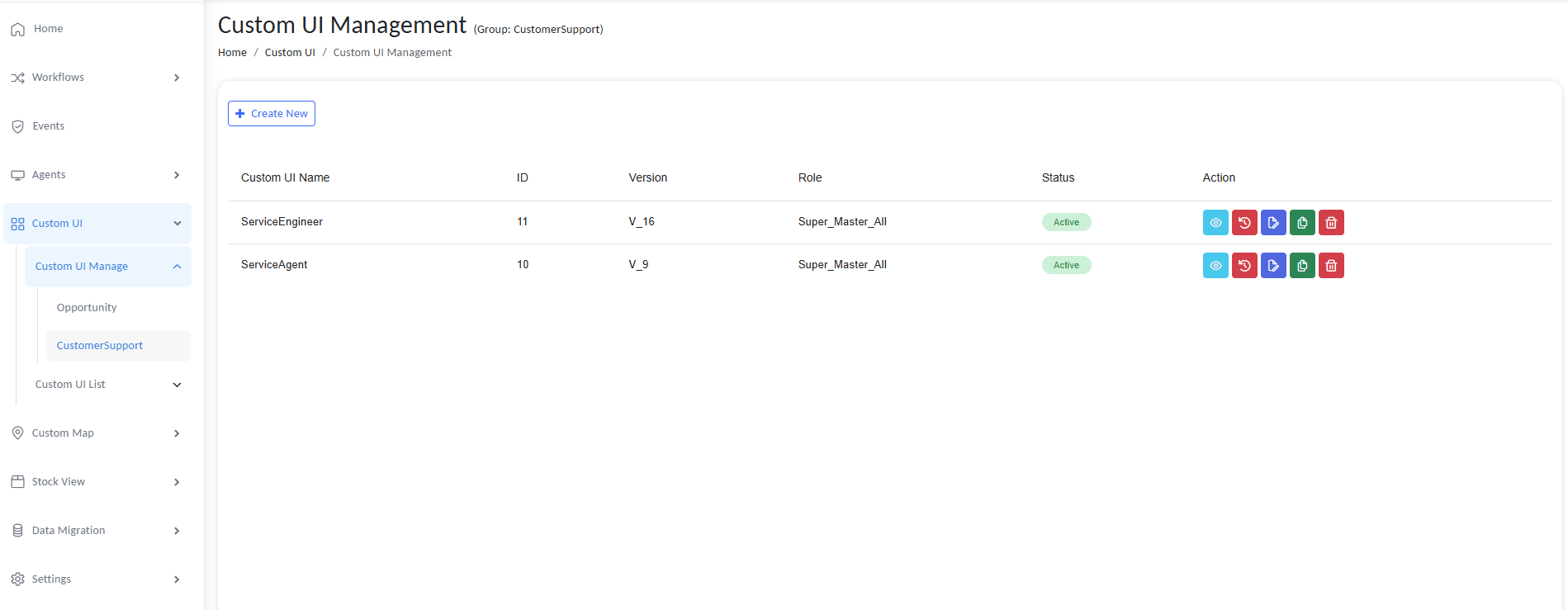
image 20260305 055226
The list shows:
- UI name
- ID
- version
- assigned roles
- status
- available actions
Administrators can preview, edit, copy, restore, or delete UIs from this page.
Step 2: Create a New UI
Click Create New.
You will be prompted to configure the basic UI settings.
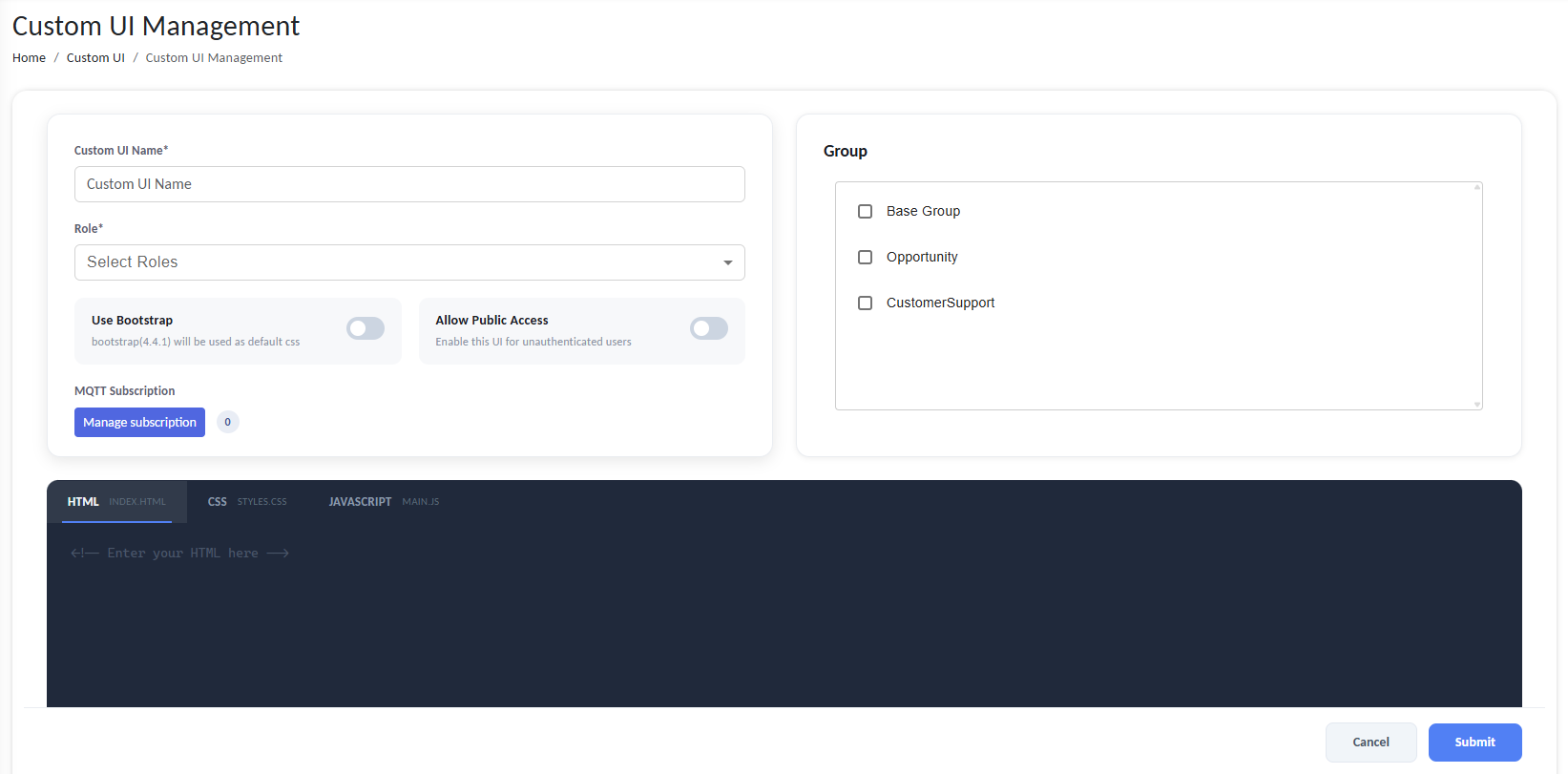
image 20260305 055333
Step 3: Configure Basic Settings
-
Custom UI Name
A human-friendly name used to identify the interface.
Example:
Warehouse Dashboard
Vendor Portal
Production Monitor -
Role Assignment
Defines which user roles are allowed to access the UI. This integrates with the gateway's role-based access control system.
-
Bootstrap Option
Optionally enables Bootstrap styling as the default CSS framework.
This simplifies UI development by providing prebuilt layout components.
-
Allow Public Access
If enabled, the UI can be accessed without authentication.
Use this only when authentication is not required.
-
Group Assignment
The UI can be associated with specific access groups.
This controls visibility and organizational scoping.
Step 4: Writing the UI Code
Each Custom UI includes three main code sections.
HTML
Defines the structure of the interface.
<div class="container">
    <h2>Inventory Dashboard</h2>
    <table id="inventoryTable"></table>
</div>
CSS
Controls visual appearance.
.container {
    padding: 20px;
    font-family: Arial;
}
JavaScript
Handles interaction logic and backend communication.
Example tasks handled in JavaScript:
- API calls
- UI updates
- MQTT message processing
- user interaction logic
Example:
function initializeEngineerFilters() {
  // Add event listeners for filters
  const searchFilter = document.getElementById('searchFilterEngineer');
  const statusFilter = document.getElementById('statusFilterEngineer');
  const clearFiltersBtn = document.getElementById('clearFiltersEngineerBtn');
  if (searchFilter) {
    searchFilter.addEventListener('input', () => {
      renderAssignedTickets();
    });
  }
}
Backend Communication
Custom UIs communicate with the gateway backend through two mechanisms.
REST API
REST APIs allow the UI to send or request data from the gateway.
Typical use cases:
- submitting forms
- querying object data
- triggering workflows
- updating system states
Example API request:
fetch("https://<your_domain>/RCOMENDPOINTAPI/cui/get", {
  method: "GET",
  headers: { "Content-Type": "application/json" }
})
.then(res => res.json())
.then(data => {
  console.log(data);
});
REST APIs are typically handled by:
- Endpoints
- Event Ruless
- Workflows
MQTT for Real-Time Updates
For real-time data updates, a Custom UI can subscribe to MQTT topics and react the moment a new message is received without polling the backend.
A workflow (or any external publisher) sends data to an MQTT topic for example using the MQTTPublisher action and every Custom UI subscribed to that topic receives the message instantly and updates the interface.
Example use cases:
- live sensor dashboards
- asset tracking
- production monitoring
- alert notifications
How MQTT Works in a Custom UI
Because a Custom UI runs entirely inside the user's browser, it cannot open a raw TCP MQTT connection (ports 1883 / 8883) the way a server-side client does. The browser can only communicate over WebSockets.
For this reason, a Custom UI can only subscribe to an MQTT client that connects to the broker over WSS (WebSocket Secure).
A Custom UI does not define its own broker connection. Instead, it references an existing MQTT client by Name, and that client must be configured to use WSS (wss://) the encrypted WebSocket transport.
- Configure the WSS-enabled MQTT client first under Settings > Client Settings > MQTT (see MQTT Client Configuration).
- Plain WebSocket (
ws://) is not supported, because Custom UIs are served over HTTPS and browsers block insecure (mixed-content) connections. - The standard MQTT TCP ports (
1883,8883) will not work from the browser; they are only valid for server-side MQTT clients. - Ensure your broker has a WebSocket (WSS) listener enabled (commonly port
8084or443, depending on the broker).
The end-to-end flow looks like this:
Workflow / Publisher ──► MQTT Broker (WSS listener)
                                │
                                ▼  wss://broker:8084
                        Custom UI (browser)
                                │
                                ▼
                    `message` variable  ──►  your JS handler ──► DOM update
Step 1: Add an MQTT Subscription
In the Custom UI editor, open the MQTT panel and click Manage Subscription → Add New.
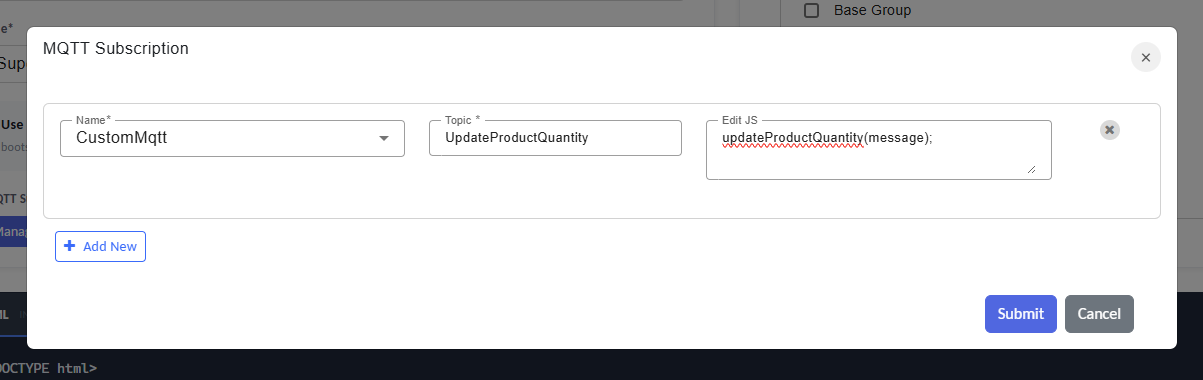
Configure MQTT Connection
Provide the following details:
| Field | Description |
|---|---|
| Name | The name of a WSS-enabled MQTT client defined in the gateway under Settings > Client Settings > MQTT. This selects which broker connection the UI subscribes through. |
| Topic | The MQTT topic the UI listens for (e.g., factory/line1/quantity). Wildcards + and # are supported. |
| EditJS | The JavaScript that runs whenever a message arrives on the topic. This is where you work with the received payload via the predefined message variable. |
There is no Host field in the Custom UI subscription. The broker address, port, and WSS transport are all taken from the MQTT client selected in the Name field, which is configured under Settings > Client Settings > MQTT.
Each subscription runs its own EditJS code whenever a message arrives on its topic.
Step 2: Read the Incoming Message with the message Variable
Every MQTT subscription exposes a predefined variable named message. This is the variable that receives the MQTT payload each time a message is delivered on the subscribed topic.
Key points about message:
- It is automatically populated by the gateway you do not declare, fetch, or assign it yourself.
- It contains the raw payload of the MQTT message as a string.
- If the publisher sends JSON, parse it with
JSON.parse(message)before using the fields. - The code in the subscription's EditJS editor re-runs for every new message, so
messagealways holds the latest payload.
Step 3: Update the UI
Use the value in message to update your interface inside the EditJS editor. In the example below, the publisher sends a JSON payload such as { "quantity": 42 }:
// `message` is predefined and holds the incoming MQTT payload (a string).

function updateProductQuantity(message) {
  const data = JSON.parse(message);           // parse the JSON payload
  const quantity = data.quantity ?? 0;        // safely read the field
  document.getElementById("product_quantity").textContent = quantity;
}

// Invoke the handler with the predefined `message` variable
updateProductQuantity(message);
Whenever a new MQTT message arrives on the subscribed topic, the gateway re-runs this code with the updated message value, and the UI reflects the change immediately no page refresh required.
Wrap JSON.parse(message) in a try/catch block if the publisher may occasionally send non-JSON or malformed payloads, so a single bad message does not break the handler.
Saving and Accessing the UI
Once the HTML, CSS, JavaScript, and any REST/MQTT connections are configured, save the UI to make it available.
- Save the UI. Each save automatically creates a new version, so you can roll back later if needed (see Version Control).
- Preview the interface from the Custom UI Management list to verify layout and behavior before sharing it.
- Access or share the UI through its dedicated URL. Anyone with the link can open it in a browser, subject to the UI's authentication settings:
- If Allow Public Access is enabled, the link opens without a login.
- Otherwise, users are prompted to authenticate and must hold a role assigned to the UI.
Custom Permissions in UI Components
R-COM Gateway allows you to define custom permissions that can be assigned to roles. These permissions can then be used in custom UI implementations to control which actions or components are available to a user.
When building custom UI pages, you can check whether the currently logged-in user has a specific permission and dynamically show, hide, enable, or disable UI components accordingly.
How It Works
- Assign a custom permission to one or more roles.
- In your custom UI logic, check whether the current user has the required permission.
- Based on the result, control the visibility or availability of UI components.
Example Scenario
Suppose you have a custom UI used by two roles:
- Floor Manager
- Inventory Manager
You define custom permissions such as:
DELETERESET
These permissions are assigned only to roles that are allowed to perform those actions.
In the UI:
- All users can access the general interface.
- Actions such as Delete or Reset are only available if the logged-in user has the corresponding permission.
Example HTML
<div>
  <p>Welcome! This section is visible to everyone.</p>
</div>

<button id="delete-btn-top" style="display: none;">Delete</button>
<button id="reset-btn-top" style="display: none;">Reset</button>
Example JavaScript
The following example checks whether the logged-in user has specific permissions and updates the UI accordingly.
function checkPermissions() {
    const items = ['DELETE', 'RESET'];

    for (const item of items) {
        const params = new URLSearchParams({
            key: item,
            username: userName
        });

        fetch(`${API_URL}/api/roles/check_permission?${params.toString()}`, {
            method: 'GET',
        })
            .then(response => response.json())
            .then(data => {
                if (!data) {
                    if (item === 'DELETE') {
                        const deleteButton = document.getElementById("delete-btn-top");
                        if (deleteButton) {
                            deleteButton.style.display = 'none';
                        }
                    } else if (item === 'RESET') {
                        const resetButton = document.getElementById("reset-btn-top");
                        if (resetButton) {
                            resetButton.style.display = 'none';
                        }
                    }
                } else {
                    if (item === 'DELETE') {
                        const deleteButton = document.getElementById("delete-btn-top");
                        if (deleteButton) {
                            deleteButton.style.display = 'block';
                        }
                        isDelete = true;
                    } else if (item === 'RESET') {
                        const resetButton = document.getElementById("reset-btn-top");
                        if (resetButton) {
                            resetButton.style.display = 'block';
                        }
                        isReset = true;
                    }
                }

                return data;
            })
            .catch(error => {
                console.error("Error fetching permissions data:", error);
                return null;
            });
    }
}
Behavior
In this example:
- The Delete and Reset buttons are initially hidden.
- The
checkPermissions()function verifies whether the user has theDELETEandRESETpermissions. - If the permission is granted, the corresponding button becomes visible.
- If the permission is not granted, the button remains hidden.
This approach allows custom UI pages to dynamically adjust available actions based on the permissions assigned to the user's role.
Assign custom permissions to roles:
- Go to
Settings > Roles & Permissions > Roles - Click
+ Add New Roleor choose to edit an existing Role
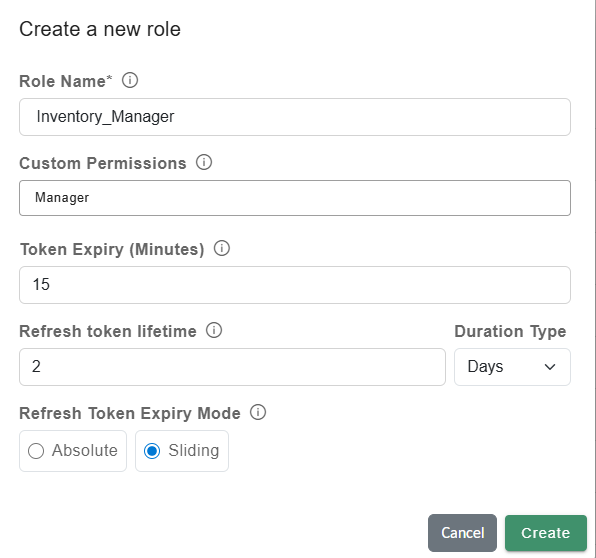
Configure Custom Permissions
- Enter Role Name (e.g., Inventory_Manager, Line_Supervisor) (if new role)
- Assign a Custom Permission
- Click on
Create/Update
Best Practices & Tips
- Always test API and MQTT connectivity with sample data before deploying to users.
- Restrict access using Access Groups for security; only assigned users can see or edit specific UIs.
- Use tooltips and field labels for clarity if your UI is complex or used by non-technical staff.
- Structure your JS, separate logic for API, UI updates, and event handlers for easier maintenance.