Import Configuration Packages
Imports applies configuration from a ZIP package created through Exports. Use an import to bring a reviewed export package into a target R-COM Gateway without applying its changes immediately.
Each uploaded package becomes an import job. Gateway first generates a preview of the proposed changes. You review that preview, resolve or exclude items that should not be applied, and then start the import when the job is ready. This separates validation from execution and gives you a record of the import outcome.
Imports List
Navigate to Data Migration > Imports to open the Imports list. The list contains the import jobs created in the current Gateway and lets you return to a job while it is awaiting review or after it has completed.
Use the list to:
- Select Upload export package to create an import job.
- Open an import job to review the package preview, workflow activation changes, and history.
- Monitor the final import status and open completed jobs to review their results.
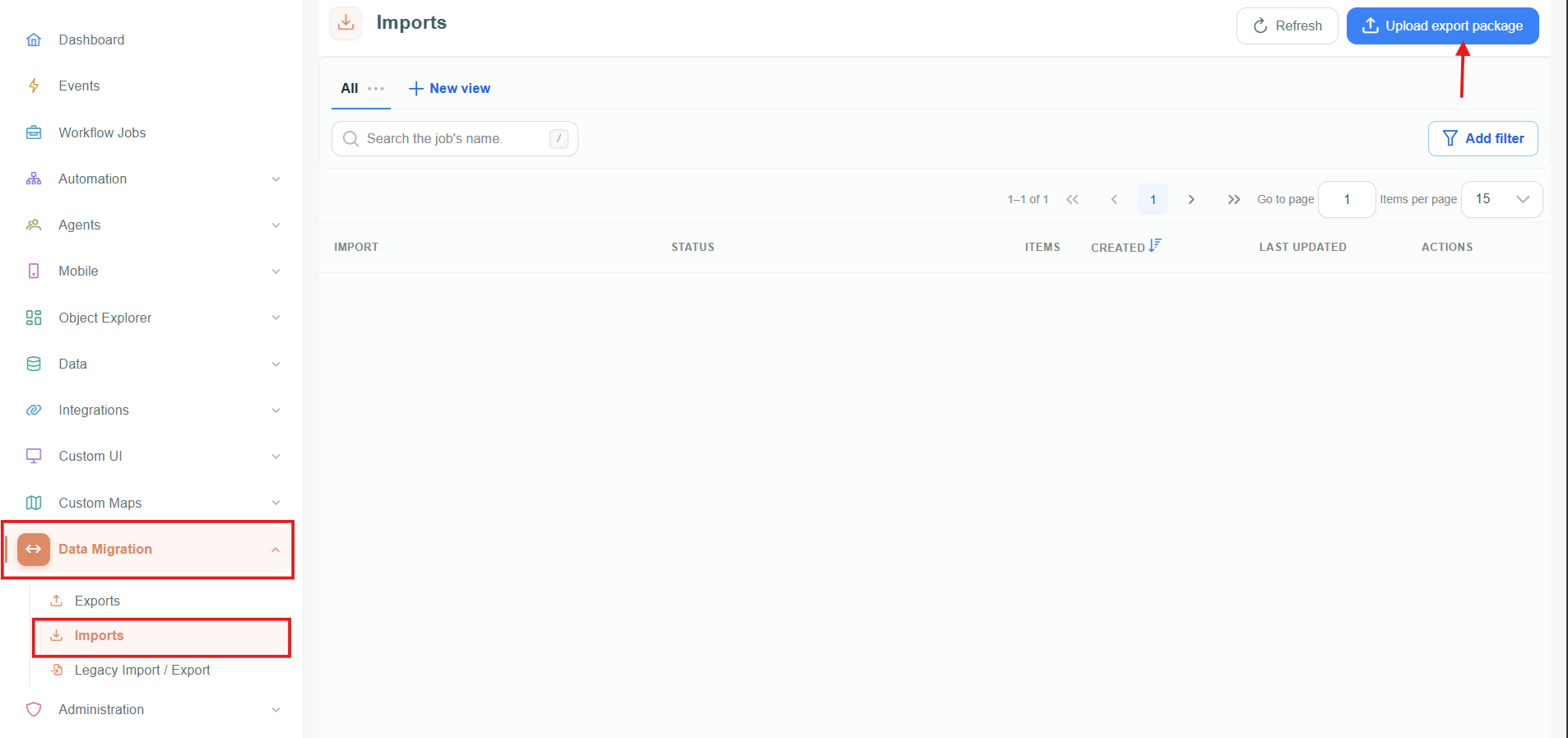
The Imports list contains the import jobs created in the current Gateway.
Import Lifecycle and Statuses
An import follows this workflow:
- Upload a ZIP package and create an import job.
- Review the generated preview and validation results.
- Rebuild the preview after changing the import-job selection.
- Start the import when the proposed changes are acceptable.
- Review the results and download a report if the import requires follow-up.
The following import-job statuses describe where the job is in that workflow:
| Status | Meaning | What to do |
|---|---|---|
| Queued | The import job is waiting to be processed. | Wait for Gateway to begin processing the uploaded package. |
| Processing | Gateway is processing the package and generating the import preview. | Wait for the job to reach a review or ready state before taking action. |
| Review required | Gateway has created the preview and is waiting for review. | Review the preview, validation results, and workflow activation changes before starting the import. |
| Ready for Import | The import job is ready to apply its reviewed changes. | Select Start import when the target Gateway is ready for the changes. |
| Import In Progress | Gateway is applying the import-job changes. | Monitor the job until it completes, is cancelled, or fails. |
| Stopping… | Gateway is stopping the import job. | Wait for the job to finish stopping and review its final status. |
| Import completed | The import completed successfully. | Review the results when a record of the completed changes is required. |
| Completed with issues | The import finished, but one or more items need follow-up. | Open the results and reports to identify the affected items and their outcome. |
| Cancelled | The import was cancelled before it completed. | Review the job results before deciding whether to create another import job. |
| Cancelled — Partially Applied | The import was cancelled after Gateway had applied some changes. | Review the results before making further changes to the target Gateway. |
| Failed | The import could not complete. | Review the job details and validation result before retrying with a corrected package or selection. |
Create an Import Job
Before uploading, confirm that the package was downloaded from Exports and is intended for the current target environment.
- Navigate to Data Migration > Imports.
- Select Upload export package.
- Upload the ZIP package created by Gateway Export.
- Enter an Import name and, when useful, a Description.
- Select Create import job.
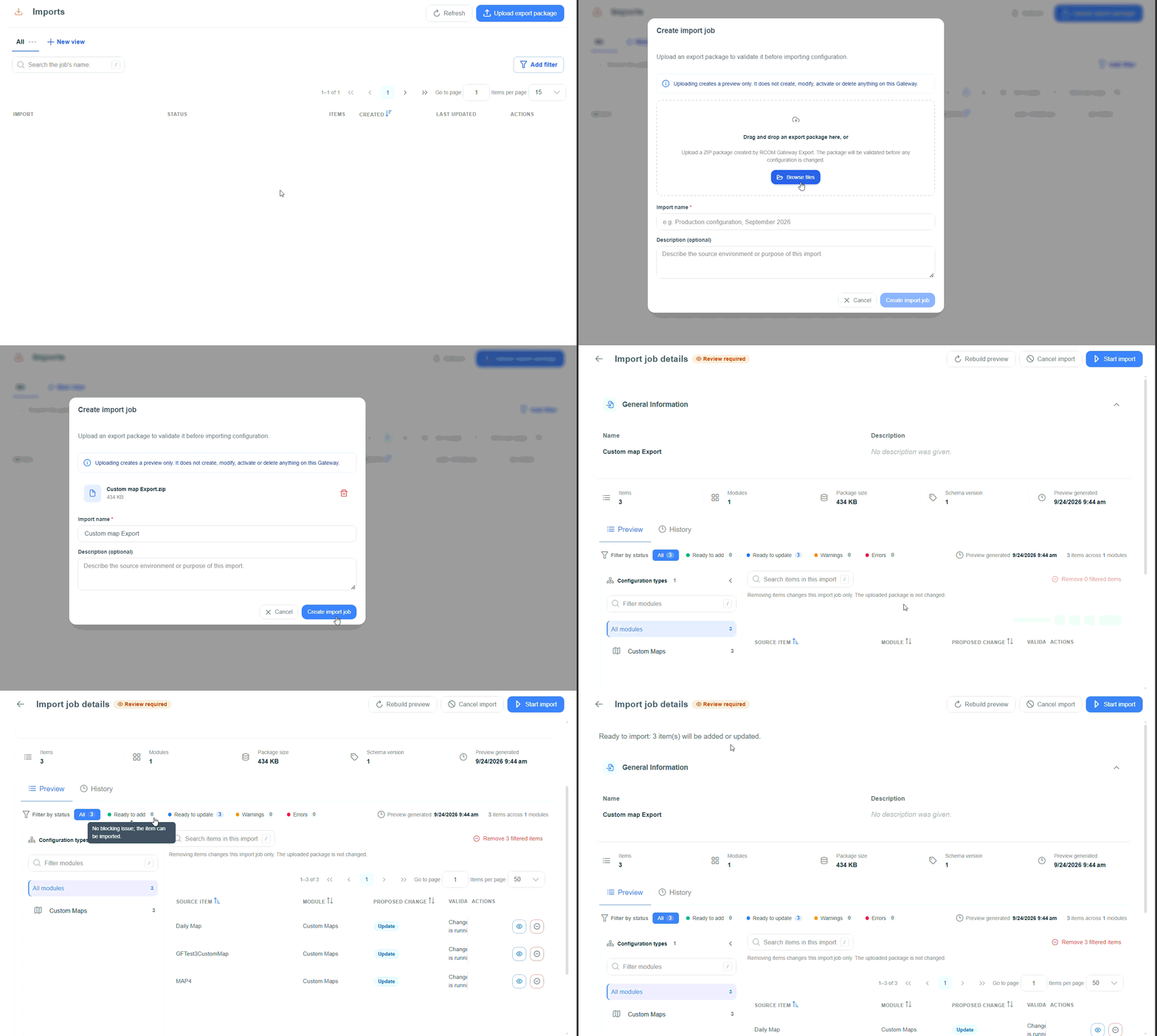
Upload an export package and enter details for the import job.
| Field | Description |
|---|---|
| Export package | ZIP package created through Gateway Export. |
| Import name | Required name used to identify the import job in the Imports list. |
| Description | Optional context, such as the source Gateway, intended environment, or change purpose. |
Creating an import job uploads the package and generates a preview only. It does not create, modify, activate, or delete configuration in the target Gateway.
Review the Import Preview
Open the import job and start on the Preview tab. The preview shows each package item, its module, proposed change, and validation result. Use it to decide whether the package can be safely applied to the current Gateway.
Use the status filters to focus on items that are ready to add, ready to update, have warnings, or have errors. Resolve errors before starting the import. If an item should not be imported, remove it from the import job. Removing an item changes the import job only; it does not change the uploaded ZIP package.
The import job uses these tabs:
| Tab | Use it to |
|---|---|
| Preview | Review proposed configuration changes and their validation status. |
| Workflow activation | Review the workflow activation changes that the import will apply. |
| History | Review the activity recorded for the import job. |
| Results | Review the outcome of completed imports and download reports. |
Select Rebuild preview after changing items in the import job. Rebuilding refreshes the proposed changes and validation result before execution.
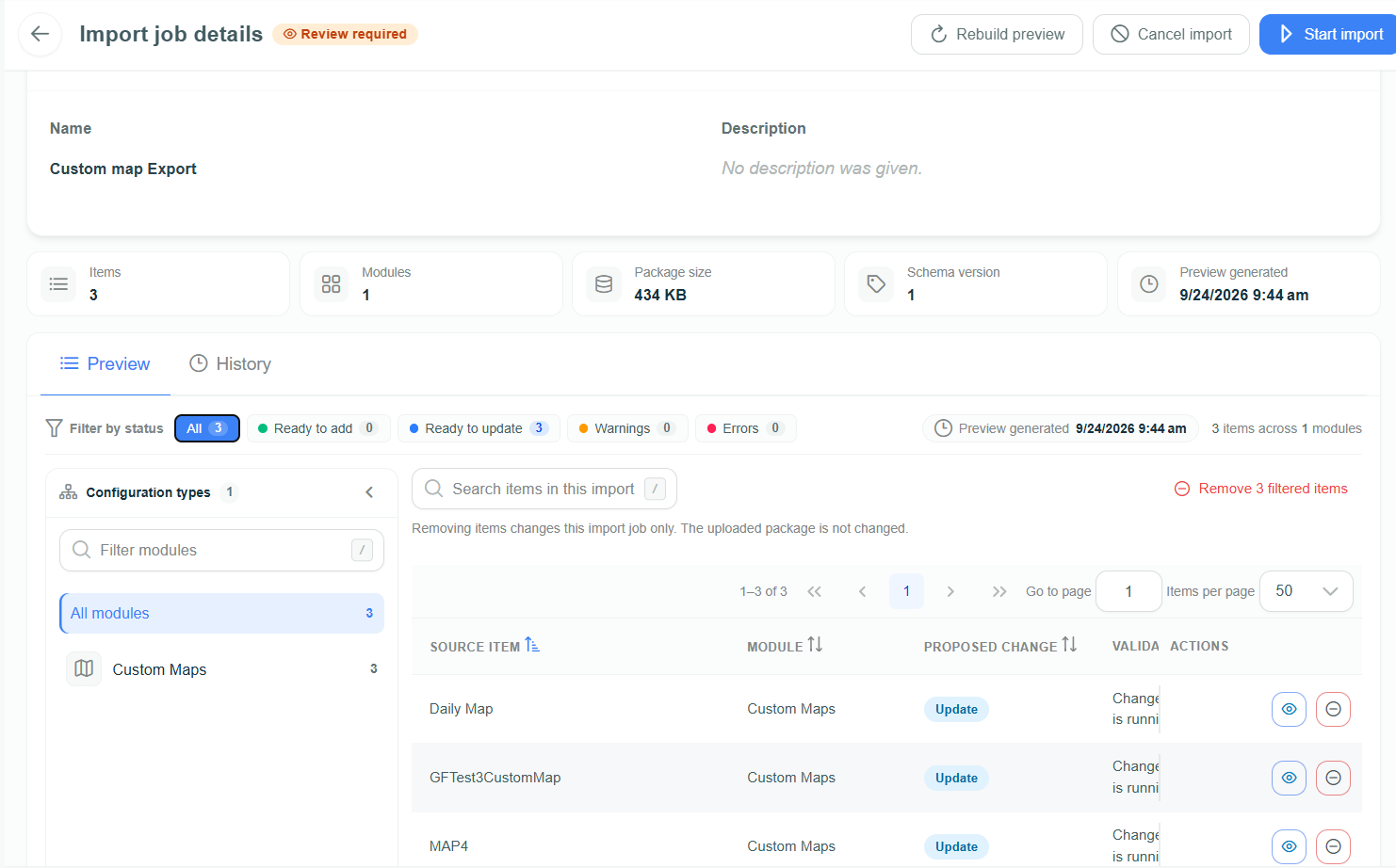
Review the proposed configuration changes before starting the import.
Start or Cancel an Import
An import in Review required must be reviewed before it is started. When the preview is acceptable, select Start import. Use Cancel import when the job should not proceed.
Starting the job applies the approved configuration changes to the current Gateway. Use Cancel import before starting if the package is for the wrong environment, contains changes that should not be applied, or needs further review.
An import can change configuration in the current Gateway. Confirm the target environment, review the preview, and resolve validation errors before selecting Start import.
Review Import Results
Open a completed import job to review its Results tab. The result shows the final import status and provides follow-up information for items that were not applied successfully. Use Download report when a record of the result is required for a change review or support case.
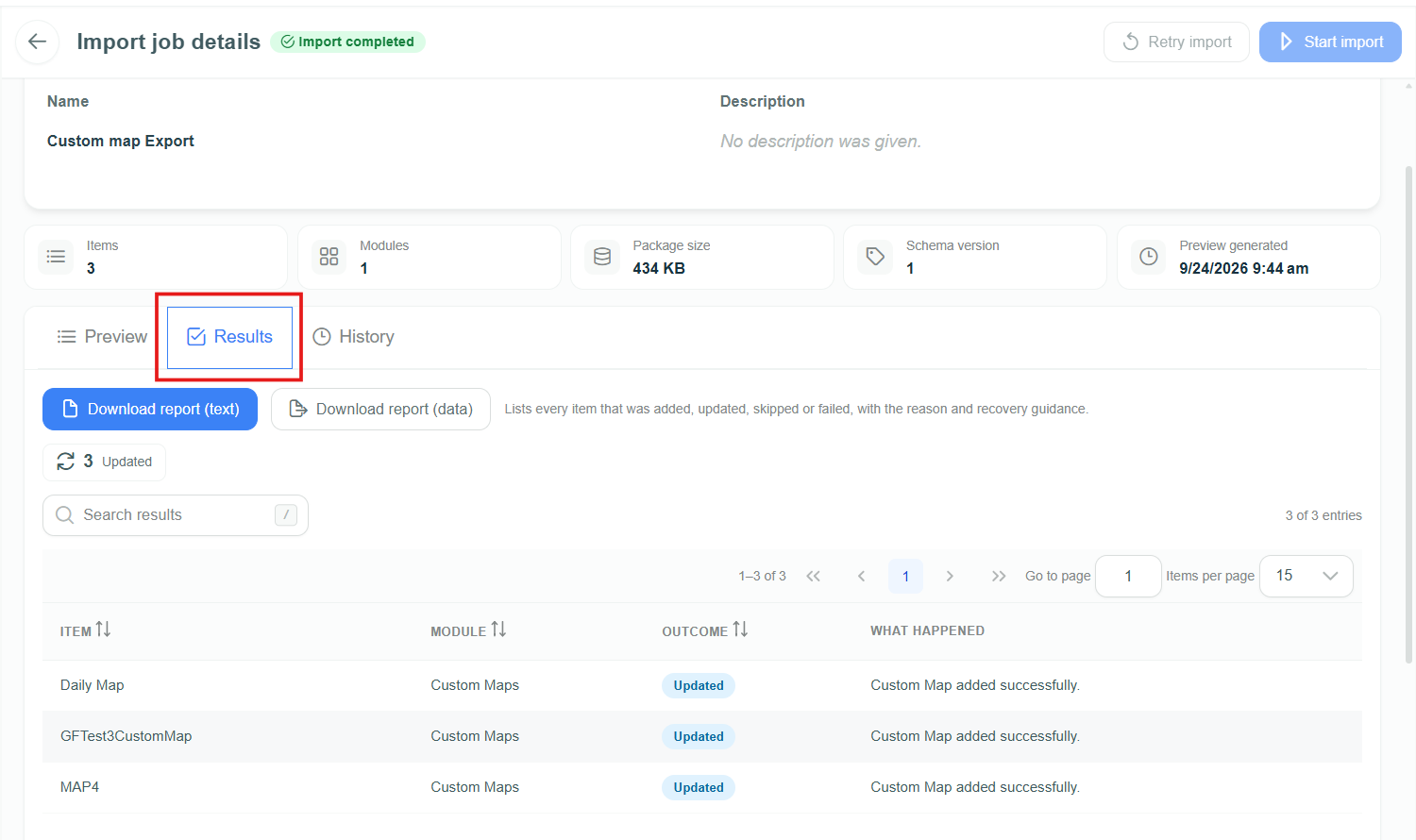
Review the final status and results of an import job.
When an import completes with issues, is cancelled after partial application, or fails, review the affected items before retrying or making further changes in the target Gateway.