Export Configuration Packages
Exports creates a ZIP package containing selected configuration from a R-COM Gateway. Use an export when you need to move a controlled change from one Gateway to another—for example, from test to staging or production.
An export is a job, not an immediate download. You select the configuration to include, review the dependencies that selection requires, and then download the package when it is ready. This review step helps prevent configuration from being transferred without the related items it needs on the target Gateway.
Exports List
Navigate to Data Migration > Exports to open the Exports list. The list contains the export jobs that have been created in the current Gateway. Each entry identifies the package by name and description and shows its status, item count, creation time, and last update time.
Use the list to:
- Select Create export package to start a new export job.
- Open an existing export to review its contents and dependencies.
- Identify packages that still require review and packages that are ready to download.
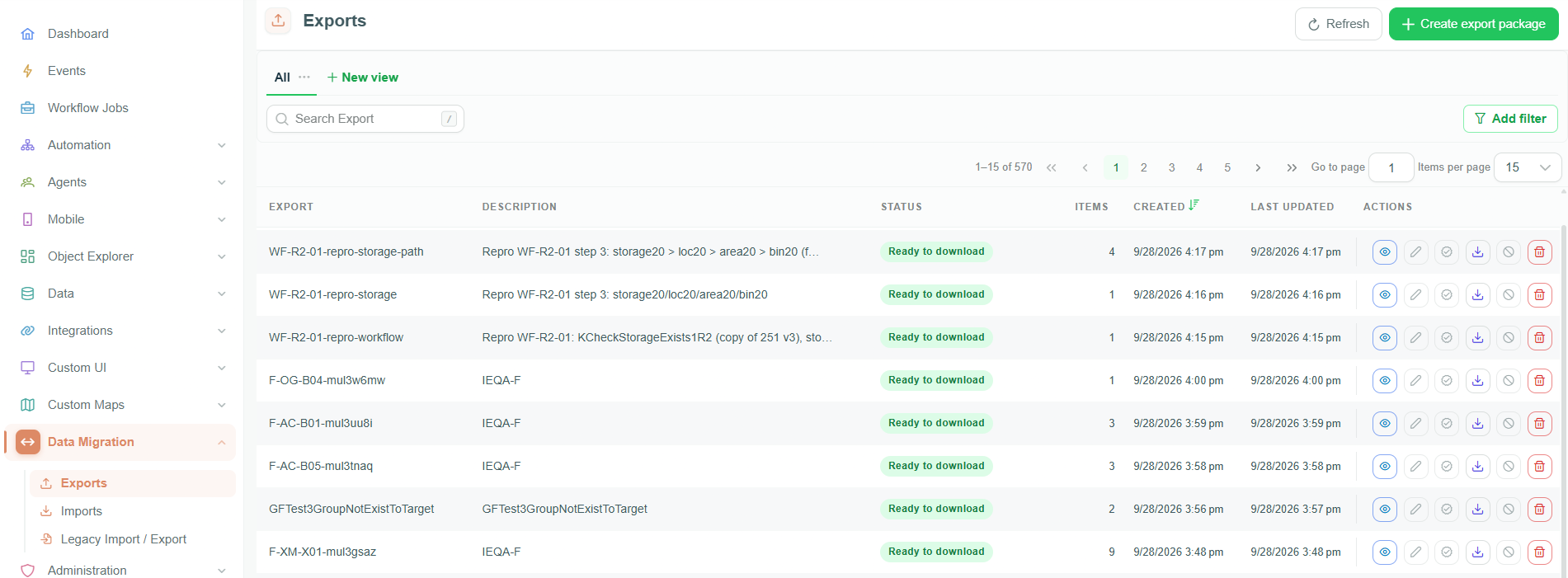
The Exports list contains the export jobs created in the current Gateway.
Export Lifecycle
An export moves through the following workflow:
- Create an export job and select the configuration to include.
- Review the dependency check and resolve any required missing items.
- Open the completed export and confirm the package contents.
- Download the ZIP package and, when required, its validation report.
- Upload the ZIP package on the target Gateway to create an import job.
The Exports list and detail page use these statuses:
| Status | Meaning | What to do |
|---|---|---|
| Queued | The export job is waiting to be processed. | Wait for Gateway to begin preparing the package. |
| Preparing package | Gateway is creating the export package and evaluating its contents. | Wait for processing to finish before reviewing the package. |
| Review required | The export has dependencies that need attention before it can be downloaded. | Open the export, review the Dependencies tab, and resolve the required items. |
| Ready to download | The package is available for transfer. | Download the ZIP package and use it to create an import job on the target Gateway. |
| Export cancelled | The export job was cancelled before a package became available. | Create a new export job when the configuration is ready to be exported. |
| Export failed | Gateway could not create the export package. | Review the export details, correct the underlying configuration issue, and create a new export job. |
Create an Export Package
- Navigate to Data Migration > Exports.
- Select Create export package.
- Enter a Package name. Add a Description when it will help recipients identify the package purpose, source, or target environment.
- Under Select configuration, select a configuration type and then select the individual items to include.
- Review Dependency Check before saving the export.
- Select Save.
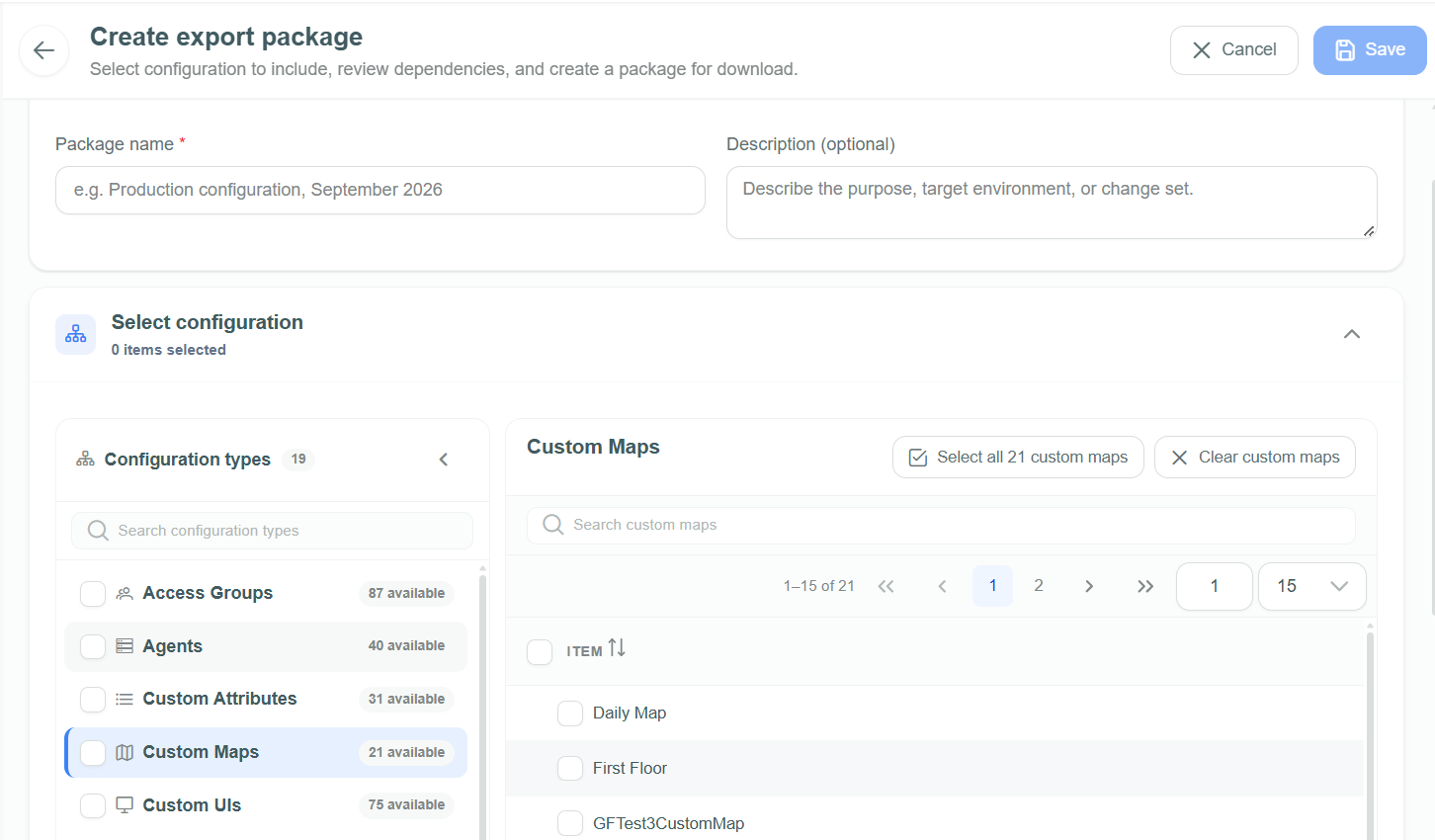
Select configuration types and items to include in an export package.
Package Details and Configuration Selection
| Field or Section | Description |
|---|---|
| Package name | Required name used to identify the export job in the Exports list and after download. |
| Description | Optional context for the package, such as its purpose, source Gateway, or target environment. |
| Configuration types | Categories of configuration available for export. Select a category to display its available items. |
| Item selection | Select the individual configuration items that belong in the package. Use the search, select-all, and clear controls to work with a category. |
| Dependency Check | Shows configuration required by the selected items and whether it is already included in the package. |
Choose only the configuration needed for the change. Focused packages are easier to review, transfer, test, and roll back than a package that contains unrelated configuration.
Review Dependencies
The Dependency Check identifies configuration that the selected items rely on. Open it before saving to understand whether the package is complete.
The dependency summary separates selected items, modules, missing items, and automatically included items. For a required item that is missing, select Add to include it. Use Auto-resolve all when the displayed dependencies should all be added to the package.
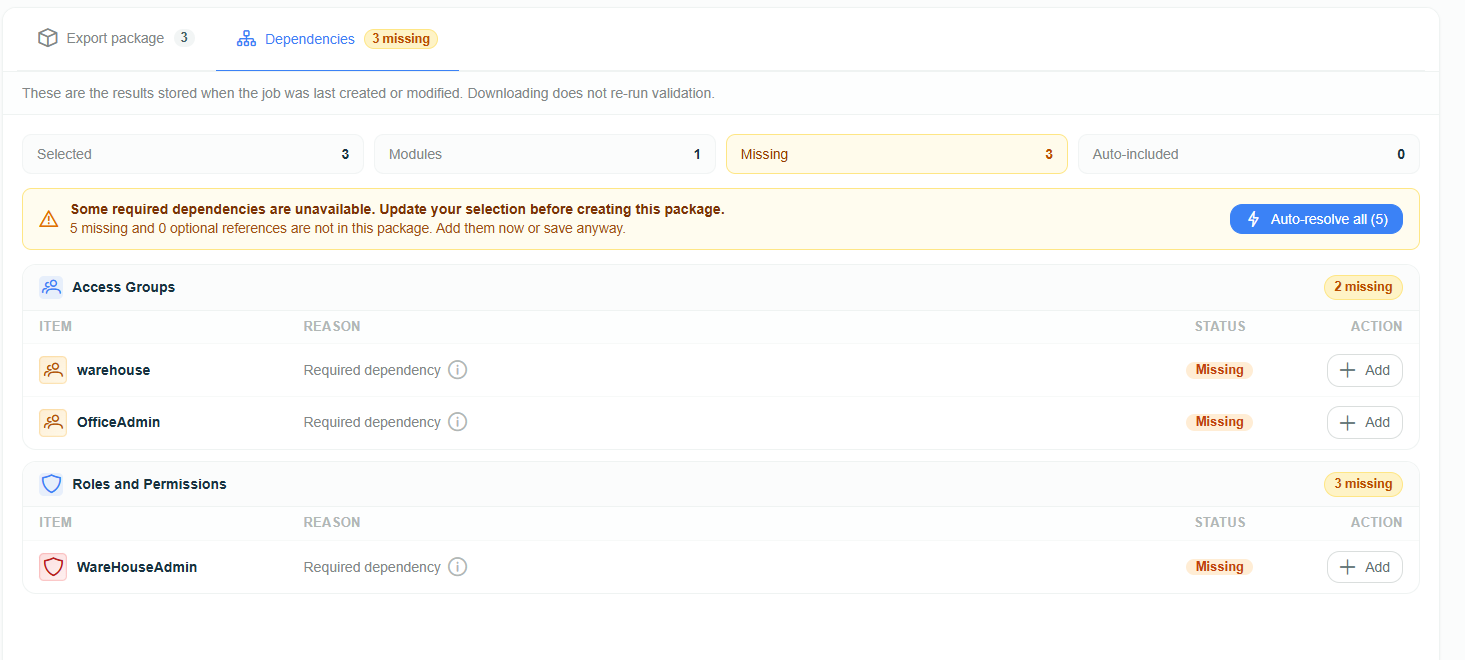
Review and resolve missing dependencies before creating the export package.
The dependency check is in beta. Review the package contents and dependencies before using the package in another environment; the result is not a substitute for testing.
Review and Download an Export
Open an export from the Exports list to inspect it before transfer. The export detail page has two tabs:
| Tab | Use it to |
|---|---|
| Export package | Confirm the configuration types, modules, and items included in the package. |
| Dependencies | Review the dependency result for the selected configuration. |
When the status is Ready to download, select Download package to save the ZIP file. Select Download validation report when the package needs an accompanying record of its validation result.
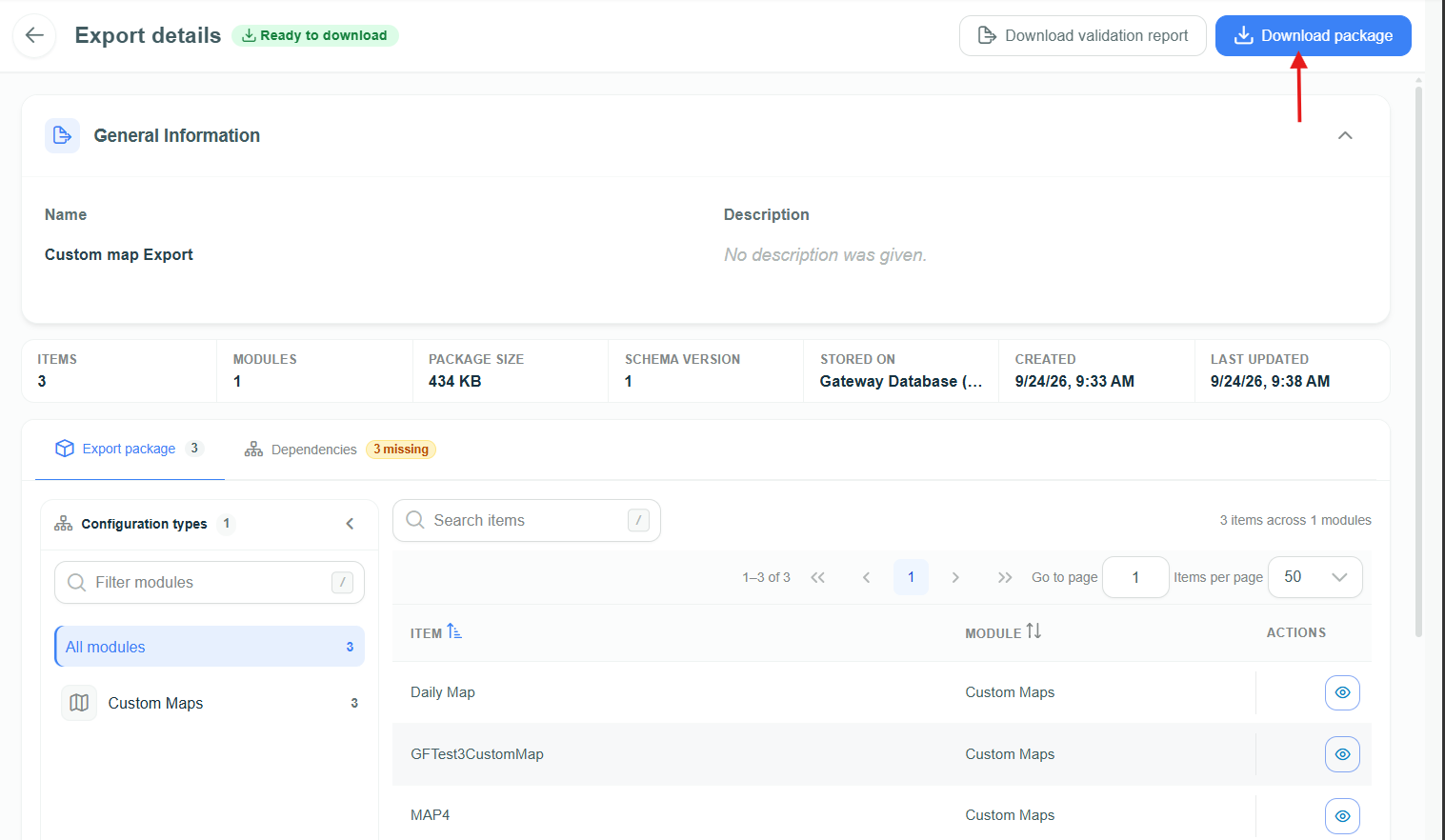
Download the ZIP package and validation report after the export is ready.
Before using an export in production, import it into a suitable non-production Gateway and review the import preview. A successful dependency check does not verify that the target environment is ready for every configuration change.
Next Steps
Download the completed ZIP package and upload it on the target Gateway. Uploading creates an import job and preview; it does not immediately change the target configuration.