External Storage Providers
R-COM Gateway supports configurable external storage providers for storing and managing file data. This allows attachments and file-based data to be stored outside the Gateway database, using storage backends such as Amazon S3, Azure Blob Storage, or S3-compatible systems.
This feature is currently available for Object Group attachments. When attachments are enabled for an Object Group, the selected storage provider determines where all attachments for objects in that Object Group are stored.
Overview
Previously, attachments were stored using the internal Gateway storage mechanism. With storage provider support, R-COM Gateway can now use different storage backends depending on the client or project requirement.
Supported storage provider types include:
| Provider Type | Description |
|---|---|
| Database | Stores files using the Gateway database/internal storage mechanism. |
| Amazon S3 | Stores files in an Amazon S3 bucket. |
| Azure Blob Storage | Stores files in an Azure Blob Storage container. |
| S3-compatible storage | Stores files in S3-compatible systems such as MinIO, Ceph, Wasabi, or other compatible object storage services. |
Purpose
External storage providers are useful when file data should be stored outside the main Gateway database. This is especially relevant for larger attachments, scalable deployments, cloud-native environments, and projects where the customer already has an approved storage system.
Common use cases include:
| Use Case | Benefit |
|---|---|
| Object attachments | Store uploaded files linked to objects in a dedicated storage backend. |
| Large file storage | Avoid unnecessary growth of the Gateway database. |
| Customer-managed storage | Use customer-owned S3, Azure Blob, or compatible storage. |
| Scalable deployments | Use storage systems designed for large file volumes. |
| Cloud and on-premise flexibility | Support both cloud-native and self-hosted object storage systems. |
Storage Provider Management
Storage providers are managed from:
Settings → Client Settings → Storage Provider
From this page, users can create, view, edit, filter, and delete storage provider configurations.
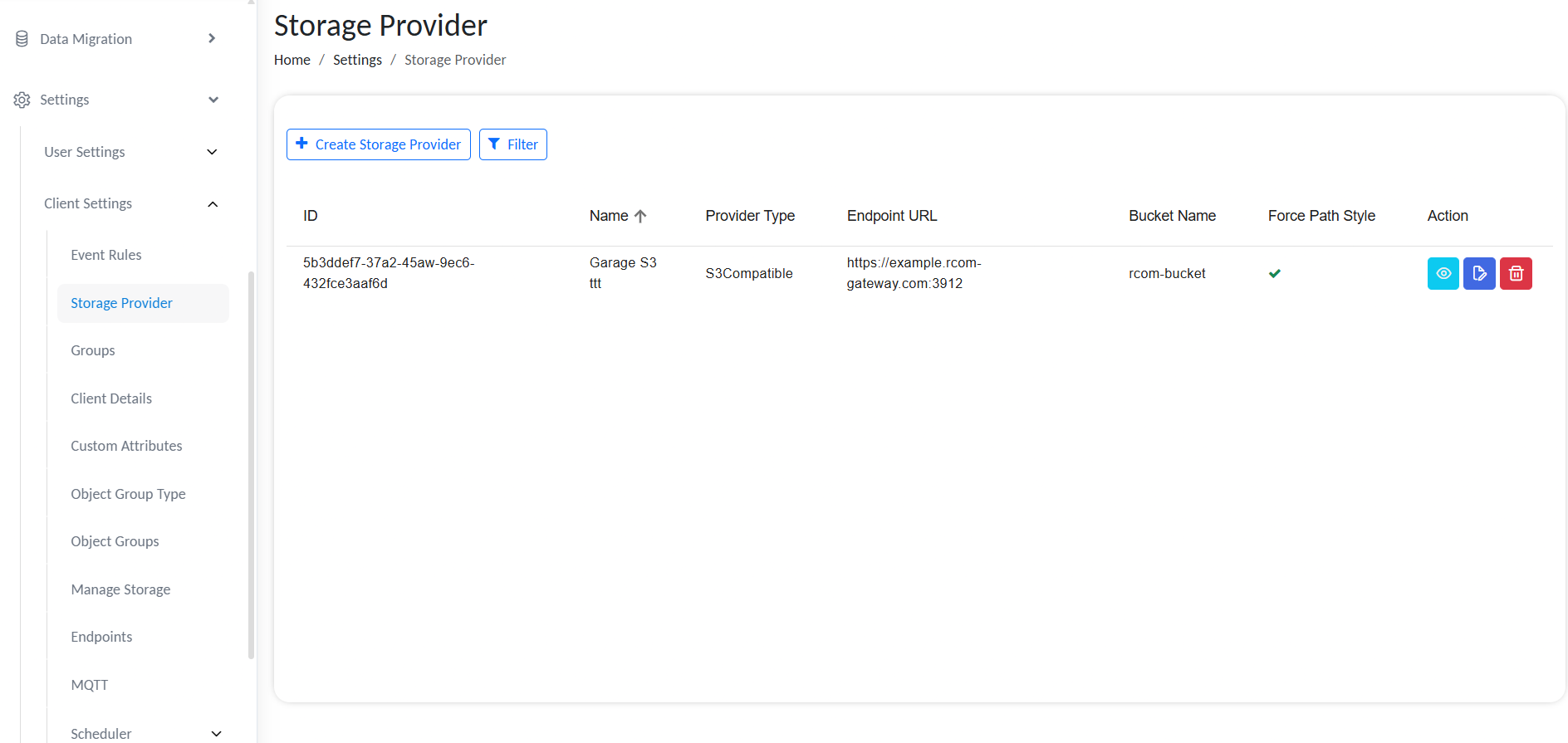
Manage Storage Providers
The Storage Provider list displays the configured providers with details such as:
| Column | Description |
|---|---|
| ID | Unique identifier of the storage provider. |
| Name | Display name of the storage provider. |
| Provider Type | Type of storage backend, for example Amazon S3 or S3-compatible. |
| Endpoint URL | Storage service endpoint URL, if applicable. |
| Bucket Name | Target bucket or container name. |
| Force Path Style | Indicates whether path-style access is enabled. |
| Action | Available actions such as view, edit, or delete. |
Creating a Storage Provider
To create a new storage provider:
- Go to Settings → Client Settings → Storage Provider.
- Click Create Storage Provider.
- Enter the required provider details.
- Use Test Connection to verify the configuration.
- Click Save.
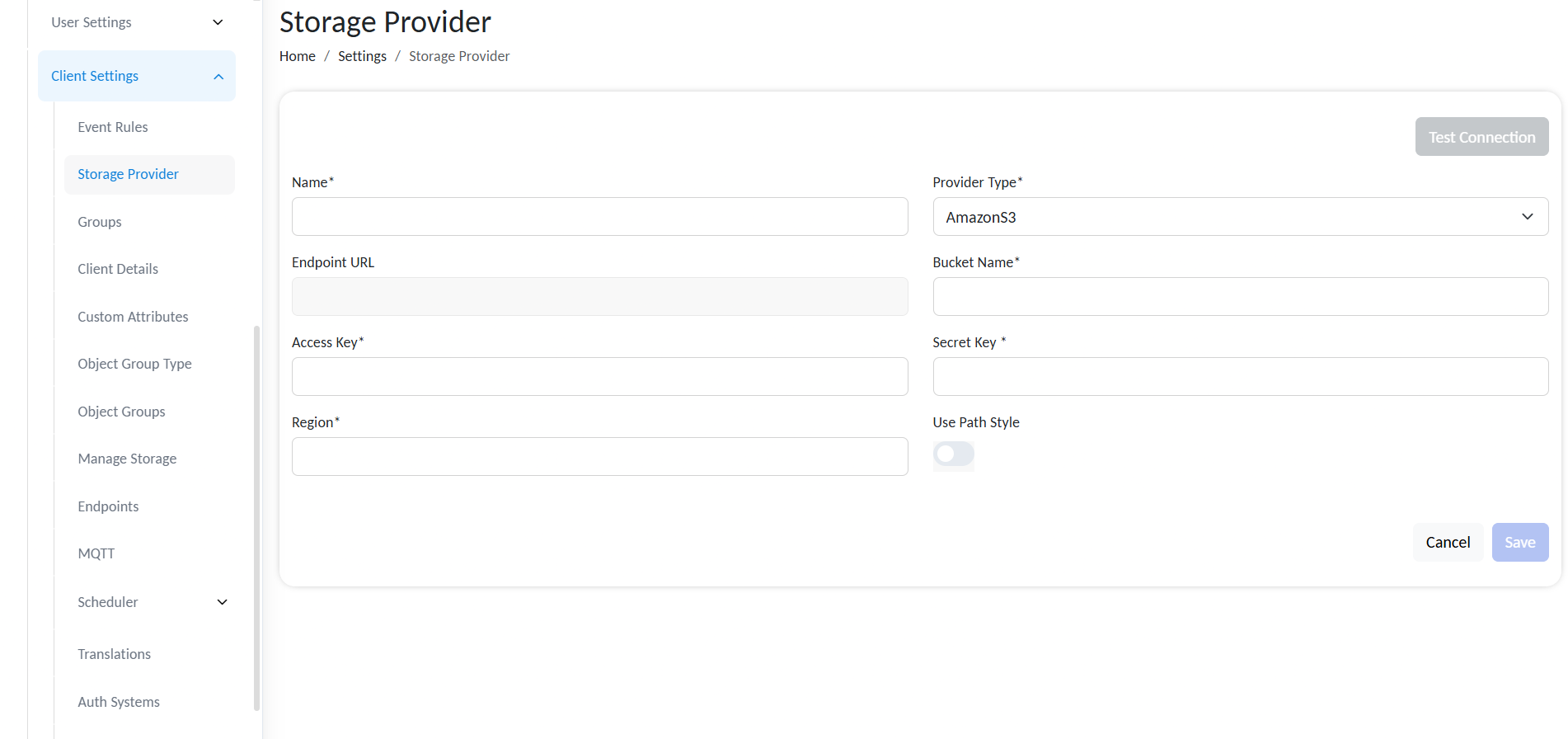
Create Storage Provider
The available fields may differ depending on the selected provider type.
Common Fields
| Field | Required | Description |
|---|---|---|
| Name | Yes | Name used to identify the storage provider in Gateway. |
| Provider Type | Yes | Storage backend type, such as Amazon S3, Azure Blob Storage, Database, or S3-compatible. |
| Endpoint URL | Depends on provider | Endpoint of the storage service. Required for S3-compatible providers. |
| Bucket Name | Yes | Name of the bucket or container where files will be stored. |
| Access Key | Yes, for key-based providers | Access key used to authenticate with the storage backend. |
| Secret Key | Yes, for key-based providers | Secret key used to authenticate with the storage backend. |
| Region | Depends on provider | Storage region, commonly required for Amazon S3. |
| Use Path Style | Optional | Enables path-style access for S3-compatible providers. |
Always use Test Connection to validate the endpoint, bucket, and credentials before selecting the provider in an Object Group.
Using Storage Providers in Object Groups
Storage providers can currently be used with Object Groups to store object attachments.
To configure an Object Group to use a storage provider:
- Go to Settings → Client Settings → Object Groups.
- Create a new Object Group or edit an existing one.
- Enable Allow Attachment.
- Select the required Storage Provider.
- Save the Object Group.
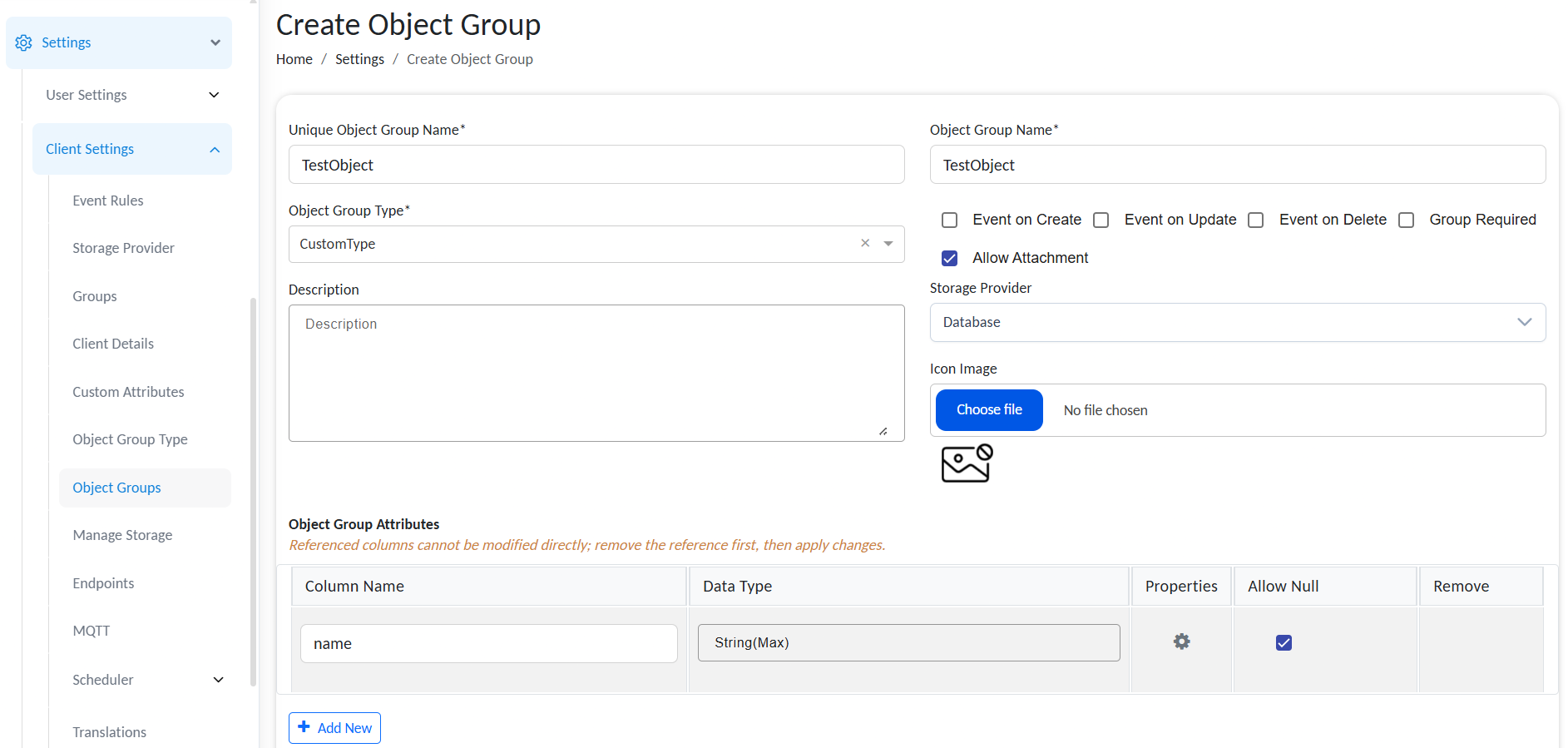
Enable Allow Attachment and select a Storage Provider
Once a storage provider is selected, all attachments added to objects in that Object Group are stored using the selected provider.
Attachment Storage Behavior
When Allow Attachment is enabled for an Object Group, Gateway uses the selected storage provider for attachment storage.
Example:
If an Object Group is configured with the storage provider Garage S3, then all attachments uploaded for objects in that Object Group are saved in the configured Garage S3 backend.
The Object Group keeps the attachment reference and metadata inside Gateway, while the actual file content is stored in the selected storage provider.
Changing the Storage Provider
If an Object Group already has attachments and the storage provider is changed, the existing attachments are not transferred to the new provider. As a result, those attachments may no longer be accessible from the Object Group.
Changing the storage provider of an Object Group does not automatically migrate existing attachments.
The files are not necessarily deleted immediately. However, Gateway will no longer resolve them through the Object Group because the Object Group now points to a different storage provider.
Depending on the configured data cleanup and retention settings, the old attachment data may still be recoverable for a limited time. Existing attachments can be manually migrated or retrieved from the previous storage location before they are removed by the cleanup process.
Recommended Practice Before Changing a Storage Provider
Before changing the storage provider of an Object Group that already contains attachments:
- Check whether the Object Group has existing attachments.
- Export or migrate the existing attachments from the current storage provider.
- Confirm the retention period configured in the Gateway data cleanup settings.
- Update the Object Group to use the new storage provider.
- Upload or relink the migrated attachments if needed.
- Verify that attachments can be opened or downloaded after the change.
Do not change the storage provider in production without confirming how existing attachments will be handled.
Data Cleanup and Retention
Gateway may retain temporary or old attachment data based on the retention period configured in the data cleanup section.
This retention period is important when a storage provider is changed, because existing attachment data may still be available in the old storage location for a limited time.
After the cleanup process removes the old data, recovery may no longer be possible through Gateway.
Administrators should review the data cleanup configuration before making storage provider changes.
Permissions and Access
Storage provider configuration should only be managed by authorized users.
Users must have the required permissions to create or modify storage providers and Object Groups. If attachment storage is enabled for an Object Group, the selected storage provider must be valid and accessible for the current client.
If the user does not have the required permission to use or configure a storage provider, Gateway may prevent the operation or show an authorization error.
Operational Notes
| Area | Recommendation |
|---|---|
| Connection testing | Always test the storage provider connection before using it in an Object Group. |
| Production changes | Avoid changing storage providers for active Object Groups without a migration plan. |
| Backup | Ensure the external storage backend is included in the customer backup strategy. |
| Credentials | Use dedicated access credentials with only the required permissions. |
| Retention | Review data cleanup settings before changing storage providers. |
| Monitoring | Monitor failed uploads/downloads after enabling external storage. |
| Naming | Use clear provider names, especially when multiple storage providers exist for the same client. |
Example Configuration Flow
A typical setup flow is:
- Administrator creates a storage provider named
Production S3. - The provider is configured with the required endpoint, bucket, access key, secret key, and region.
- The administrator tests the connection.
- An Object Group is created or updated.
- Allow Attachment is enabled.
Production S3is selected as the Object Group storage provider.- Users upload attachments to objects in that Object Group.
- Gateway stores the attachment file content in the configured storage provider.
Limitations
The current implementation supports storage providers for Object Group attachments.
Current limitations:
| Limitation | Description |
|---|---|
| No automatic migration | Changing the storage provider does not move existing files to the new provider. |
| Object Group scope | Storage provider usage is currently linked to Object Group attachments. |
| Cleanup dependency | Old attachment data may only be available until the configured cleanup retention period expires. |
| Manual recovery | Existing files may need to be manually migrated or fetched from the previous storage backend. |